Turning an Xperia Z3 Tablet Compact on LineageOS into a Photo Frame That Draws What You Ask For
 Contents
Last time, I installed LineageOS for microG 18.1 on an Xperia Z3 Tablet Compact (SGP611) and got it onto Wi-Fi.
This time I turned it into a photo frame that shows images and room CO₂ readings from my home servers all day, and draws a new picture when you talk to it.
If I touched the tablet carelessly in the middle of an experiment, I would lose track of what had actually happened, so I left the device alone the whole time.
Installing the app, changing settings, and taking screenshots were all done over ADB from a PC connected by USB.
Environment and setup
| Item | Details |
|---|---|
| Device | Xperia Z3 Tablet Compact SGP611 (Wi-Fi model) |
| OS | LineageOS for microG 18.1 (Android 11) |
| Screen | 1200×1920, density 320 |
| PC | Windows 11 Home |
| Display server | Python (standard library and Pillow) |
| App build | JDK 21.0.6 bundled with Android Studio, SDK Platform 34, Build Tools 36.0.0 |
Three servers are involved, and the display server is the one I built for this project.
| Server | Role |
|---|---|
| Voice chat server | The server I use to talk to StackChan. It also receives the CO₂, temperature, and humidity that StackChan measures |
| Image generation server | genserver. Generates images with Anima and other models on ComfyUI |
| Display server | New for this project. Runs on the PC, serves the screen to the tablet, and relays traffic to the other servers |
The voice chat server and the image generation server live inside my Tailscale network, but the tablet is not on Tailscale.
So I put the display server, which sits on the same LAN, in between and let it pass along only the traffic the tablet needs.
flowchart TD
  A["StackChan<br/>CO₂ sensor"] -->|sends readings| B["Voice chat server"]
  C["Display server (PC)"] -->|fetches readings| B
  C -->|requests images| D["Image generation server"]
  E["SGP611<br/>kiosk app"] -->|screen, recordings, replies| C
  C -->|relays conversations| B
Building the screen with sample data
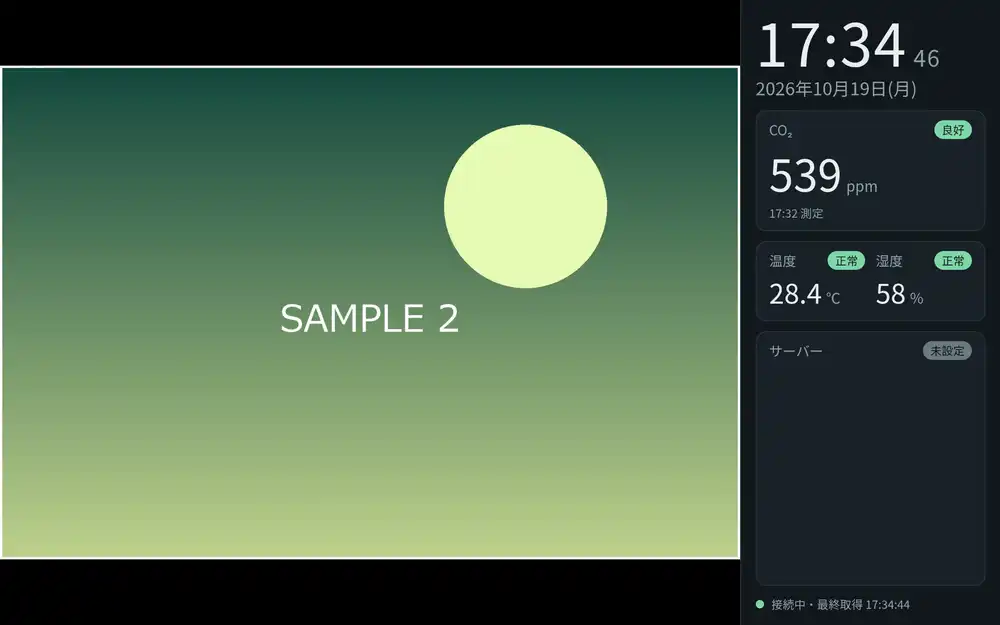
I started without any real data and worked out the layout with sample photos and values.
In landscape, the photo is on the left and the clock, CO₂, temperature, humidity, and server status are on the right. In portrait, the info panel moves below the photo.
While sample values were showing, the screen also said “Sample values, not measurements.”
The display server sends the tablet four things: the HTML for the screen, the list of photos, a JSON file with the value of each item, and the photos themselves.
Photos are rotated according to the orientation stored at capture time (EXIF) and converted to WebP with the long edge at 1920px or less before they are sent.
I first opened the page in Jelly, the stock browser. In landscape, the address bar ate into the height and the server panel was cut off at the bottom.
Scaling the font size to the screen height made everything fit, but the address bar and title bar could not be hidden.
They are just in the way on a photo frame that sits there all day, so I decided to write a full-screen app.
A full-screen WebView app
The app does nothing more than open a saved URL in a full-screen WebView.
It hides the status bar and the navigation bar and keeps the screen on while it is showing.
Since there are no external libraries, I skipped Gradle and built it by calling aapt2, d8, zipalign, and apksigner from the Android SDK and javac from the JDK directly from a Python script.
The first build failed in javac. LambdaMetafactory, which lambda expressions need, is not in android.jar, so I rewrote the lambdas as anonymous classes to get it through.
Coming back to the display after a reboot
To make the tablet go straight back to the display after a reboot, I registered the app as the home app.
Three things tripped me up around rebooting, and each was fixed with a command or an app-side setting.
| What happened | Fix |
|---|---|
Registering with pm set-home-activity left the tablet stuck on the home app chooser dialog after a reboot | Assign the home role to the app with cmd role |
| Setting the device to landscape did not survive a reboot | Lock the orientation to landscape in the app |
| On first launch, Android showed the “Viewing full screen. To exit, swipe down from the top” notice | Mark it as already confirmed with settings put secure immersive_mode_confirmations confirmed |
This is the command I used to assign the home role. After running it, the tablet returned to the display after a reboot without any taps.
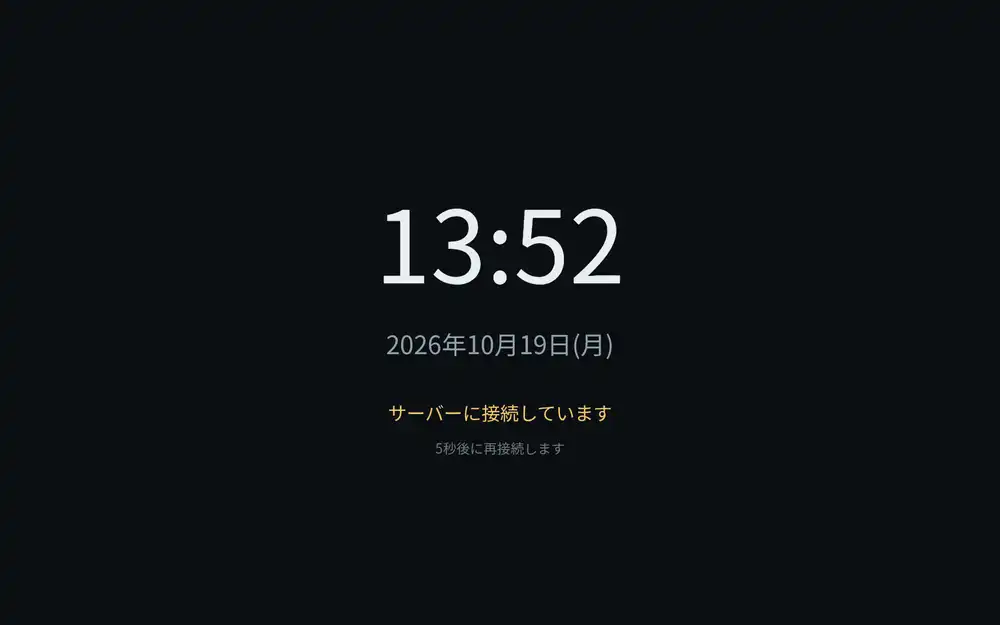
adb -d shell cmd role add-role-holder android.app.role.HOME io.github.hide3tu.kiosk 0A waiting screen when the server is down
Next, I rebooted the tablet with the display server stopped to see what happens when it cannot reach the server.
I changed how the app decides that the page “loaded successfully” twice.
| Attempt | How the app checked | Result |
|---|---|---|
| 1st | Treat the page-load-finished event as success | Only the cached HTML and CSS appeared, and the page sat there with its JavaScript not running |
| 2nd | Have the server send the screen files with a no-cache header, and check whether JavaScript is running 10 seconds after the page finishes loading | The load stalled while waiting for a connection, and the app was never told it had finished or failed, so the screen stayed black |
| 3rd | Check whether JavaScript is running 20 seconds after the load starts | If it is not, the app switched to a waiting screen bundled with the app |
Once on the waiting screen, the app reloads after 5 seconds, 10 seconds, 30 seconds, and every 60 seconds after that.
So if I start the display server on the PC later, the tablet goes back to the normal display without anyone touching it.
Heat when the screen is always on
Because the tablet stays on all day, I measured temperatures first.
I was also considering brightening the screen only when someone walks up to it, so I prototyped motion detection with the front camera and ran 30 minutes with the camera off and 30 minutes with it on.
For motion detection, the app opens only the front camera at its smallest preview size (176×144) and lowest frame rate.
Once a second, it divides the frame into a 16×12 grid and averages the brightness of each cell. If six or more cells changed a lot since the previous frame, it logs that as motion. No images are saved or sent anywhere.
Conditions were AC power, 100% battery, and auto-brightness, with the sample screen showing and nobody touching the device.
| Item | Camera off (30 min) | Camera on (30 min) |
|---|---|---|
| Battery temperature | Flat at 30.2–30.3°C | Kept rising from 30.3°C to 31.5°C |
| Highest CPU thermal sensor | 42–49°C, average 46.1°C | 43–52°C, average 47.3°C |
| CPU usage (400% = 4 cores) | About 27% | About 85% |
| Screen-offs and app crashes | 0 | 0 |
Even though the check runs only once a second, the camera pipeline keeps running as long as the camera is open, so CPU usage went up about three times.
The breakdown was mediaserver at 23%, system_server at 15%, the camera daemon at 11%, and sensor processing at 7%. The app itself used only 5%.
With the camera on, the temperature was still climbing at the 30-minute mark, so I extended the run to two hours.
Battery temperature leveled off around 31.5°C about 40 minutes after the camera was turned on and peaked at 31.6°C.
Later it dropped to 29.0°C, even though the app and camera were doing the same thing and the brightness had actually gone up. I did not measure room temperature, so I don’t know why it dropped.
Light sensor and an intermittent camera
Temperature looked fine, but with the camera kept open, CPU usage stays pinned around 85%.
I keep the lights on while I’m in the room and turn them off when I go to bed, so I switched to measuring room brightness with the light sensor and opening the camera only now and then while the room is lit.
These are the rules I set. Illuminance is in lux (lx).
| Condition | Action |
|---|---|
| Illuminance at or below 10 lx for 2 minutes | Turn the screen off and stop the camera |
| Illuminance back at 20 lx or above | Turn the screen on |
| While the room is lit | Open the front camera for about 4 seconds every 30 seconds to look for motion |
| No motion for a set time | Drop to minimum brightness |
| Screen turned off while charging in a lit room | Turn it back on after 3 seconds |
| Battery at 38°C or above | Stop the camera. Resume at 35°C or below |
| Battery at 40°C or above | Drop to minimum brightness. Restore at 35°C or below |
To turn the screen off, I used the screen lock from Android’s device administration (lockNow).
I had disabled the lock screen last time, so no lock screen appears when the screen comes back on.
To test without changing the lights, I temporarily set the threshold to 1000 lx so the room (about 131 lx) would count as dark.
The screen turned off two minutes later, but it did not come back on when I set the thresholds back to 10 lx and 20 lx.
Android’s light sensor sends an update only when the value changes. As long as the room brightness did not change, the app never re-evaluated, so I made it re-check against the last reading whenever the thresholds change.
Nobody showed up on camera
A while after installing that fix, I found the screen had dimmed.
Illuminance was still 131 lx, and the camera had seen no motion for 10 minutes, so the app had dropped to minimum brightness.
Nobody had come near the tablet that day, so zero detections was correct.
But where the tablet was placed at the time, people simply did not appear in the camera’s view, so I removed the dim-on-no-motion rule.
Turned off as if the power button had been pressed
Right after I installed the app, around 13:41, the screen had also turned off once.
dumpsys power showed power_button as the reason. Nobody had pressed the power button, and there was no cover on the tablet.
Checking input devices with getevent -pl, the only thing that can send a power key event is the physical power button (qpnp_pon).
There is also a magnetic sensor for covers, but if that had turned the screen off, the reason would have been lid_switch.
After that, I kept getevent running on the device to log power button events, but it never happened again, including during the heat measurements, and I never found the cause.
The “turn it back on after 3 seconds if the screen goes off while charging” rule in the table above is a safety net for this.
Using StackChan’s real CO₂, temperature, and humidity
StackChan sends readings from its CO₂ sensor (SCD41) to the voice chat server every 5 minutes, or sooner when a value changes a lot.
I made the display server fetch those values from the voice chat server and show them on screen.
Values older than 15 minutes are marked “stale,” and when no value is available the screen shows -- and “not available” rather than 0.
For the server status panel, I did not pick a data source and just show “not configured.”
Showing generated images
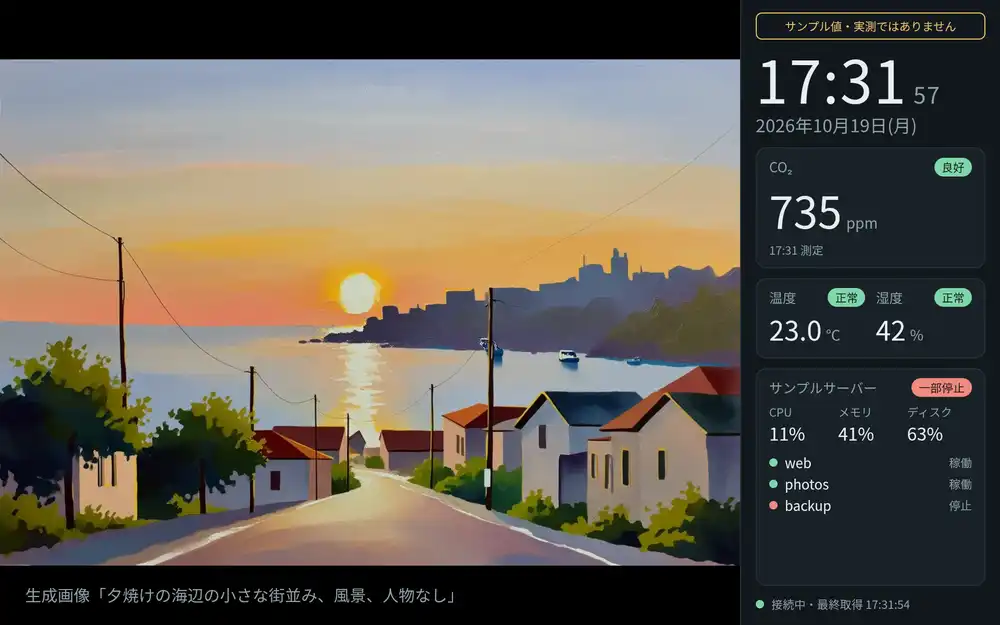
Next, I set it up so the image generation server draws a picture, saves it in the same folder as the photos, and the frame displays it.
Images are generated only when requested, never on a schedule.
When I asked from the PC for “a small seaside town at sunset, landscape, no people,” the image was ready in 69 seconds and appeared on screen.
The prompt used for generation shows in the lower left. The CO₂ and other values on the right were still samples at this point.
Kana-chan comes out dull
The image generation server has an option to use a LoRA trained to draw Kana-chan.
When I asked for “a picnic under a cherry tree in a park on a sunny day, smiling, bright sunlight,” a picture of Kana-chan came out in 48 seconds.
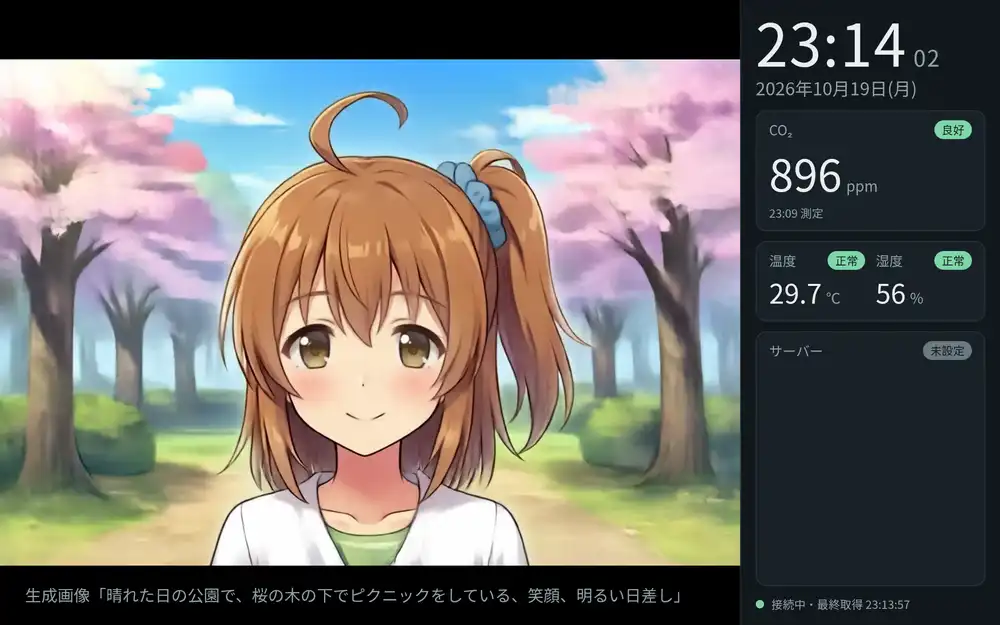
The colors were a little dull overall, though, so I tried switching to a prompt written for Anima to get a more dynamic, crisper picture.
The past prompts saved on the image generation server put the quality tags masterpiece, best quality, high quality, newest, year 2025, year 2024 first for Anima, followed by English tags and sentences.
The cherry blossom picture, on the other hand, came from a Japanese prompt that the image generation server had translated into English, rendered with a fast model that finishes in 8 steps. I changed that as follows.
| Item | Cherry blossom picture | After the change |
|---|---|---|
| Prompt | Japanese, translated to English by the image generation server | English tags, with the option to skip translation |
| Model | anima_turbo_lora (8 steps) | anima_quality (25 steps) |
| Color and line tags | None | vivid colors, high contrast, sharp lineart, cel shading, and so on |
| Generation time | 48 seconds | 220 seconds |
With these settings, I asked for a scene of her jumping with her arms spread. The blue sky and cherry blossoms came out deeper, and the lines were sharper.
However, the low-angle shot (from below) combined with the fluttering skirt (skirt flutter) made it a little too risqué for a frame in the living room, so I am not including that picture here.
Single image and slideshow
At first, the frame swapped photos every 60 seconds and, when a new image was ready, showed it for 5 minutes before going back to the slideshow.
But I don’t generate images back to back that often, so I made it possible to switch between flipping through pictures and keeping one picture up.
| Mode | Behavior |
|---|---|
| Single image (default) | Keeps showing the chosen picture. When a new image finishes generating, the frame switches to this mode and shows it |
| Slideshow | Swaps photos every 60 seconds |
The mode is saved on the display server, so it stays the same after the server or the tablet restarts.
Stopped when the PC went to sleep
At 17:37 that day, the PC went to sleep, and the display server running on it stopped too.
The tablet switched to the waiting screen, but the overnight test was cut off there. I had planned to log how the illuminance changed and when the screen turned off after the lights went out.
As long as the display server runs on the PC, the display stops whenever the PC does. I did not redo the overnight illuminance and screen-off check during the work covered in this post.
Talking to the tablet
Next, I tested whether the tablet’s microphone and speaker could hold a conversation with the voice chat server.
The display server relays only specific paths on the voice chat server: sending a recording, fetching the reply, and downloading the reply audio.
Other features, such as editing long-term memory, are not passed through.
The app has a test entry point, so sending am start from the PC starts a recording or playback.
adb -d shell am start -n io.github.hide3tu.kiosk/.MainActivity --es voicetest chatI hit three audio problems before I could speak and record properly.
| What happened | Cause | Fix |
|---|---|---|
| Volume went back to max on every boot | What sounded loud was probably system sounds and the charging sound, not music volume | Turn off all system sounds |
| The “beep” at the start of recording did not play | ToneGenerator produces no sound on this device | Play a sine wave generated with AudioTrack |
| The built-in mic level was low | The speech-recognition recording mode has no automatic gain control | Amplify before sending |
Volume going back to max
Even before the tests, the volume was at max every time the tablet booted. I was sure I had turned it down before powering off, yet it was loud again.
When I lowered the music and ringtone volume over ADB and rebooted, the values stayed.
But when I played the voice chat server’s filler audio for wait times, the voice was quiet while something like a system sound was loud.
In settings, touch sounds, screen lock sounds, the charging-start sound, and dial pad tones were all enabled.
The hardware volume buttons change only the music volume, not ringtone or notification volume.
What I had turned down before powering off was the music volume, and what sounded loud was most likely the system sounds and the charging sound.
I turned off all system sounds and set the music volume to 9 out of 25.
The start beep never played
To make it clear when recording starts, I first had Android’s ToneGenerator play a beep and then record for 6 seconds.
But ToneGenerator produced no sound on this device, so recording started without any cue.
The recording was almost silent, with a peak of -26.7 dBFS. dBFS is a level unit where 0 is the loudest sound digital audio can represent, and the more negative the number, the quieter the sound.
Even so, the transcription came back with a list of words like the 24 solar terms, public holidays, and “Kana-chan.”
The voice chat server passes hint words to the transcriber to help recognition. It seems that when there is no voice, those hint words come out as they are. It is the same output I got when I sent silence while building StackChan’s voice chat.
I changed the cue to an 880 Hz, 0.3-second sine wave generated with AudioTrack, and this time it played a “boop.”
I also extended recording to 15 seconds and showed “Recording” on screen. On the retry, “What time is it?” (asked in Japanese) was transcribed correctly.
The built-in microphone was still very quiet, though, with a peak of -23.8 dBFS.
The speech-recognition recording mode has no automatic gain control, so I made the app amplify the audio by up to 30 times, targeting a -6 dBFS peak, before sending it.
The “Recording” message was a small toast that disappears after about 3.5 seconds, and I missed it, so I relied on the beep to know when to start talking.
No answer about the weather
With transcription working, I connected the rest so the reply is played back sentence by sentence as audio. Recording is set to 8 seconds.
When I asked “What’s the weather in Tokyo today?”, the first sentence started playing 10.3 seconds after sending, and the reply finished at 19.7 seconds.
But the answer was “Sorry, I don’t know today’s weather in Tokyo. Try looking out the window or checking your phone.”
This was the same thing that happened when I asked StackChan about the weather. The problem was not the tablet but the voice chat server’s search.
I had the Claude instance running on the voice chat server’s PC look into it. Web search itself was working, but ModelScope’s search was not finding today’s Tokyo weather.
So on the voice chat server side, ModelScope’s search was dropped, and Qwen was given a tool that searches with ddgs, a Python library that collects results from several search services such as DuckDuckGo.
For the weather, it was rebuilt to fetch the Japan Meteorological Agency’s forecast JSON and put it into the prompt.
After the rebuild, the same question got a weather answer.
Tokyo is cloudy today, with rain in some places tonight. Temperatures will be around 20 to 27 degrees, and since rain is possible until evening, an umbrella would be a good idea.
The JMA Tokyo forecast JSON fetched at that point was the one issued at 17:00 on the 19th. The content at this URL is overwritten with every new forecast.
Compared with it, the 20th’s “cloudy, rain in some places until evening” and the 20°C and 27°C temperatures matched, but “rain in some places tonight” was the text for the 19th.
I asked around 1 a.m., before the next forecast was issued, so the first entry in the forecast was still the previous day’s. That seems to be how the previous day’s text and the current day’s got mixed.
On the voice chat server side, the fix was to remove forecasts whose period had already ended before passing them to the LLM.
Next I said “Get me the latest news list from Yahoo News.” The reply ended after one sentence, “I can’t get the latest Yahoo News articles, so I’ll search for the latest news and tell you instead,” and no news came back at all.
When Claude looked into this one too, Qwen had said “I’ll search and tell you” while declining to open the site, then ended the reply without calling the search tool.
I covered the search rebuild in a separate post.
Asking for a picture by voice
Finally, I made it possible to ask for a picture by voice.
Qwen on the voice chat server decides whether someone is asking for a picture and writes the prompt. The display server handles image generation and switching the display.
| Component | What it does |
|---|---|
| Voice chat server | Gives Qwen a drawing tool only for conversations coming from the tablet. When the tool is called, it adds an English prompt, whether to draw Kana-chan, and whether to use the fast model or the sharper model to the reply |
| Display server | Tags conversations from the tablet when relaying them. If the reply contains drawing instructions, it passes them to the image generation server and switches to single-image mode when the picture is ready |
Conversations from StackChan, which has no screen, do not get this tool. That avoids the situation where it answers “Draw this” with “Sure, drawing it now” and no picture appears anywhere.
The tool description includes the prompt style that produced the sharp picture earlier. When drawing Kana-chan, Qwen does not write her appearance and leaves that to the description the image generation server adds.
I also made it handle requests to change the picture currently on display.
When a generated picture is showing in single-image mode, the display server sends that picture’s prompt along with the conversation. If you say “make it brighter,” Qwen edits that prompt and draws again.
During the slideshow, the display server does not track which picture is showing, so it sends no prompt and the request is treated as a new drawing.
For the voice chat server changes, I wrote up what I wanted in a document and had the same Claude implement it.
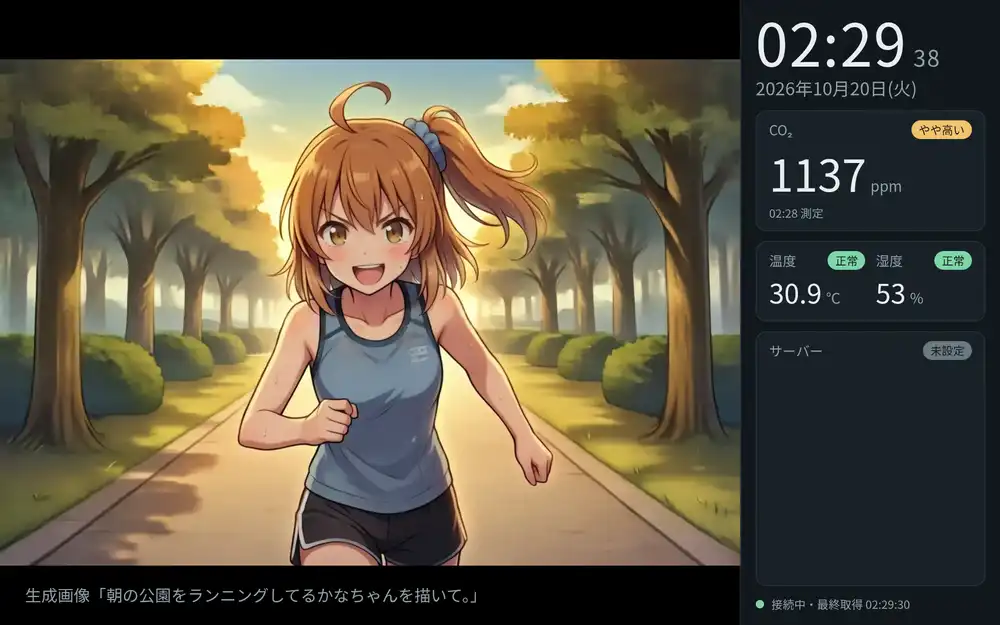
I sent the start-recording command from the PC and told the tablet, “Draw Kana-chan jogging in the park in the morning.” It replied, “I’ll start drawing Kana-chan running in the morning park, and I’ll put it on the screen when it’s done.”
The prompt Qwen wrote, such as 1girl, solo, running, dynamic pose, morning park, followed the Anima style and did not describe Kana-chan’s appearance.
The picture was ready 40 seconds after the generation request, and the screen switched about 50 seconds after I finished speaking.
At first the caption in the lower left showed the English prompt as is. The tablet’s page was still running an old script, and after a reload it showed the transcribed sentence.
For redrawing, I confirmed in tests on the voice chat server side that “make it brighter” returns the original prompt with bright sky and sunlight tags added. At this stage I prioritized getting everything working roughly end to end, and left redrawing by talking to the tablet for the full end-to-end check.