Installing LineageOS for microG 18.1 on an Xperia Z3 Tablet Compact SGP611 from Windows 11
 Contents
I wanted to reuse an old Xperia Z3 Tablet Compact (SGP611, Wi-Fi model) as a display for my home server.
The server handles image generation and sensor data, and the tablet only needs to show images and readings such as CO₂.
When I powered it on, the stock Android 6.0.1 was surprisingly responsive and connected to Wi-Fi without trouble. But Google Play Store error dialogs kept popping up.
I considered keeping stock Android and using it only as a display, but with errors this frequent it was not usable, so I decided to replace the OS. Everything below was done from a Windows 11 PC.
Environment
| Item | Details |
|---|---|
| PC | Windows 11 Home |
| ADB | platform-tools from a previously installed Android SDK (Version 36.0.0-13206524) |
| Python | 3.14 |
| PowerShell | 7.6.6 |
| Device | Xperia Z3 Tablet Compact SGP611 (Wi-Fi model) |
| OS installed | LineageOS for microG 18.1 (build dated April 10, 2026) |
ADB is the tool for sending commands to an Android device over USB. It was not on my PATH, but it was still in an Android SDK I had installed earlier, so I used that copy.
& "$env:LOCALAPPDATA\Android\Sdk\platform-tools\adb.exe" versionAndroid Debug Bridge version 1.0.41
Version 36.0.0-13206524Checking whether the bootloader can be unlocked
I first talked it over with ChatGPT and settled on LineageOS 18.1 (an open-source Android distribution, based on Android 11).
The plan was a light, browser-centric setup without Google Apps.
Replacing the OS requires unlocking the bootloader (the program that runs before the OS and controls booting) first. Whether a unit can be unlocked is shown as Bootloader unlock allowed in the service menu.
ChatGPT’s first answer told me to enter the service code from the Phone app, which does not work on a Wi-Fi-only tablet.
ChatGPT later corrected this to a method that goes through the Contacts app, and I confirmed Bootloader unlock allowed: Yes (permission to unlock, not an unlocked state). Sony’s bootloader unlock page also describes entering the service code from the Contacts app’s settings screen.
ADB did not see the device
& "$env:LOCALAPPDATA\Android\Sdk\platform-tools\adb.exe" devices -lAt first, nothing appeared after List of devices attached.
An Android device exposes MTP (file transfer) and ADB as separate USB interfaces. Windows recognized the SGP611 only as an MTP USB device, and no ADB interface showed up.
| When | USB ID | How Windows recognized it |
|---|---|---|
| First check | VID_0FCE&PID_01C0 | MTP only, wpdmtp.inf |
| After ADB connected | VID_0FCE&PID_51C0 | MTP MI_00 and ADB MI_01 |
After I checked Developer options and the USB debugging authorization on the tablet and ran the command again, ADB showed device.
I did not add any driver on the PC side; the ADB interface was handled by Windows’ built-in winusb.inf.
Model and build number
I pulled the model and build number over ADB.
| Item | Value |
|---|---|
| Model | SGP611 |
| Android | 6.0.1 |
| Security patch | 2016-05-01 |
| Build number | 23.5.A.1.291 |
| CPU ABI | armeabi-v7a |
| Encryption state | unencrypted |
| Customization | 1290-3028 / R3D |
ro.boot.verifiedbootstate and ro.boot.flash.locked were empty, so they could not tell me the bootloader lock state.
The Google Play Store error on stock Android
When I opened the device info screen and took a screenshot, the Google Play Store error happened to be on screen.
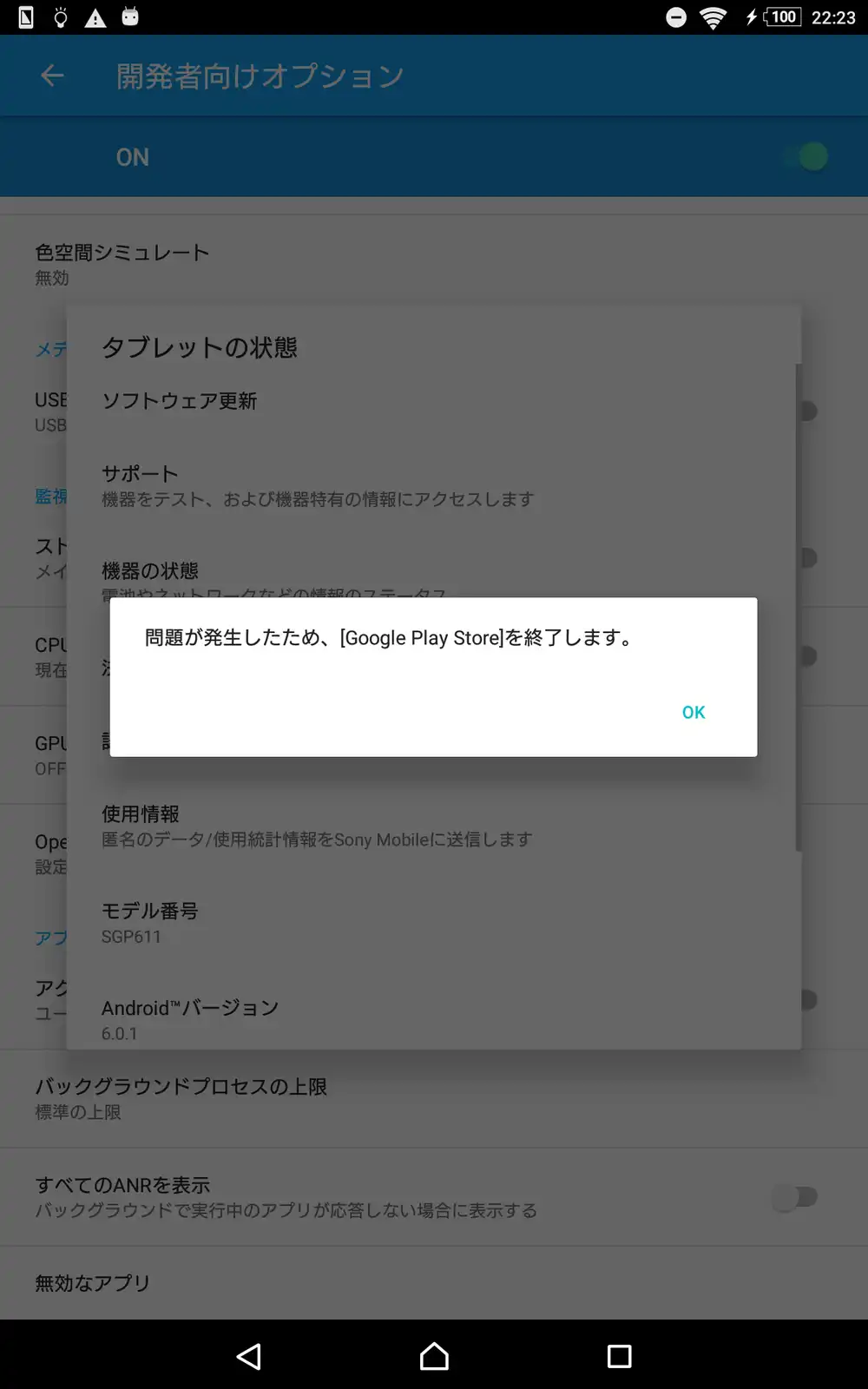
After I pressed OK, the device info showing SGP611 and Android 6.0.1 appeared.
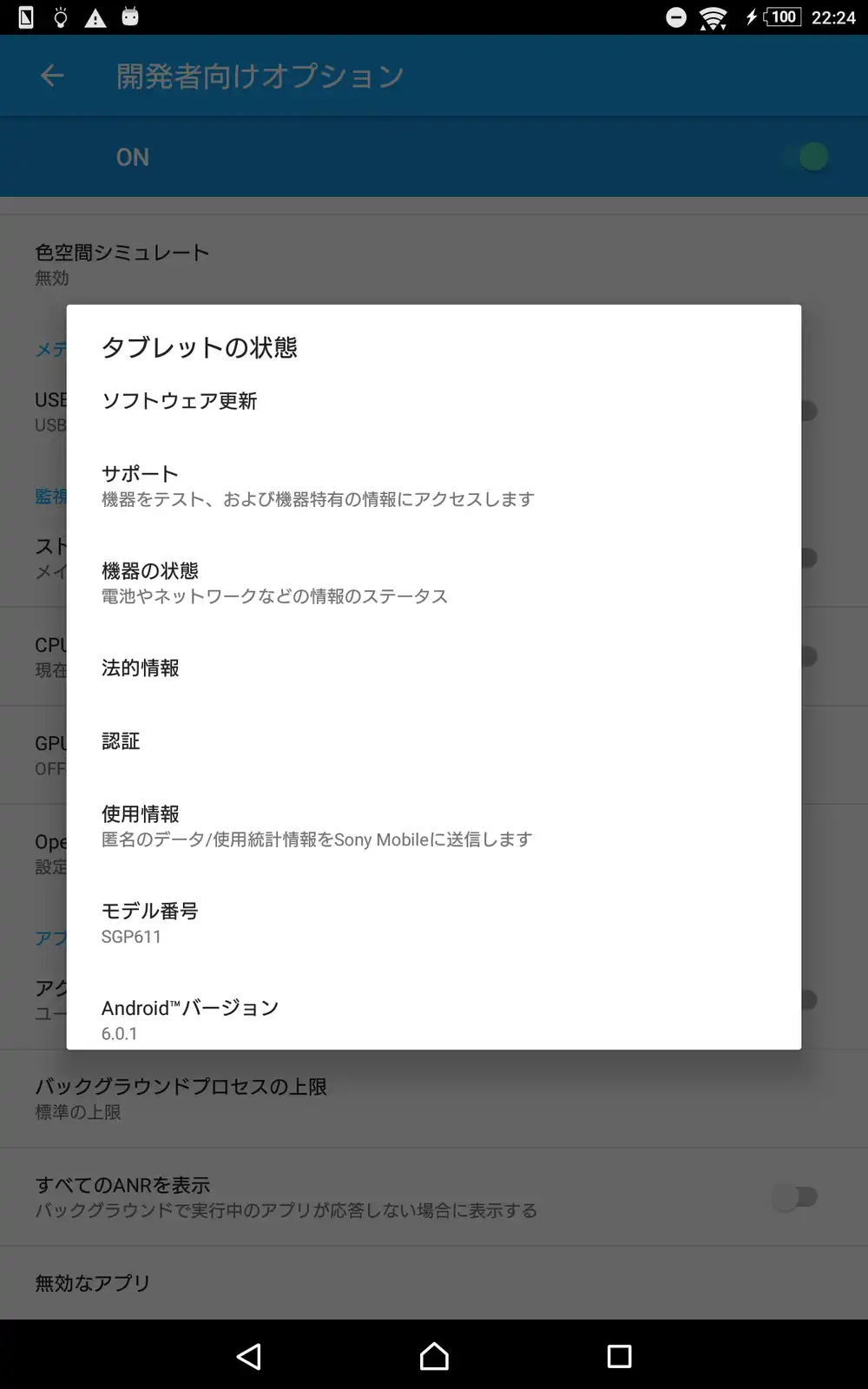
When I scrolled down to capture the build number, the same error came back.
The screenshots were taken with adb -d exec-out screencap -p, and I saved the output as raw binary from Python so that it would not go through PowerShell’s text conversion.
MOTO+4’s SGP611 install log
MOTO+4 has documented installing LineageOS on the SGP611 in an install log (Japanese). It installs the microG build of LineageOS 18.1; microG is an open-source reimplementation of Google’s apps and libraries.
That procedure, though, removes the device check in the ROM’s install script (the step that confirms the target is a supported model at install time) and also adds Google Apps, so I looked for a build that could be installed with the device check intact.
LineageOS for microG 18.1 downloads
The LineageOS for microG download page for the SGP611 had a ROM built on April 10, 2026, plus boot and recovery images from the same build.
The boot image is what starts the OS, and the recovery image is an environment used for installing the OS and wiping the device. Both are written to partitions (sections of the storage).
| File | Size |
|---|---|
lineage-18.1-20260410-microG-z3tcw.zip | 640,987,602 bytes |
lineage-18.1-20260410-microG-z3tcw-boot.img | 8,040,448 bytes |
lineage-18.1-20260410-microG-z3tcw-recovery.img | 14,647,296 bytes |
The same project also has a download location for builds without microG, but z3tcw was not in that list.
Since the tablet will mostly run a browser, I did not add the Google Play Store or GApps (the Google app bundle) and used the build as distributed, following the project page.
All three files matched the SHA-256 hashes (values computed from the file contents) published by the download site.
Verifying the ROM signature and metadata
The installation wiki also explains how to check that the ROM ZIP carries the project’s signature.
I cloned the official update_verifier and first tried to install its packages exactly as listed in requirements.txt.
git clone --depth 1 https://github.com/lineageos4microg/update_verifier.git .tools/update_verifier
python -m venv .tools/verifier-venv
.tools/verifier-venv/Scripts/python.exe -m pip install -r .tools/update_verifier/requirements.txt
With Python 3.14 on this PC, pip did not use a prebuilt package (wheel) for the pinned cffi==1.17.1, asked for a C++ build environment, and failed.
I left the verifier script untouched and installed packages that have Python 3.14 wheels into the same virtual environment.
.tools/verifier-venv/Scripts/python.exe -m pip install --only-binary=:all: asn1crypto==1.5.1 cryptographyThis installed asn1crypto 1.5.1, cryptography 50.0.2, cffi 2.1.1, and pycparser 3.11, and the signature check with the public key passed.
verified successfullyThe ROM’s pre-device field (the list of target devices) contains z3tcw,scorpion_windy,SGP611,SGP612, and the install script’s device check also includes SGP611. The boot.img inside the ZIP was identical to the separately distributed boot image.
The date in the file name, April 10, 2026, is the build date. In the ROM metadata, post-security-patch-level is 2024-02-05, and post-sdk-level is 30, the API level of Android 11.
DRM keys and backing up the TA partition
The tablet is old and had nothing important on it, so I decided to wipe it without carrying over photos or wallpapers.
Sony devices, however, have DRM keys (device-specific keys used for copy protection and similar features), stored in the TA partition, separate from user data such as photos.
Sony’s official FAQ states that unlocking the bootloader triggers a factory reset and that the DRM keys cannot be restored.
I tried to access the TA, boot, and FOTAKernel paths over ADB, but the ADB shell had no root access and returned Permission denied, so I could not back up the TA partition.
Getting the unlock code from Sony
ro.boot.idid, readable over ADB, held a 14-character IDID (a device identifier). Sony’s unlock code form accepts this IDID in place of an IMEI.
On the form I selected Xperia Z3 Tablet Compact and entered the IDID. I checked the two warranty-related boxes, pressed Submit, and solved the CAPTCHA by hand. There was no step that required sending an email to get the code.
Fastboot did not see the device
The unlock command is sent in Fastboot mode (the mode where the PC tells the bootloader to flash or boot images).
But after I rebooted the tablet into Fastboot, the device list was empty.
adb -d reboot bootloader
fastboot devices
Windows showed S1Boot Fastboot with USB ID VID_0FCE&PID_0DDE and error Code 28: no driver was installed for it.
I downloaded Sony’s official driver for this model and inspected it. Its signature was valid.
However, its INF (the file that lists which hardware a driver supports) only contained ADB IDs, not the Fastboot PID_0DDE.
Windows’ built-in winusb.inf includes a Microsoft ADB device entry, and the signature on WinUSB.sys was valid as well.
I decided to assign this WinUSB driver to the connected Sony Fastboot interface only. Without editing any INF, I used the Windows DiInstallDevice API to assign the driver already present in Windows to that device.
I wrote a script that targets only the USB ID of the connected device and first ran it in a mode that only lists candidates without applying anything.
At first no candidate appeared, so I added the option that also enumerates hidden PnP drivers.
The script was also looking for the English name ADB Device, which did not match ADB デバイス on Japanese Windows, so I fixed the matching. After that, the candidate showed up.
Available: Microsoft / ADB デバイス; no driver installed.Applying the driver with administrator rights
Applying the driver requires administrator rights.
The first time, I launched a separate process with a UAC prompt (Windows’ dialog for granting administrator rights), and Windows returned “The operation was canceled by the user,” so nothing was applied.
Running the apply command from a normal PowerShell 7.6.6 window also hit the script’s administrator check and returned this error.
Driver installation requires an elevated PowerShell process.It was a privilege issue with the process, unrelated to the PowerShell version. I launched a separate process with a UAC prompt again and ran the same script.
Start-Process -FilePath 'C:\Program Files\PowerShell\7\pwsh.exe' `
  -Verb RunAs -WindowStyle Hidden `
  -ArgumentList @('-NoProfile', '-File',
    '<working-folder>\scripts\Install-FastbootDriver.ps1',
    '-Install') -Wait
This time the driver was applied, and no PC restart was needed.
Installed: Microsoft / ADB デバイス; restart required: FalseThe Code 28 on S1Boot Fastboot went away, the device appeared in fastboot devices, and fastboot getvar product returned SGP611.
getvar unlocked, however, was blank, and the sizes and types of boot and FOTAKernel were blank too. fastboot oem device-info got no response for 15 seconds and timed out.
Where recovery lives
I extracted the downloaded recovery image and checked system/etc/recovery.fstab.
/dev/block/bootdevice/by-name/boot        /boot       emmc
/dev/block/bootdevice/by-name/FOTAKernel  /recovery   emmc
In this build, /recovery is mapped to FOTAKernel, so recovery has to be written to FOTAKernel.
Temporarily booting recovery dropped the USB connection
Before writing anything to a partition, I tried booting recovery temporarily.
fastboot boot downloads/lineage-18.1-20260410/lineage-18.1-20260410-microG-z3tcw-recovery.imgSending 'boot.img' (14304 KB) OKAY [0.503s]
Booting FAILED (Status read failed (Too many links))
fastboot: error: Command failedThe image was sent, but reading back the boot result failed, and the tablet disappeared from USB. Both the ADB and Fastboot device lists were empty.
At that point I could not tell whether it had powered off or had stalled after failing to boot.
About nine minutes later, MTP and ADB came back, and the original stock Android had booted.
| Item | Value |
|---|---|
| Model | SGP611 |
| Android | 6.0.1 |
| Build | 23.5.A.1.291 |
| Boot completed | sys.boot_completed=1 |
From here on, I stopped touching the device and operated it only from the PC.
I opened the service menu over ADB and closed the error dialogs with ADB tap commands. Along the way, an error from Sony’s camera app showed up in addition to the Google Play Store one.
I confirmed Service info → Configuration → Bootloader unlock allowed: Yes once more and rechecked the SHA-256 of the ROM, boot, and recovery files.
Unlocking the bootloader
Knowing that the device would be wiped and the DRM keys could not be restored, I unlocked it with Sony’s official unlock code.
Before sending the command, I checked that the connected device’s serial number matched the value I had noted earlier and that Fastboot reported product as SGP611.
adb -d reboot bootloader
fastboot oem unlock 0x<device-specific-unlock-code>
The unlock command returned OKAY and took 5.924 seconds.
Booting Lineage Recovery
Recovery normally lives in FOTAKernel, but to boot into recovery for now, I wrote the recovery image to the boot partition.
That boot partition is overwritten with the OS boot image later when the ROM ZIP is installed.
fastboot flash boot downloads/lineage-18.1-20260410/lineage-18.1-20260410-microG-z3tcw-recovery.img
fastboot reboot
Both sending and writing returned OKAY, and after the reboot I was able to connect over ADB in the recovery state.
The USB ID changed to VID_18D1&PID_D001, but Windows recognized it without any extra driver. The screen showed Lineage Recovery 18.1.
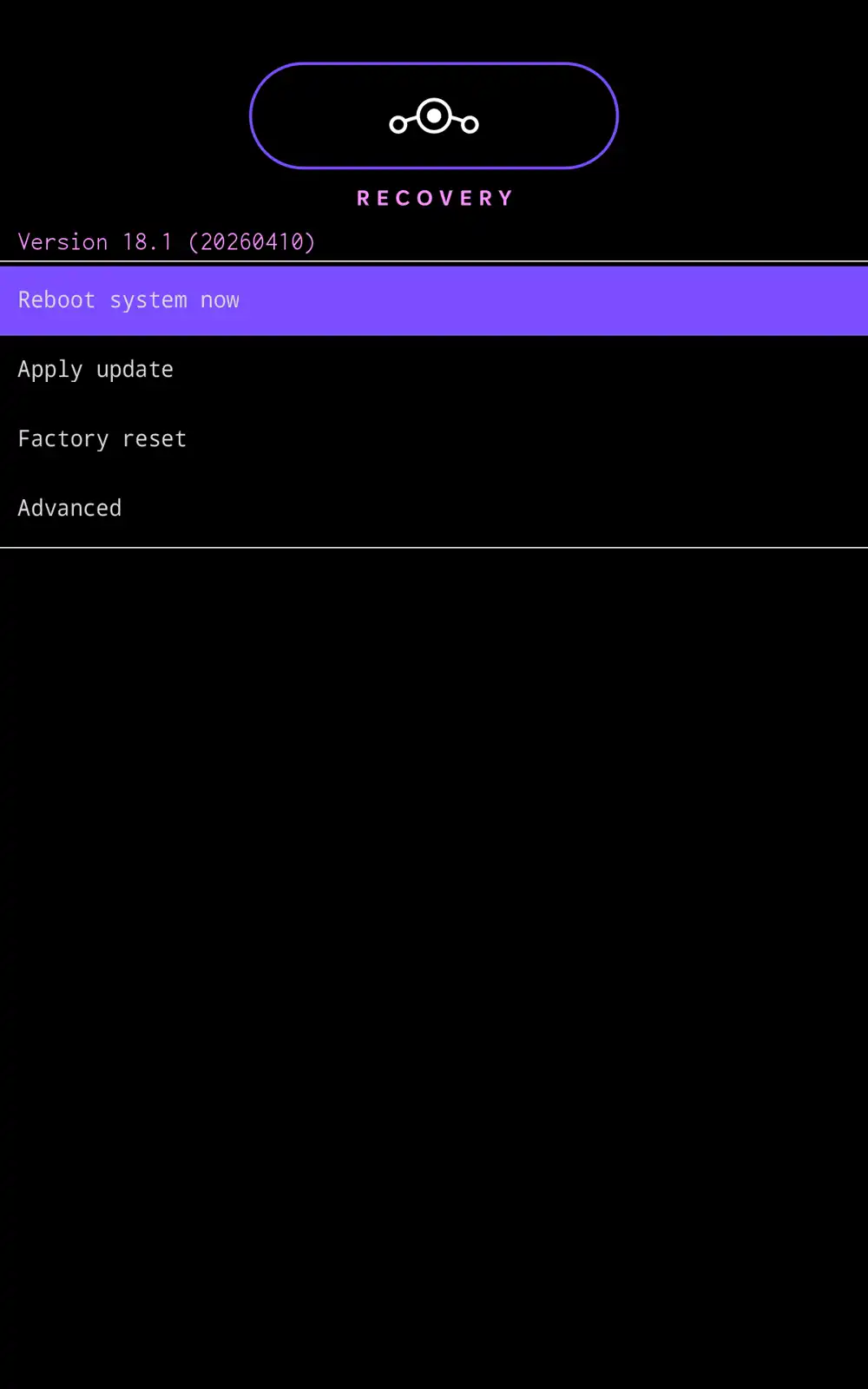
The recovery ADB shell ran as root. ro.product.device returned z3tcw, and the Lineage version property returned 18.1-20260410-microG-z3tcw. The Android version also came back as 11, but that value belongs to recovery itself.
Driving recovery from the PC
The screencap and input commands I had used on stock Android were not available in recovery.
I read the screen from /dev/graphics/fb0 (the framebuffer holding the screen’s pixel data) and converted it to PNG.
The framebuffer was 1200 px wide with a virtual height of 3840 in memory, enough for two 1920 px screens. The stride (bytes per row) was 4864, and the format was 32-bit RGBA.
One of the two screens was sometimes black or still showed the previous menu, so I saved both and checked their contents.
For input, I sent volume and power key events with sendevent.
On this device, the volume keys were /dev/input/event4 and the power key was /dev/input/event2.
Wiping data and cache
In recovery, I opened Factory reset → Format data/factory reset and selected Format data on the confirmation screen, using key events sent from the PC.
The log showed /data recreated as F2FS and /cache as ext4 (both are file system types), ending with Data wipe complete.
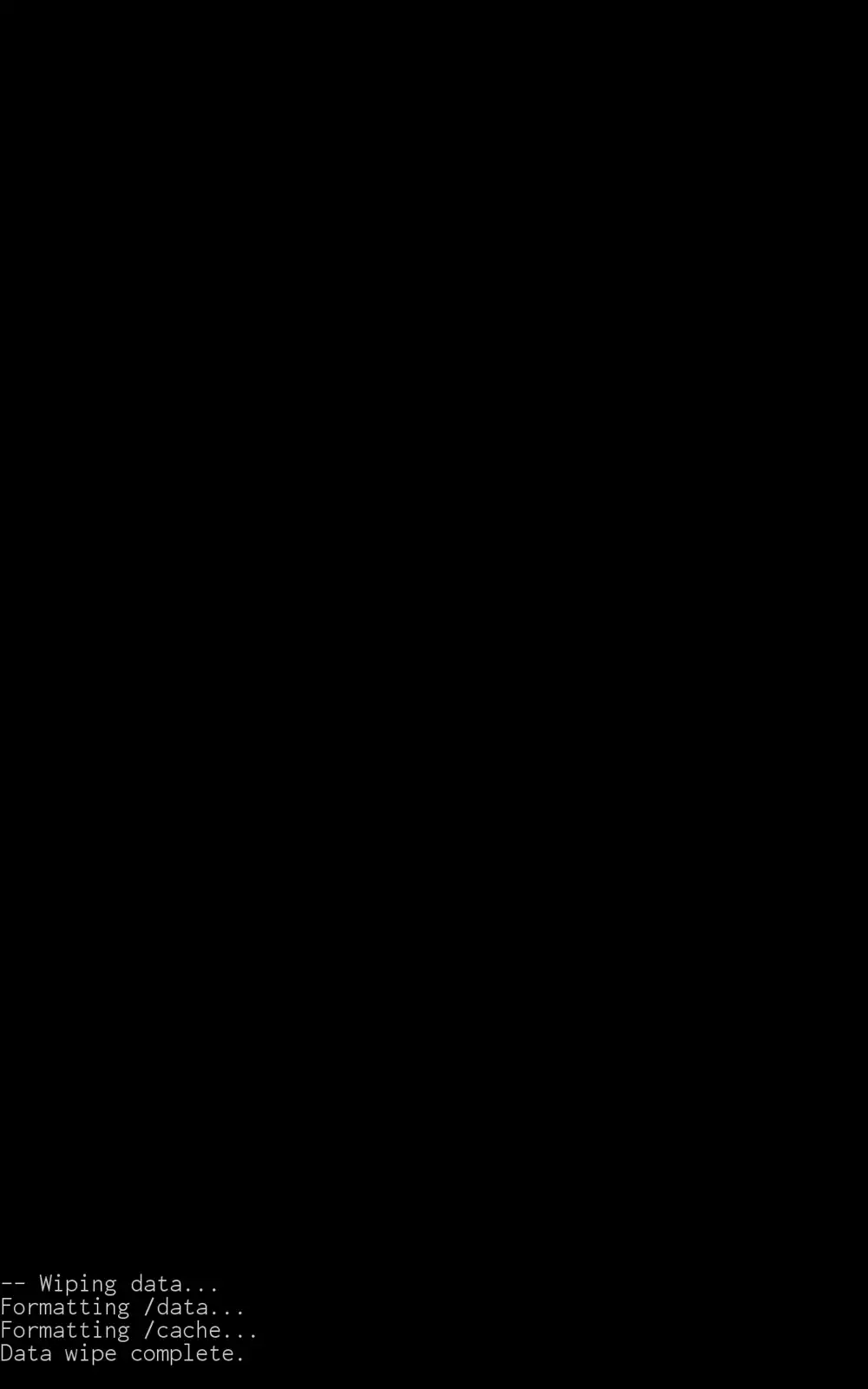
Writing recovery to FOTAKernel
Before writing, I read the original contents of FOTAKernel back to the PC and saved them. That backup covers only this 16 MiB partition; the TA partition from before the unlock and the full stock firmware were not backed up.
I wrote the same recovery image to FOTAKernel as well, so that I could get into recovery from the PC later.
adb -d reboot bootloader
fastboot flash FOTAKernel downloads/lineage-18.1-20260410/lineage-18.1-20260410-microG-z3tcw-recovery.img
fastboot reboot
This also returned OKAY, and the write took 1.517 seconds.
adb sideload errored out partway
Back in recovery, I opened Apply update → Apply from ADB and sent the signature-verified ZIP, unmodified, with sideload (sending a ZIP to recovery over ADB for installation).
adb -d sideload downloads/lineage-18.1-20260410/lineage-18.1-20260410-microG-z3tcw.zipAround midnight, as the date turned to October 19, the progress on the PC stopped at 47%, and the command exited with code 1.
adb: failed to read command: No errorHowever, when I reconnected to recovery over ADB and checked the device-side log, the installation itself had succeeded.
Signature verification had passed, and the package verification result was 48.8 s (result 0). The screen showed script succeeded: result was [1.000000].
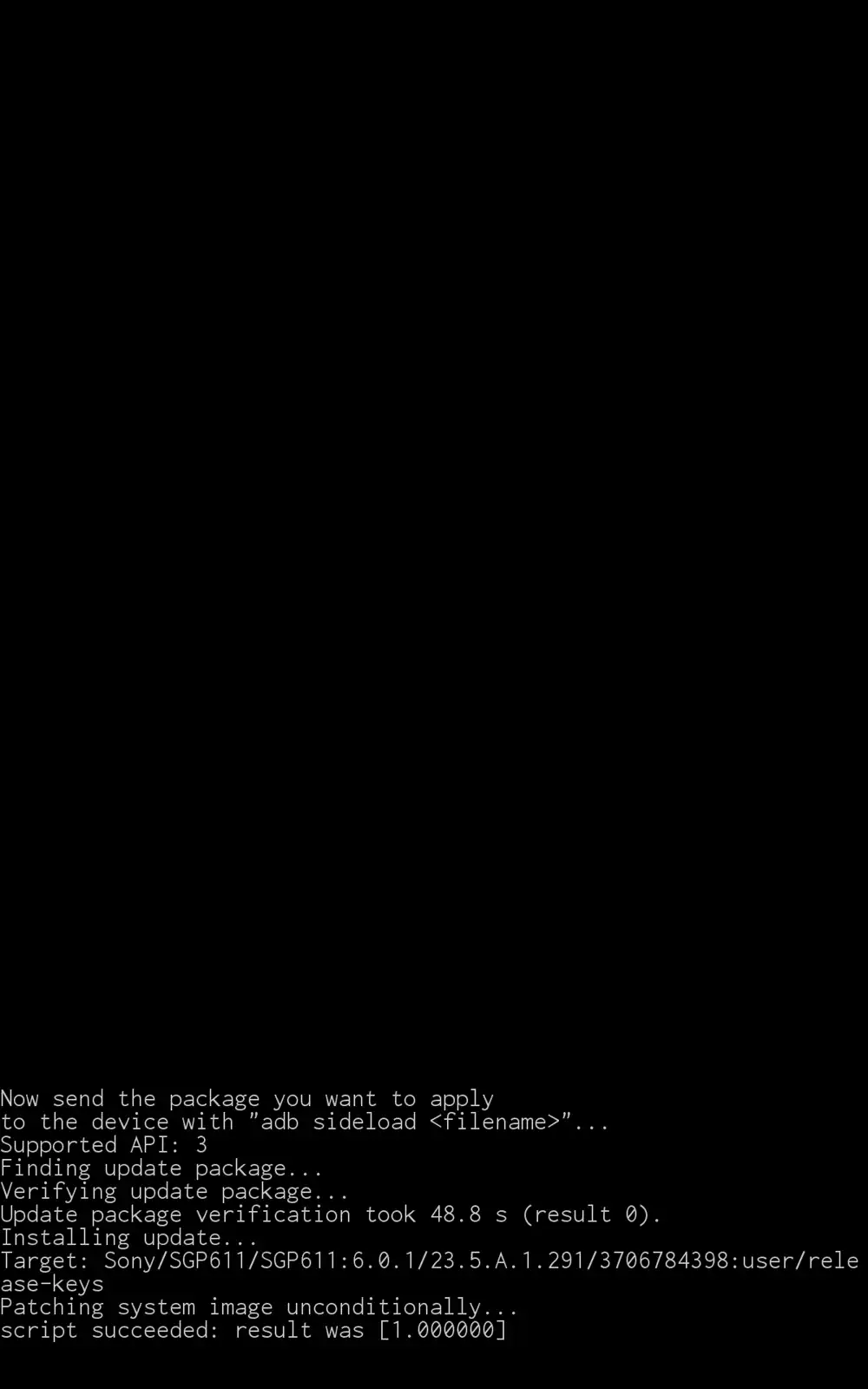
In the log, the number of blocks written to system and the expected number were both 378971, the install took 152 seconds, and there were zero retries.
Because this contradicted the exit code on the PC, I read the boot partition back to the PC and compared the SHA-256 of the portion matching the length of the distributed boot image.
I compared FOTAKernel the same way, and both matched the distributed files.
When I mounted system read-only, the files were under /mnt/system/system/.
I first tried to open /mnt/system/app and failed, then fixed the path and was able to inspect build.prop and the app list.
build.prop showed Android 11 and Lineage 18.1-20260410-microG-z3tcw.
Under /system, there were directories for Jelly (LineageOS’s default browser), webview, GmsCore (the core of microG), and FakeStore (a stand-in app that makes it look as if the Play Store is installed).
To keep PC access after the first boot, I placed the PC’s ADB public key in the freshly wiped data partition and rebooted at 00:02:59.
First boot into Android 11
At 00:04:02, sys.boot_completed=1 was set. This property signals that boot has completed, and it came about 63 seconds after I sent the reboot.
| Item | Shown after boot |
|---|---|
| Model | Xperia Z3 Tablet Compact Wifi |
| Android | 11 |
| Lineage | 18.1-20260410-microG-z3tcw |
| Security patch | 2024-02-05 |
The screen showed Lineage’s setup wizard.
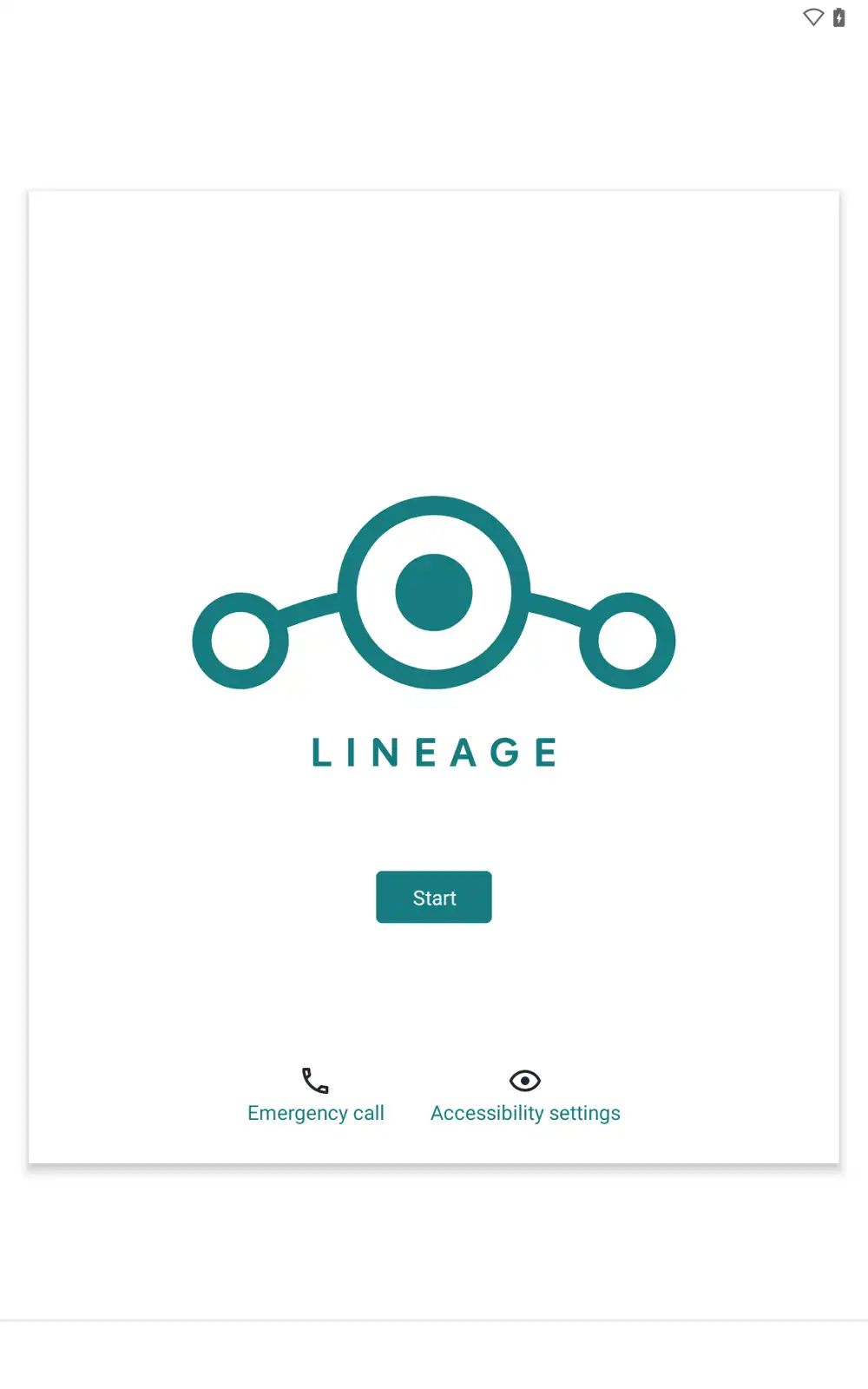
Partway through setup, the screen went black and swipes sent over ADB stopped having any effect.
Checking the power state showed the screen had simply turned off after the 60-second timeout; the device was still on.
I first used svc power stayon usb to keep the screen on while powered over USB, but this ROM treated the PC connection as AC power.
After changing stay_on_while_plugged_in to 3, which covers both AC and USB, and sending a wake key, input started working again.
Finishing setup in Japanese
Flicking the language list over ADB did not let me select Japanese.
I set the locale and time zone over ADB and restarted zygote (the process Android apps are spawned from), and the setup wizard came back in Japanese.
adb -d shell settings put system system_locales ja-JP
adb -d shell setprop persist.sys.locale ja-JP
adb -d shell cmd alarm set-timezone Asia/Tokyo
adb -d shell setprop ctl.restart zygote
Even on the Wi-Fi-only SGP611, a “No SIM card” screen appeared, but I was able to skip past it.
I skipped Wi-Fi setup at this point, turned off location and diagnostic data, and skipped screen lock and data restore.
The completion flags user_setup_complete=1 and device_provisioned=1 were set, and the home screen was in Japanese.
The clock was still at the ROM build date of April 10, 2026, so I set it to the PC’s current time with cmd alarm set-time to match Japan time.
I also checked the OS information on the version screen.
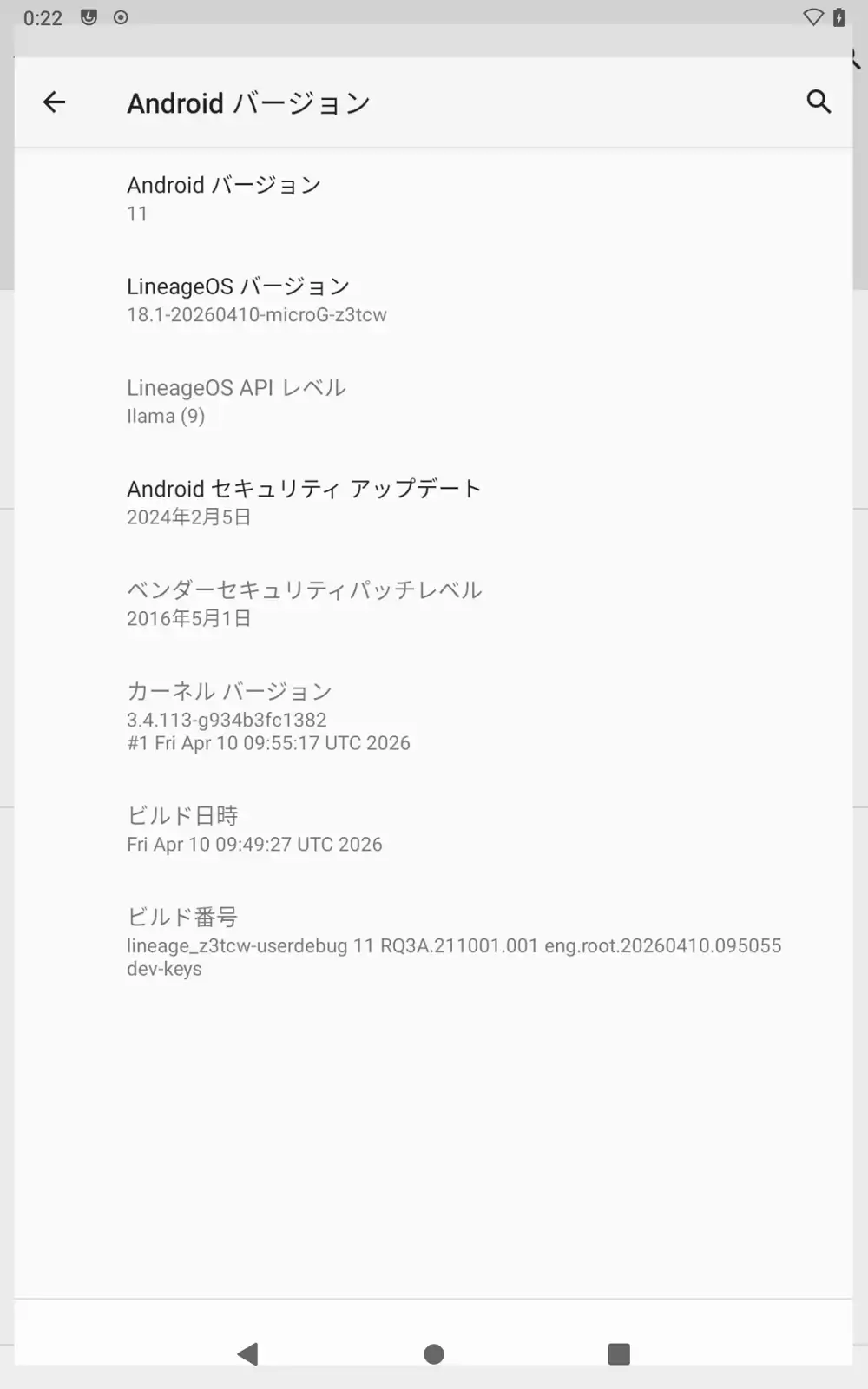
The Android security patch was February 5, 2024, while the vendor patch was May 1, 2016, the same as on stock.
The package com.android.vending, which is the Google Play Store’s package name, was actually FakeStore.apk.
Showing a test page in Jelly
I checked whether the default browser, Jelly, could display a page. I served just a test HTML file and a JSON file from localhost on the PC and opened it on the tablet through adb reverse (which forwards a port on the device to the PC).
adb -d reverse tcp:<port> tcp:<port>
adb -d shell am start -a android.intent.action.VIEW -d http://127.0.0.1:<port>/ -p org.lineageos.jelly
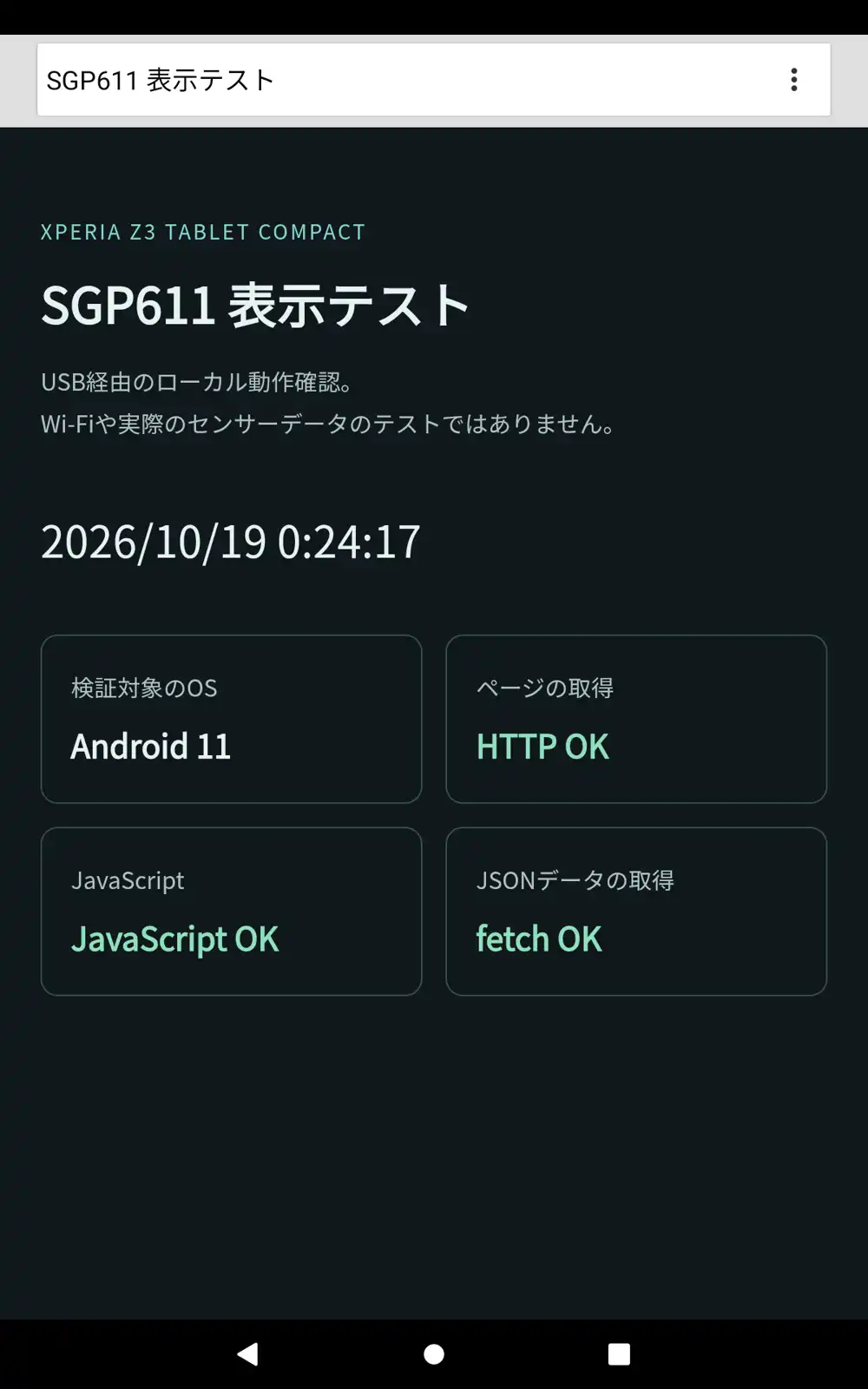
The Japanese page rendered, and the JavaScript clock updates and the JSON fetch both worked.
The log of the test server on the PC also showed HTTP 200 (a normal response) for both the HTML and the JSON requests.
Reboots and the lock screen
Sending adb reboot recovery from the OS took me into the Lineage Recovery I had written to FOTAKernel, without rewriting the boot partition.
From there, adb reboot brought me back to the OS, and I confirmed that the boot completed.
| Item | After reboot |
|---|---|
| Language | Japanese |
| Time zone | Asia/Tokyo |
| Setup | Still complete |
| Clock | About -0.5 seconds off from the PC |
| Keep screen on while plugged in | Still enabled |
| Battery | 100%, 31.3°C |
| WebView (the component apps use to render web pages) | 146.0.7680.153 |
FATAL EXCEPTION in the crash buffer (records of apps crashing) | 0 before and after the reboot |
However, even without a PIN, a swipe-to-unlock lock screen appeared after the reboot.
To get to the home screen without touching the device, I disabled the lock screen.
adb -d shell locksettings set-disabled true
adb -d shell wm dismiss-keyguard
After another reboot, I could open the Android version screen from the PC without sending any unlock input.
Wi-Fi connection
After Wi-Fi was connected, I checked the device state from the PC.
adb -d shell dumpsys wifi
adb -d shell ip -4 addr show wlan0
adb -d shell ip -4 route
adb -d shell ip -4 route show table all
adb -d shell dumpsys connectivity
wlan0 (the Wi-Fi network interface) had an IPv4 address, and the network state was CONNECTED. It also carried VALIDATED, Android’s mark that internet connectivity has been confirmed.
The first ip -4 route showed no default route (the route used to reach outside networks), but listing all tables revealed the default route on wlan0.