HP Sprocket 200 over RFCOMM on M1 Mac: 11× faster than BLE in 5.38s for 140KB
 Contents
In the previous post I got an HP Sprocket 200 printing from a Mac over BLE, but the transfer was slow.
About 60 seconds to push a 143 KB JPEG in 500-byte chunks × 293 round trips.
For a tiny 2x3-inch ZINK print, that’s nearly a minute of dead air — for the photo-booth use case I’m building, the queue tempo dies.
Then olie.xdev — a German Android developer — emailed me. He’d read the BLE post while building openZinkBooth, an open-source photo-booth app for the Sprocket, and pointed me at his wiki Sprocket 200 Bluetooth Protocol, which fully reverse-engineers the RFCOMM framing.
At the time the wiki’s transfer-performance section listed ~5.4 KB/s, ~26 seconds for a 144 KB JPEG, 148 chunks.
This later turned out to be the old BLE GATT number, not RFCOMM (see the follow-up at the bottom).
Even taking it at face value, that’s roughly 2× my BLE implementation (~2.4 KB/s, 60s, 293 chunks), so RFCOMM looked like a clear win and I committed to the rewrite.
This entire experiment exists because olie.xdev published a thorough wiki and emailed me about it. My previous post identified maybe 10 HPLPP command codes; the wiki covers the complete RFCOMM framing, 27+ commands, and the print flow. I built the macOS implementation with zero additional reverse-engineering effort on my side. Thanks first.
The photo-booth I’m building is a “capture → local AI processing → print” loop. The real bottleneck is local inference on M1 Max, but if the print stage drops from 60 seconds to half of that, the user experience changes a lot.
So I wrote a macOS RFCOMM client in Python and measured the actual transfer time.
What we’re measuring
First, let’s draw a line.
The paper ejection speed itself is governed by the ZINK pipeline, and changing the transport doesn’t move it. What changes is the time to get image data from the host into the printer (the transfer time).
Host:    [connect] [image send  ← this changes] [wait COMPLETE]
Printer:                                         [ZINK develop & eject ← unchanged]
The measurement target is from the first FILE_WRITE_REQ until the FILE_WRITE_RSP whose status byte is 0x02 (COMPLETE).
In UX terms, this shortens “time between hitting print and paper starting to come out.”
What’s different between BLE and RFCOMM
On the Sprocket 200, BLE and BT Classic share the same command layer (Sprocket Protocol), but the framing is entirely separate.
Summary from olie.xdev’s wiki:
| Item | BLE GATT | RFCOMM |
|---|---|---|
| PHY | LE | Classic |
| Pairing | LE Secure / Just Works | Just Works (no PIN) |
| Service | custom UUID (...946209) | SPP (0x1101) + custom Ch.1 |
| Per-packet cap | 244B (Android-safe), Mac CoreBluetooth handles up to ~500B | no app-layer MTU; printer advertises 1000B via CONN_SETUP_RSP |
| Per-chunk payload | ~242B (244B - 1B BLE header) | ~998B (1000B - 1B cmd - 1B handle) |
| Framing | 1B header with seq/last_flag | "HP+" magic + flag + 1or2B length |
| Chunks for 144KB image | ~600 (olie measured) / 293 (mine on BLE, 500B chunks) | ~148 |
| ACK | thinned by ackPeriod | streaming, FILE_WRITE_RSP per chunk |
So RFCOMM’s edge is “~4× more data per round trip” compared with BLE.
A 2× chunk size also halves the RTT impact, so theoretically the speedup is greater than 2× (chunk count drops more than linearly).
Large-frame format
When a payload exceeds 255 bytes, RFCOMM uses a “large frame” with a 2-byte (LE) length field.
Image transfers require this.
Small frame (≤255B):
[48 50 2B] [01] [LL]     [CMD] [payload...]
 "HP+"      flag  1B len   cmd

Large frame (>255B, used for image transfer):
[48 50 2B] [02] [LL HH]  [CMD] [payload...]
 "HP+"      flag  2B len LE  cmd
"HP+" (0x48 0x50 0x2B) is a magic prefix on every frame.
Responses use the same format, but the leading 0x48 arrives by itself and the rest follows shortly, so the wiki recommends read(1) followed by available() to capture a full frame.
RFCOMM session setup sequence
Unlike BLE, RFCOMM needs a few more handshake steps.
olie.xdev captured the official app’s traffic and documented this order:
graph TD
    A[RFCOMM Ch.2 SPP connect<br/>MTU 1006] --> B[IF_CONFIG_REQ<br/>interface=0x02]
    B --> C[IF_CONFIG_RSP<br/>host MAC returned]
    C --> D[CONN_SETUP_REQ<br/>maxHostMsg=4096]
    D --> E[CONN_SETUP_RSP<br/>maxTargetMsg=1000]
    E --> F[RD_SYS_ATT_REQ<br/>DeviceId/FeatureSet]
    F --> G[SET_TIME_REQ<br/>timestamp+tz]
    G --> H[RD_SYS_CFG_REQ<br/>read UserColor]
    H --> I[RES_ALLOC_REQ<br/>UserColor RGB]
    I --> J[RD_STATUS_REQ]
    J --> K[LIST_JOBS_REQ]
    K --> L[RD_JOB_PROP_REQ]
    L --> M[PRINT_START_REQ]
    M --> N[WR_JOB_PROP_REQ<br/>LED color + timestamp]
    N --> O[FILE_WRITE_REQ × N<br/>998B chunks]
    O --> P[print starts]
The wiki notes: “LIST_JOBS_REQ / RD_JOB_PROP_REQ / SET_TIME_REQ / RD_SYS_CFG_REQ / RES_ALLOC_REQ are Possibly not required — the official app does them but unconfirmed.”
My implementation first followed the official order to confirm everything works, then the isolation experiment (later in this post) confirmed that skipping them works too. olie’s hunch was right.
Command codes used
The previous BLE post identified about 10 command codes; the wiki documents 27+. The new ones for this implementation:
| Code | Name | Use |
|---|---|---|
0x18 | SET_TIME_REQ | sync current time |
0x1A | RD_SYS_CFG_REQ | read settings (e.g. UserColor) |
0x24 | CONN_SETUP_REQ | negotiate max message size |
0x25 | CONN_SETUP_RSP | response |
0x2C | LIST_JOBS_REQ | get current job ID |
0x2E | RD_JOB_PROP_REQ | read job properties |
0x30 | WR_JOB_PROP_REQ | set LED color and timestamp on job |
0x36 | RES_ALLOC_REQ | reserve print resources (with UserColor RGB) |
macOS RFCOMM implementation
Unlike bleak (BLE), Python has no standard library for talking RFCOMM on macOS.
The path is PyObjC and calling IOBluetoothDevice / IOBluetoothRFCOMMChannel directly.
I installed pyobjc-framework-IOBluetooth in a venv:
python3 -m venv .venv
.venv/bin/pip install pyobjc-framework-IOBluetooth pyobjc-framework-Cocoa Pillow
Connection and MTU check
import objc
from Foundation import NSObject, NSRunLoop, NSDate, NSDefaultRunLoopMode
from IOBluetooth import IOBluetoothDevice

class RFCOMMDelegate(NSObject):
    def init(self):
        self = objc.super(RFCOMMDelegate, self).init()
        self._rx = bytearray()
        self._frames = []
        return self

    def rfcommChannelData_data_length_(self, ch, data, length):
        chunk = bytes(data[:int(length)]) if length else b''
        self._rx.extend(chunk)
        # decode HP+ frames from _rx into _frames here

    def rfcommChannelOpenComplete_status_(self, ch, status):
        ...

dev = IOBluetoothDevice.deviceWithAddressString_("F4-39-09-D2-8C-2D")
delegate = RFCOMMDelegate.alloc().init()
result, channel = dev.openRFCOMMChannelAsync_withChannelID_delegate_(
    None, 2, delegate  # Ch.2 = SPP (HP+ protocol)
)
# channel.getMTU() == 1006
The first argument None is the out-pointer for the channel; PyObjC returns the result as a tuple (IOReturn, IOBluetoothRFCOMMChannel).
Inbound data arrives via the rfcommChannelData_data_length_ delegate method asynchronously, so you maintain your own receive buffer and slice out HP+ frames on the host side.
Gotcha 1: RFCOMM channel number
In the previous BLE post I enumerated SDP and found two channels (1 and 2). The HP+ protocol lives on Channel 2 (SPP 0x1101), not Channel 1.
Channel 1 has a custom UUID (...DEAFDECACAFF) and emits a 6-byte beacon FF 55 02 00 EE 10 every ~1 second; it doesn’t respond to HP+ commands at all.
I started on Channel 1 first, got nothing but beacons, and lost half an hour wondering if the protocol was broken. The wiki documents the SPP UUID but not the channel number, so SDP enumeration is your only path.
HP+ frame encoding/decoding
HP_HDR = b'\x48\x50\x2b'

def encode_frame(cmd_code, payload=b''):
    msg = bytes([cmd_code]) + payload
    if len(msg) <= 255:
        return HP_HDR + bytes([0x01, len(msg)]) + msg
    return HP_HDR + bytes([0x02]) + struct.pack('<H', len(msg)) + msg
Send synchronously with writeSync_length_(bytes, len).
Image chunks always need the large-frame form, so it’s easier to make encode_frame switch automatically based on length.
Gotcha 2: Bluetooth entitlement
On macOS, the Python.app shipped inside /Applications/Xcode.app lacks the Bluetooth usage entitlement, so IOBluetooth calls silently hang — no permission prompt ever appears.
Granting the terminal app (Ghostty / Terminal.app / etc.) Bluetooth permission in System Settings → Privacy & Security → Bluetooth unblocks it.
On the first run, touching Bluetooth from the terminal once (e.g. system_profiler SPBluetoothDataType) will surface the permission prompt.
Gotcha 3: Hard reset when the printer locks up
Several times during development, the printer ended up “stuck in PRINT_STATUS=7 (PRINTING) with PrintProgress=0, calibration sheet won’t eject.” A 2-3 second power-button hold did nothing.
The fix is the hardware reset button. HP’s official procedure: open the paper-tray cover, then press and hold the small round button near the paper tray with a paperclip until the charging LED turns off (about 3 seconds). With the cover open, the reset button is visible right next to the rectangular cover-detect switch on the inside.
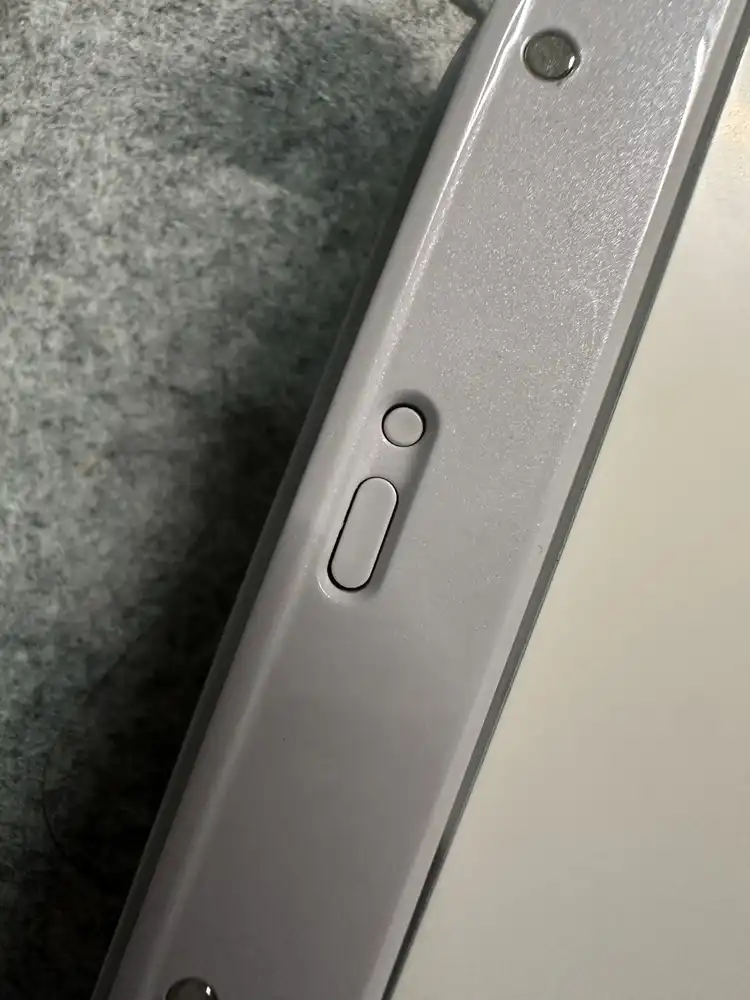
Pressing it fully restarts the printer and replays calibration (the blue smart sheet ejects automatically).
Custom name, UserColor, and other settings are preserved (this is a hardware reset, not a factory reset). HP documents the procedure, but it’s worth knowing when you’re soft-bricking the device with your own protocol implementation.
Measurement
Test image
test_640x1002.jpg
  resolution: 640x1002 (Sprocket 200 native size, per wiki)
  quality: JPEG quality=90
  size: 139,876 bytes
The previous BLE post used 668x1002 / 146,002 bytes; this run uses the wiki-documented native size of 640x1002.
Paper: Canon iNSPiC ZINK (calibrated with an HP-branded smart sheet). Printer starts from room temperature.
Measured results
| Item | BLE (previous) | RFCOMM (this post) | Delta |
|---|---|---|---|
| Transport | BLE GATT | RFCOMM (SPP Ch.2) | - |
| Image size | 146,002B | 139,876B | (close enough) |
| Chunk size | 500B | 998B | ~2× |
| Chunk count | 293 | 141 | ~half |
| Transfer time | ~60s | 5.38s | ~1/11 |
| Throughput | ~2.4 KB/s | 25.37 KB/s | ~10.6× |
Measurement window: from the first FILE_WRITE_REQ sent, to the FILE_WRITE_RSP carrying status=0x02 (COMPLETE).
[+] channel open; MTU=1006
[i] maxTargetMsg=1000
[i] UserColor RGB = ff c9 dd
[i] file_handle=0x03 job_id=0x0700
--- FILE_WRITE loop ---
[i] chunk_size=998B, expected_chunks=141
    [1/141] handle=0x03 status=0x01 recv=998/139876
    [2/141] handle=0x03 status=0x01 recv=1996/139876
    ...
    [140/141] handle=0x03 status=0x01 recv=139720/139876
    [141/141] handle=0x03 status=0x02 recv=139876/139876
[+] COMPLETE at chunk 141

=== RESULT (transport) ===
bytes:         139876
chunks:        141
chunk_size:    998B
transfer_time: 5.38s
throughput:    25.37 KB/s
olie.xdev later updated the wiki with his actual RFCOMM measurement: ~22.0 KB/s, 109 × 998B chunks in ~4.8s.
That’s essentially the same as the 25.37 KB/s I’m seeing on macOS — RFCOMM itself reliably delivers 20+ KB/s across platforms.
The “~5.4 KB/s” originally in the wiki was the old BLE GATT figure, which I’d misread as olie’s RFCOMM number and used to claim “M1 Mac is ~5× faster.” That comparison was wrong; details in the follow-up at the bottom.
Print result
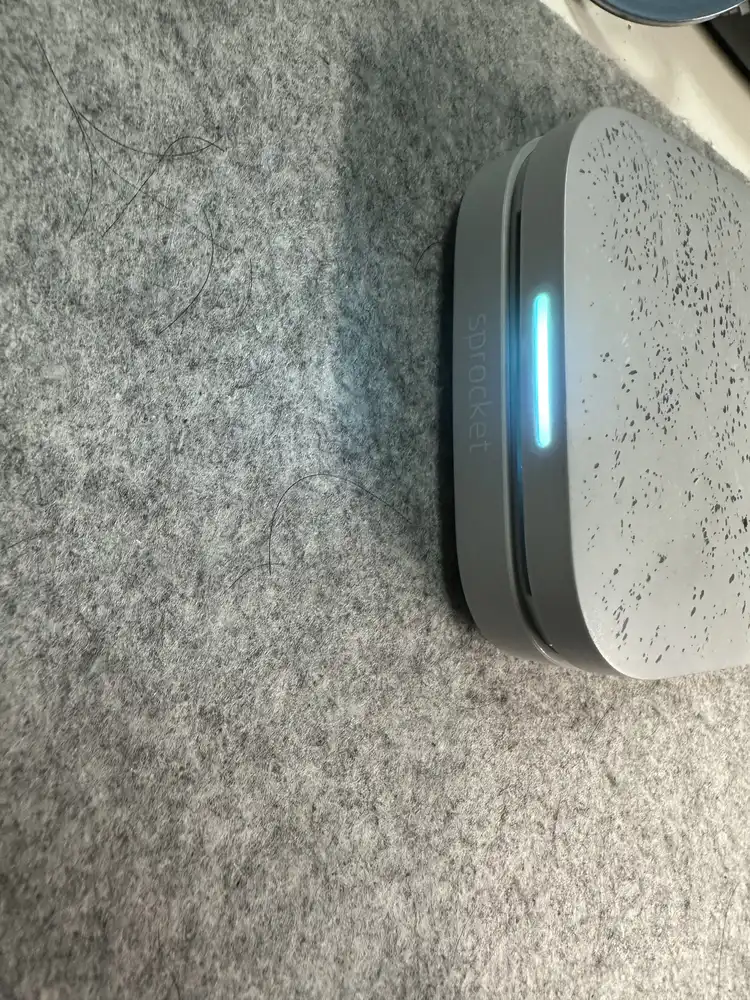
After the transfer completes, the printer runs ZINK development and ejects the paper.
The paper feed speed itself is governed by the thermal pipeline and doesn’t change — what changes is the wait between hitting print and the paper starting to emerge.
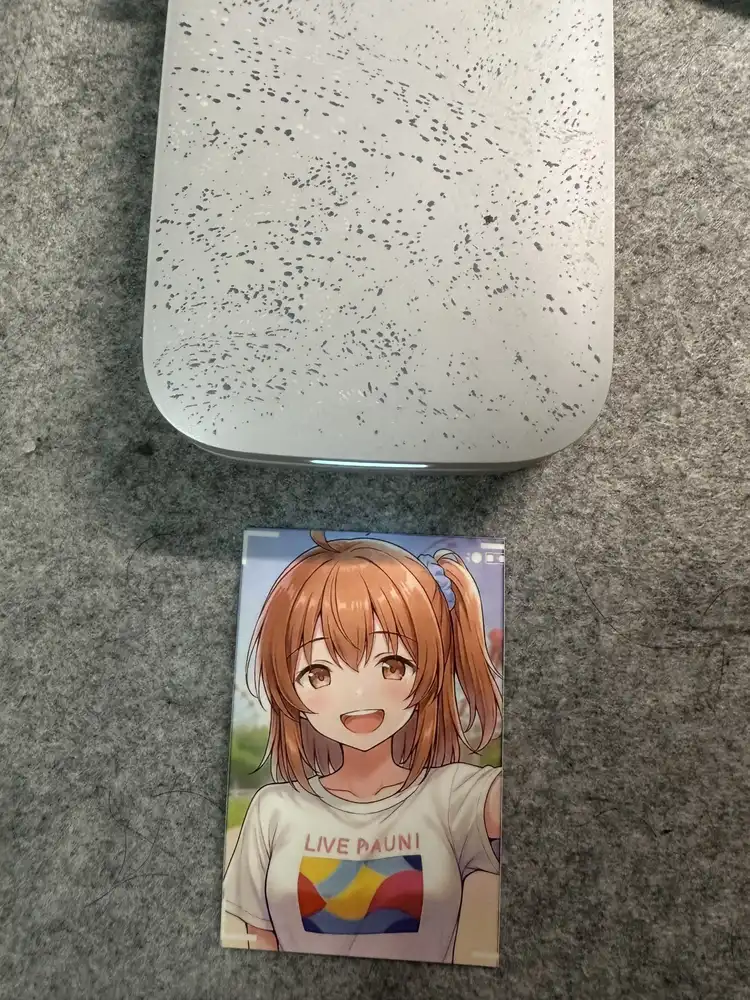
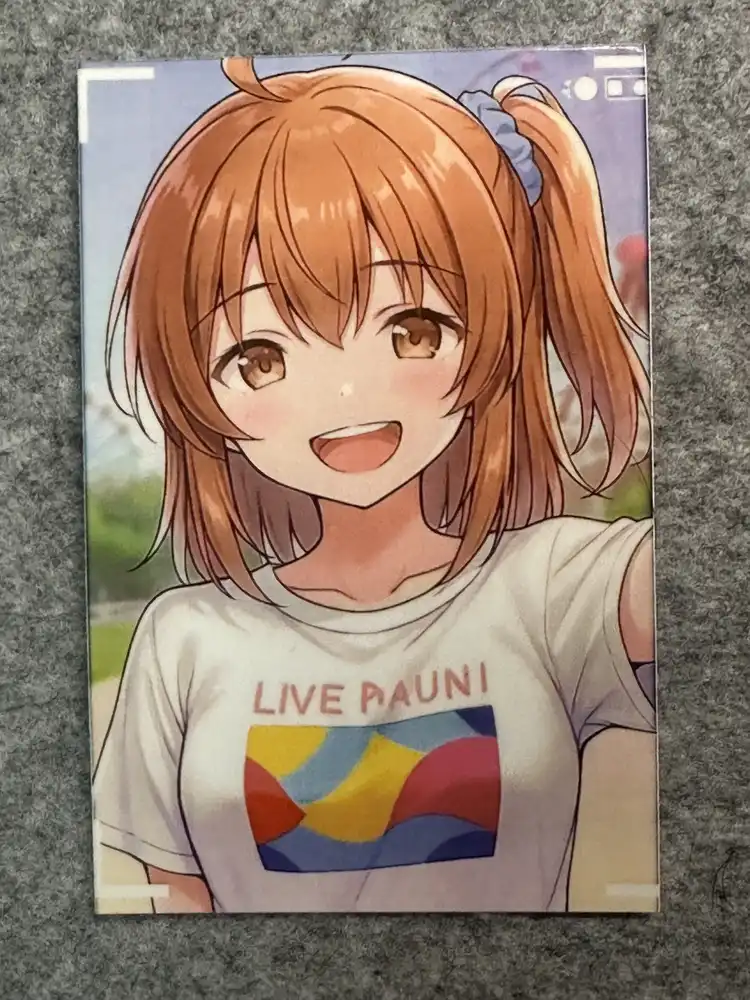
Print quality matches the BLE run (same image, same paper, same printer). Colors are slightly muted because the paper isn’t HP-branded, but it’s well within usable range.
Isolation experiment
The first attempt that printed successfully bundled three fixes I’d applied at once, and I didn’t know which one mattered. After a power-cycle, I bisected with three runs:
| Test | Change | Transfer | |
|---|---|---|---|
| 1 | Close the channel immediately (drop the post-COMPLETE monitor loop) | 5.39s | ✓ |
| 2 | Test 1 + skip LIST_JOBS_REQ / RD_JOB_PROP_REQ | 5.51s | ✓ |
| 3 | Test 2 + force WR_JOB_PROP_REQ color to white (ff ff ff) | 5.44s | ✓ |
All three printed without issue.
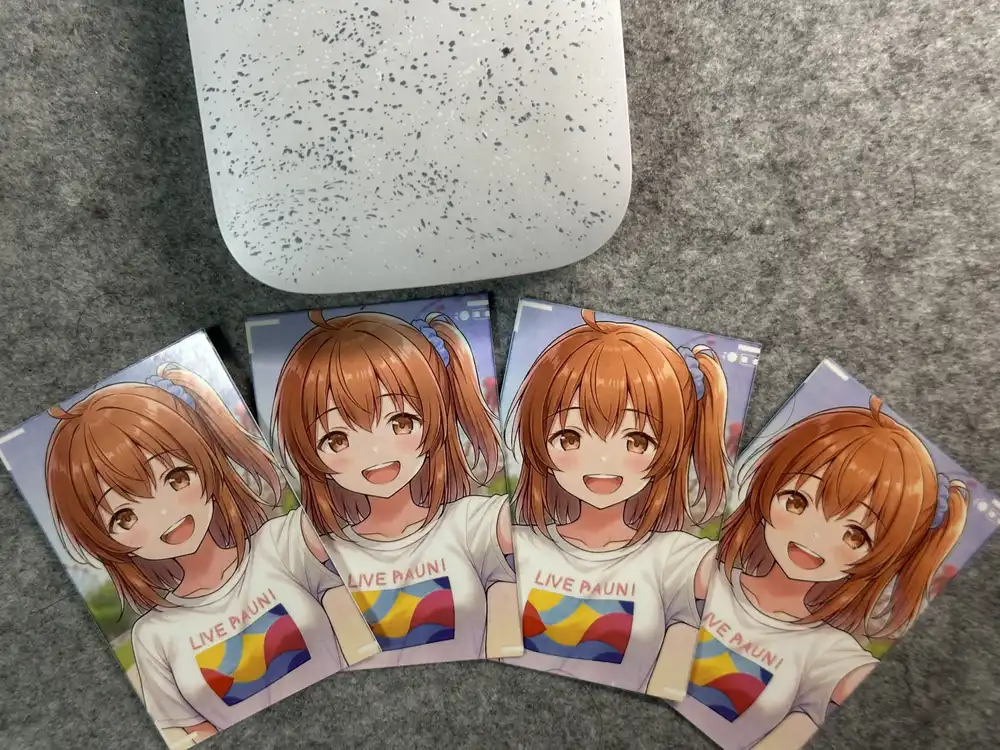
So what I thought “three simultaneous fixes resolved it” turned out to be none of them mattered individually. olie’s “Possibly not required” was right all along.
So why did the first attempt hang? The most natural hypothesis is that before I switched to Channel 2, I’d thrown a bunch of HP+ frames at the wrong channel (Channel 1), leaving the printer’s firmware in a degraded state that the first Channel-2 attempt also got swept into. After the power cycle, anything on Channel 2 works cleanly.
Takeaways:
- When the printer enters a suspicious state, hard-reset before suspecting the protocol. Clear physical-side state first.
- Lock onto the correct RFCOMM channel from the very first connection. Channel 1 is a trap.
- The wiki’s “Possibly not required” steps really aren’t required — as long as you start from a clean state on Channel 2.
With the implementation working, I replied to olie.xdev with numbers.
The wiki saved me a lot of effort, so the things I gave back:
- macOS transfer-speed measurement (25.37 KB/s)
- Confirmation that RFCOMM Channel 2 (SPP) is the correct one
- Verified on the device that the “Possibly not required” steps can be skipped (macOS, Ch.2, from a clean reset state)
- Note that macOS Python.app silently fails without the Bluetooth entitlement
- Hard reset as the recovery path when the protocol implementation soft-bricks the printer
Sprocket 200 Bluetooth Protocol — openZinkBooth wiki is a keeper. Mandatory reading for anyone hacking on the Sprocket.
Reply from olie (2026-05-15)
olie.xdev replied and updated the wiki’s transfer-performance section with an actual RFCOMM measurement.
| Platform | Throughput | Transfer time | Chunks |
|---|---|---|---|
| Android (olie’s number, post-update) | ~22.0 KB/s | ~4.8s | 109 × 998B |
| macOS M1 Max (this post) | 25.37 KB/s | 5.38s | 141 × 998B |
So RFCOMM delivers essentially the same throughput on Android and macOS.
The “olie’s number = 5.4 KB/s” in my original draft was the BLE GATT figure that was the only thing listed in the wiki at the time — I misread it as the RFCOMM number, which made the “M1 Mac is ~5× faster” comparison wrong. I’ve corrected the article body accordingly.
Two more notes:
- A new wiki page, Event Setup Guide, is now up — operational tips for running the Sprocket at events
- olie also asked me to print the calibration test pattern and compare print offsets across our two devices. He says the same offset shows up even with HP’s official app, so he wants to know whether it’s printer-model-dependent or varies per unit
Calibration test follow-up (2026-05-19)
Printed the 640×1002 px calibration test image from olie’s Event Setup Guide with both the RFCOMM script and the official HP Sprocket app, then measured the thickness of the orange border band on all four sides of the printed ZINK paper.
The image has a uniform orange frame around an inner area with millimetre rulers and a centre cross — comparing the frame thickness against the design value (8.05 mm on every side) exposes both the printer’s positional offset and any pipeline-side scaling difference.
Re-measured the transport throughput while I was at it.
| Item | Original 140 KB image | Calibration image (69 KB) |
|---|---|---|
| Size | 139,876 B | 69,011 B |
| Chunks | 141 | 70 |
| Transfer time | 5.38 s | 2.58 s |
| Throughput | 25.37 KB/s | 26.10 KB/s |
Throughput is essentially the same (a hair higher), and the transfer time halves cleanly with the image size.
Orange frame measurements
ZINK paper (50×76 mm), held in portrait.
| Side | Design | RFCOMM | HP app |
|---|---|---|---|
| Top | 8.05 | 7 | 5.5 |
| Bottom | 8.05 | 8 | 6 |
| Left | 8.05 | 7 | 7.5 |
| Right | 8.05 | 7 | 6 |
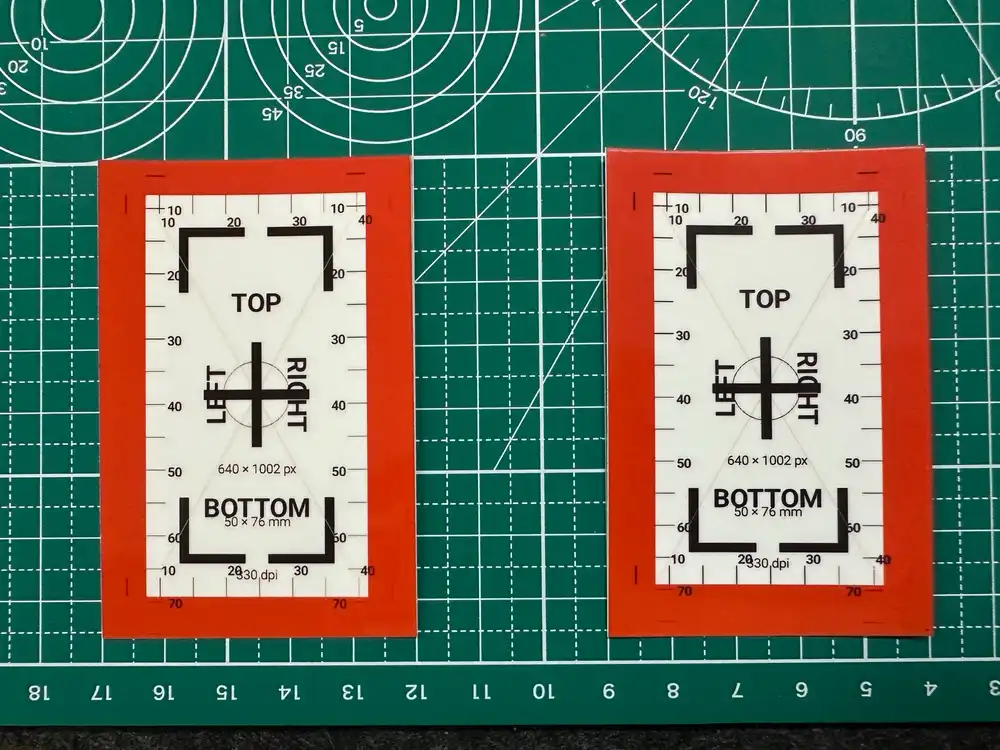
What the numbers say
The two pipelines separate cleanly into printer-side vs pipeline-side offsets.
- Vertical offset: both RFCOMM (top 7 / bottom 8) and the HP app (top 5.5 / bottom 6) show the top band thinner than the bottom — the print is shifted up by ~0.5–1 mm in both pipelines. Because it’s identical in direction across pipelines, this is printer-side
- Horizontal offset: RFCOMM is symmetric at 7/7. The HP app is asymmetric at 7.5/6, shifted right by ~0.75 mm. That asymmetry is only in the HP app, so the offset is pipeline-side, not printer-side
- Scaling: the HP app prints with a thinner orange band on every side (average 6.25 mm), my RFCOMM script with a thicker band (average 7.25 mm). Given the same 640×1002 px input, the app stretches the print about 1 mm larger than my script. That’s pipeline-dependent scaling, again unrelated to the printer
So when olie said “the offset shows up in the HP app too, must be printer-related,” that’s true for the vertical component on this unit. The horizontal offset is HP-app-only — my RFCOMM path actually centres better.
This is a single-unit result; comparing across printers is still open.
Print script
The RFCOMM print script is the slim variant of the original flow — the “Possibly not required” commands (LIST_JOBS / RD_JOB_PROP / SET_TIME / RD_SYS_CFG / RES_ALLOC) are stripped out from the start.
Sequence: IF_CONFIG → CONN_SETUP → RD_STATUS → PRINT_START → FILE_WRITE × N.
69 KB image in 2.58 s, paper comes out clean. Lives at scripts/experiments/sprocket-calibration/print_rfcomm.py.