Reverse-Engineering the HP Sprocket 200 BLE Protocol to Print from a PC
 Contents
I picked up an HP Sprocket 200 secondhand. It’s a mobile photo printer that uses ZINK paper, designed to print from a smartphone via the official app. Just like when I got a thermal printer working from a PC before, I wanted to see if I could print from a PC with this one too.
Why This Printer
ZINK paper is cross-compatible between the HP Sprocket and Canon iNSPiC lines. However, HP’s genuine paper is hard to find and has limited availability. Canon iNSPiC paper is much easier to get.
So the plan was: buy a cheap used Sprocket, use Canon paper. But it’s not that simple. Even though ZINK paper is technically compatible across brands, most printers won’t work without the Smart Sheet (a blue sheet) that comes at the bottom of each genuine paper pack. This sheet is used for printer calibration, so if you just load third-party paper without one, it usually refuses to print.
That means the sweet spot is “a used unit that comes with genuine paper.” Armed with this knowledge, I was digging through the junk section at Sofmap and found a Sprocket 200 with genuine ZINK paper included for about 2,000 yen. Instant buy. For some reason this particular unit came with a full pack of genuine paper.
Unboxing
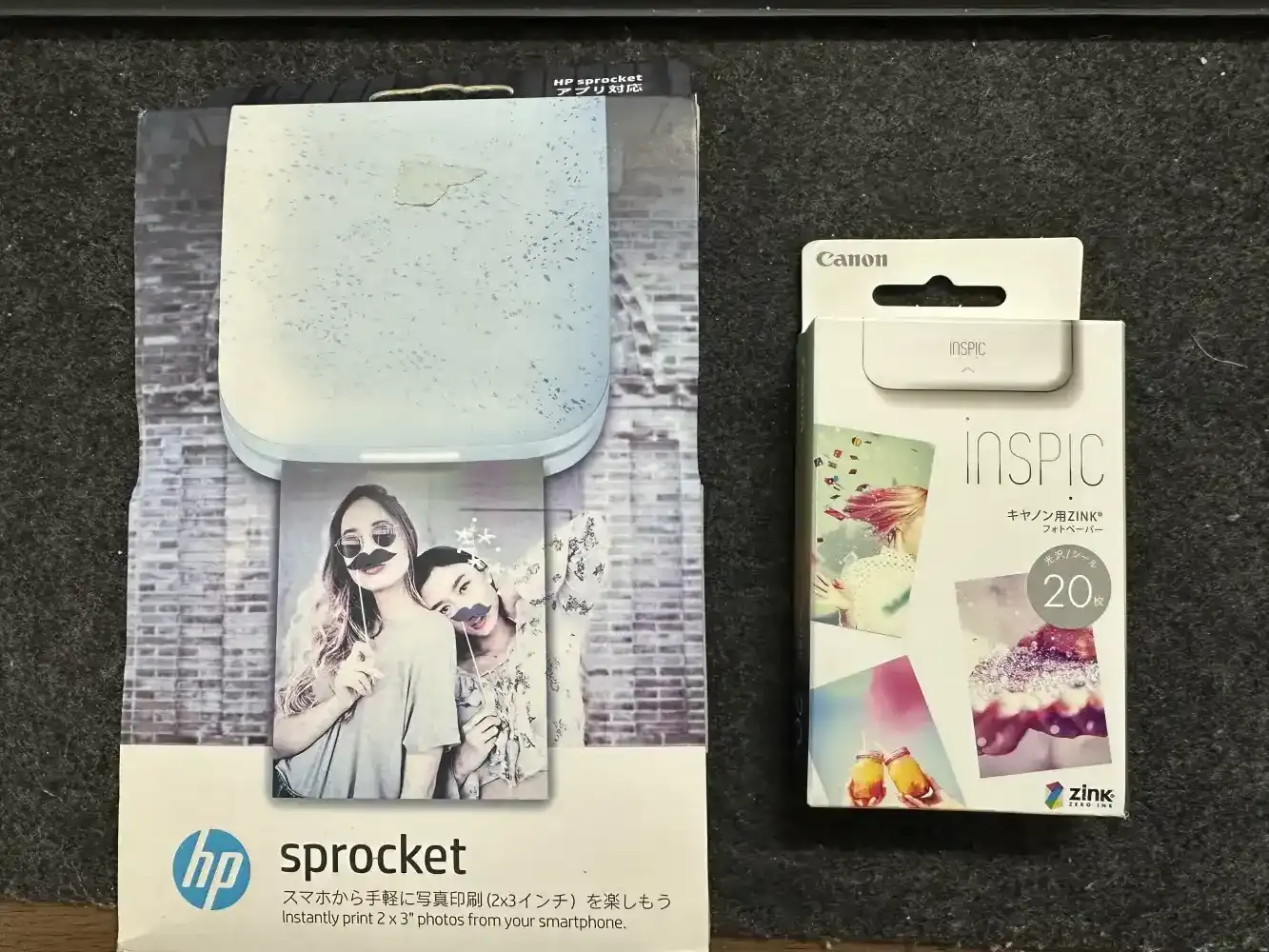
I only bought the HP Sprocket. The Canon iNSPiC ZINK photo paper (20 sheets) is insurance for when HP paper runs out.
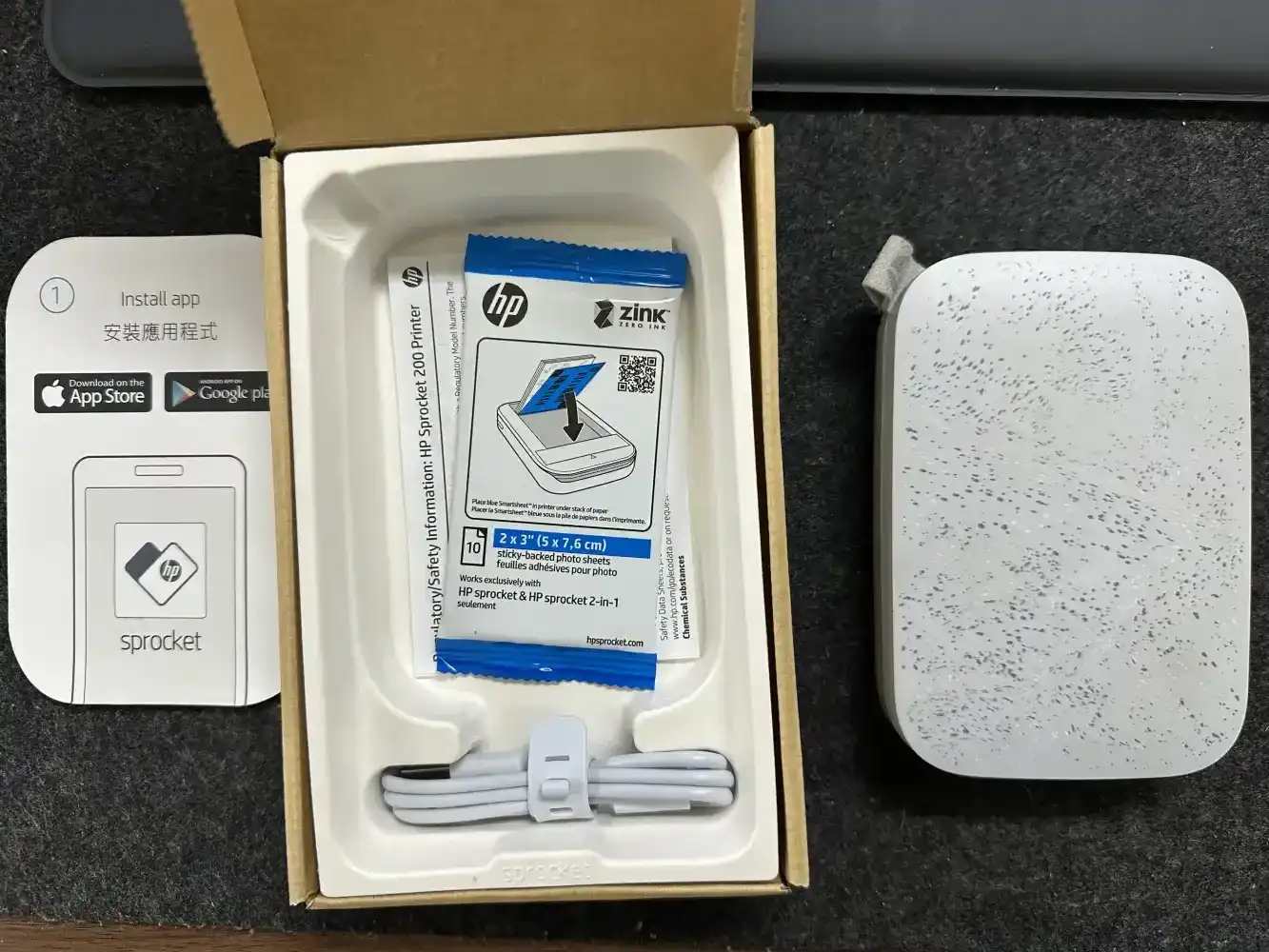
Inside the Sprocket 200 box. It came with the printer, a USB cable, a ZINK photo paper sample pack, and a safety information sheet. The unit is palm-sized with a speckled pattern on the surface.
Loading ZINK Paper
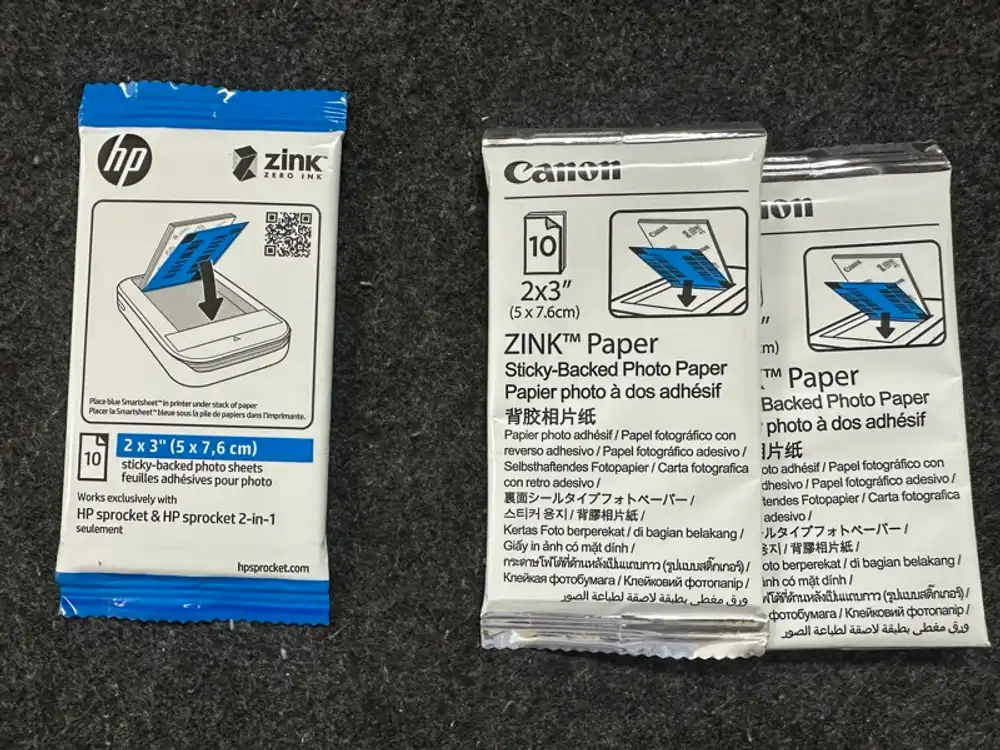
HP genuine (10 sheets) and Canon iNSPiC (10 sheets) ZINK paper. Same ZINK technology inside, but the packaging and included Smart Sheets are different.
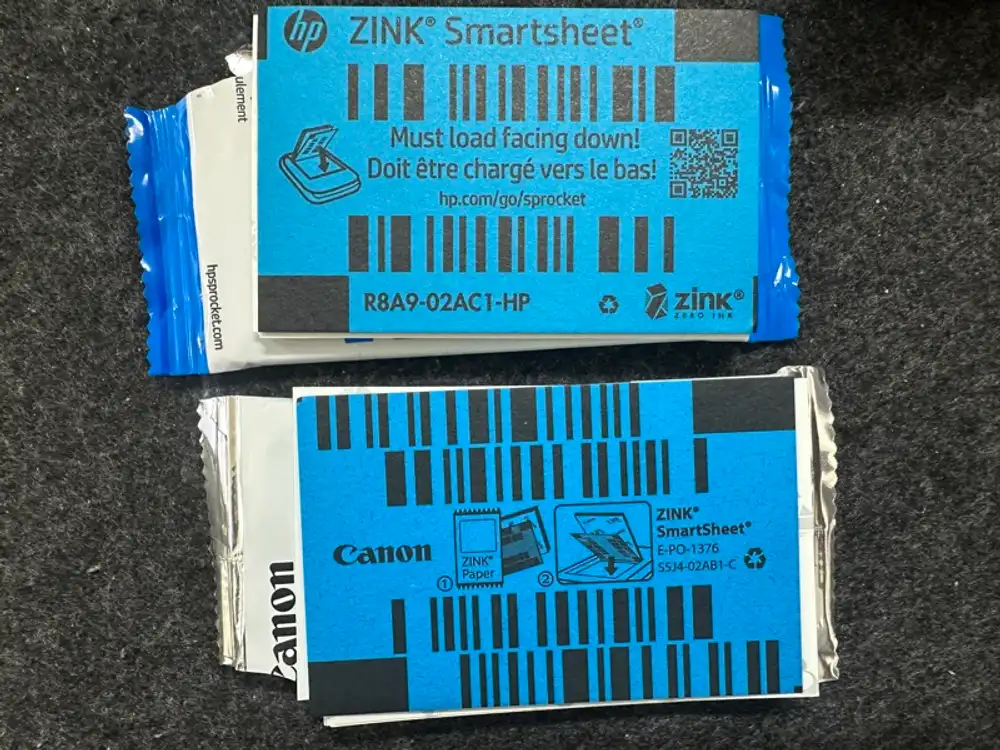
Top is the HP genuine Smart Sheet, bottom is Canon’s. The Smart Sheet is a blue sheet placed at the bottom of each pack. It feeds through first when you load paper and is used for calibration.
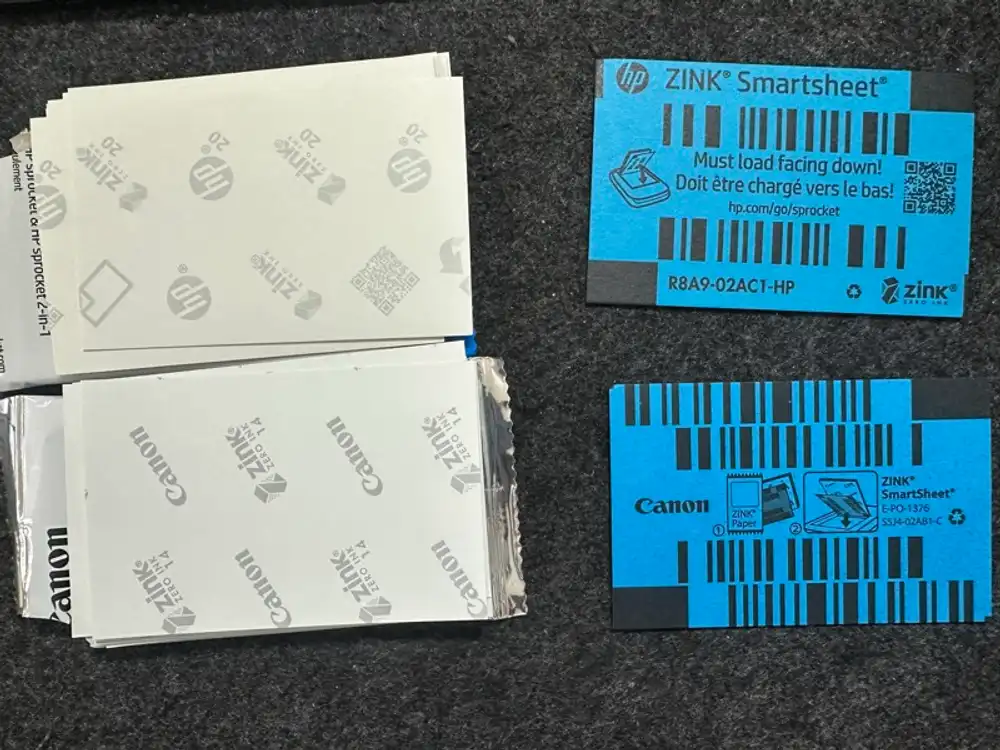
Left is the ZINK photo paper, right is the Smart Sheet. For this test, I used an HP genuine Smart Sheet but loaded Canon iNSPiC paper. As long as calibration passes with the HP Smart Sheet, the actual paper should work even if it’s third-party.
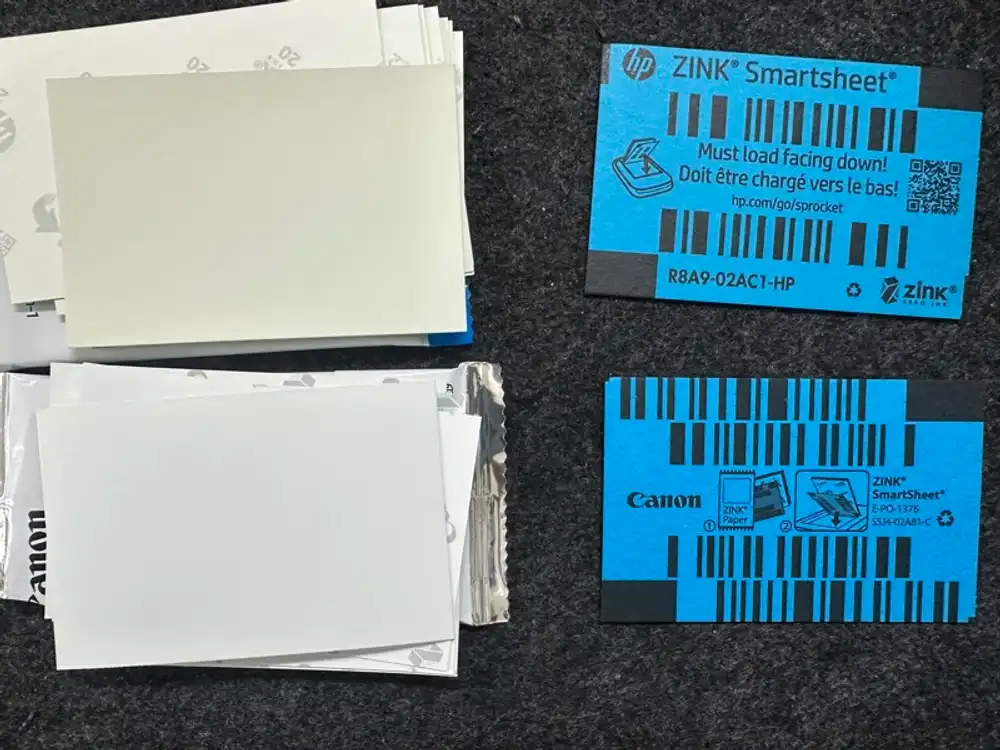
The white side is the print surface, and the side with the brand logo is the back. You load it into the printer with the back side facing down. If you look closely, the HP and Canon papers have a slightly different tint. Even with the same ZINK technology, there might be minor differences in manufacturing lots or specs.
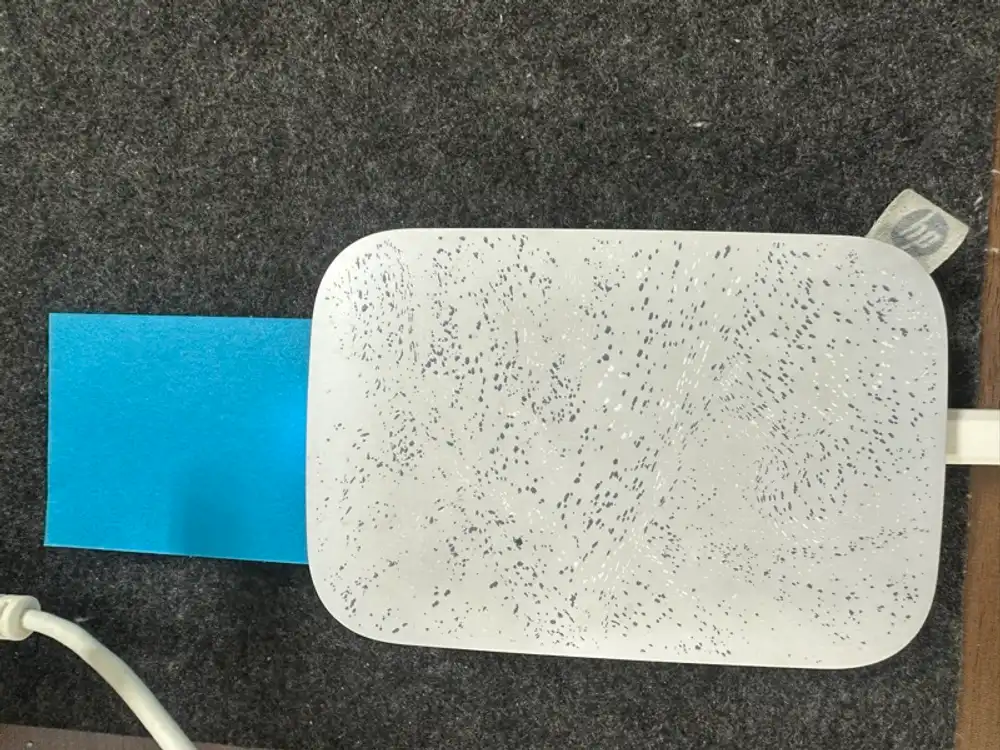
After loading the HP genuine Smart Sheet together with Canon paper and powering on, the printer automatically ejected the Smart Sheet (blue paper) first. Calibration completed without issues. It accepted the third-party paper.
Can It Print from a PC?
There are no PC/Mac drivers or desktop apps for the HP Sprocket. HP Smart (HP’s universal printer app) doesn’t support the Sprocket either. Officially, the smartphone app is the only option.
That said, there are some unofficial approaches people have reported.
Method 1: Bluetooth OBEX File Transfer (Windows/Mac)
The simplest approach. Send an image file directly via Windows’ Bluetooth “Send a file” menu.
- Power on the Sprocket 200 and pair it with your PC
- Taskbar Bluetooth icon -> “Send a file”
- Select the Sprocket as the destination
- Choose an image file and send
No app filters or margin adjustments — it just sends the raw image. There are reports that this also works via Bluetooth settings on Mac.
However, the Sprocket 200 has Bluetooth 5.0, and depending on firmware, the OBEX Push Profile (OPP) may be disabled. Apparently it worked fairly reliably on the original Sprocket (Bluetooth 3.0), but for the 200 you just have to try it and see.
Method 2: obexftp Command (Linux/Raspberry Pi)
This has been confirmed to work in “pibooth,” a Raspberry Pi photo booth project.
sudo apt-get install bluetooth libbluetooth-dev obexftpobexftp --nopath --noconn --uuid none --bluetooth [MACアドレス] --channel 4 -p image.pngChannel 4 appears to be specific to the HP Sprocket. Since it isn’t recognized as a CUPS printer, you have to use obexftp to talk to it directly.
Method 3: Android Emulator (Doesn’t Work)
There’s a lot of info online about running the HP Sprocket app in BlueStacks or similar, but major Android emulators don’t support Bluetooth passthrough, so this doesn’t work.
My Plan
Try Method 1 (OBEX) first. If that fails, try Method 2 (obexftp) from Mac/Linux. With the thermal printer last time, I was able to reverse-engineer the BLE protocol and control it, but for the Sprocket there’s almost no public info on the proprietary protocol. If OBEX doesn’t work, it could be a dead end.
Trying BLE Connection
Before OBEX, I decided to try connecting via BLE directly. No paper loaded — just testing the connection.
Note: this unit’s battery appears to be dead, so it won’t power on without microUSB power. It’s a junk item, so no surprise. I’ll just keep USB plugged in.
Device Discovery
Scanning with bleak, it showed up as HP Sprocket 200 (8C:2D).
The advertisement data contained a proprietary service UUID 6822d239-7b61-4718-bdc1-189221946209 with a 6-byte payload of 62 49 06 00 06 00.
Service Structure
After connecting and enumerating GATT services, only one custom service was visible.
| UUID (suffix) | Properties | Suspected Purpose |
|---|---|---|
...051e | write, write-without-response | Data transmission (images/commands) |
...3658 | read, notify, indicate | Response reception |
...2eee | read | Status? |
The thermal printer from last time (Mini Printer Sugar) used an ISSSC Transparent UART service to send ESC/POS commands, but the Sprocket 200 is a completely proprietary protocol. Neither the service UUID nor the characteristic UUIDs match any known BLE profiles.
Read Results
I read the two readable characteristics, but both returned empty data. Subscribing to notifications for 5 seconds yielded nothing.
Char ...3658 (read/notify): empty
Char ...2eee (read):        read error
Notifications:              none in 5 seconds
The printer likely requires an initialization command (handshake) on the write characteristic before it will send any responses.
Command Probing
To explore the protocol without wasting paper, I sent various byte sequences to the write characteristic and watched for notification responses.
Results:
0x00-0x7F(MSB = 0): No response. Not recognized as commands0x80-0xFF(MSB = 1): All returned the same81 01 00 02- Structured multi-byte commands (header + length + payload format) also all returned
81 01 00 02 - ESC/POS sequences,
HPASCII magic bytes, etc. — same result
Sent: 0xFF       → Response: 81 01 00 02
Sent: 0x80 0x01  → Response: 81 01 00 02
Sent: 0x80 0x0A 0x00 0x00 (FW ver?) → Response: 81 01 00 02
Sent: 0x1B 0x40 (ESC @)             → Response: none
81 01 00 02 is probably a generic error response.
Since the response is the same regardless of command content, the device likely requires authentication or session establishment, and won’t process individual commands until that’s done.
Blind probing over BLE alone wasn’t going to yield any more information.
Bluetooth Classic (RFCOMM) Connection
I found tylerhahn/ivy2-sprocket2 on GitHub (an HP Sprocket 2 fork of a Canon IVY 2 driver) that used RFCOMM, so I tried BT Classic as well.
SDP (Service Discovery)
After pairing with blueutil, I retrieved SDP records via IOBluetooth.
| Service Name | RFCOMM Channel | UUID |
|---|---|---|
| (custom) | 1 | 00000000-DECA-FADE-DECA-DEAFDECACAFF |
| SPP SERVER | 2 | 0x1101 (SerialPort) |
RFCOMM Connection Results
Channel 1 (custom UUID): Connection succeeded. MTU 1006.
The moment I connected, the printer started sending FF 55 02 00 EE 10 (6 bytes) at roughly 1-second intervals.
<< FF 55 02 00 EE 10 (approx. every 1 second, continuous)This is a status beacon. Sending anything back doesn’t change it.
Even sending commands containing the ivy2 protocol start code 0x430F got no reaction — the beacon content stayed the same.
FF 55 appears to be the message header, and the remaining 02 00 EE 10 is likely status information.
Since there was no paper loaded, EE and 10 might be error codes (e.g., paper empty).
Channel 2 (SPP SERVER): Connection succeeded. MTU 1006. No data received regardless of what was sent.
Compatibility with ivy2 Protocol
The ivy2-sprocket2 README says “May need protocol adjustments,” and there’s no evidence it was actually tested on real hardware.
In practice, the Sprocket 200 doesn’t respond to the 0x430F start code and communicates using its own FF 55 protocol.
It’s safe to say there’s no protocol-level compatibility with the Canon IVY 2.
Protocol Analysis
Using BLE packet captures and existing reverse-engineering information, I analyzed the HP Sprocket 200’s BLE communication protocol.
BLE Framing Layer
There’s a proprietary framing layer on top of GATT. The first byte of each BLE packet is a frame header, and the rest is payload.
byte[0] = [last_flag:1][sequence:7]
byte[1:] = HPLPP message fragmentlast_flag(bit 7): 1 = final packetsequence(bit 0-6): sequence number starting from 1- Messages that fit within a single MTU start with
0x81(seq=1, last=true)
This explains the mysterious 81 01 00 02 from earlier.
81       → BLE frame: seq=1, last=true
01 00 02 → HPLPP message: command=ERROR(0x01), payload=00 02
The device was returning ERROR for all commands sent before session establishment.
HPLPP Protocol
The HP Sprocket 200 has the internal codename “IBIZA” and uses the HPLPP protocol.
This is different from the Manta packets (start code 0x1B2A) used by older models (original Sprocket, etc.) and the ivy2 protocol (0x430F).
The first byte of an HPLPP message is the command code. The main commands are as follows.
| Command | Code | Direction | Purpose |
|---|---|---|---|
| IF_CONFIG_REQ | 0x0A | -> | BLE interface configuration request |
| IF_CONFIG_RSP | 0x0B | <- | Returns MTU and ACK interval |
| RD_STATUS_REQ | 0x08 | -> | Status read |
| RD_STATUS_RSP | 0x09 | <- | Battery, print state, etc. |
| RD_SYS_ATT_REQ | 0x04 | -> | Device attribute read |
| RD_SYS_ATT_RSP | 0x05 | <- | FW version, serial, etc. |
| PRINT_START_REQ | 0x0C | -> | Start print (send file length) |
| PRINT_START_RSP | 0x0D | <- | Returns job ID and file handle |
| FILE_WRITE_REQ | 0x0E | -> | Send image data (chunks) |
| FILE_WRITE_RSP | 0x0F | <- | Write acknowledgment |
| ERROR | 0x01 | <- | Error response |
Session Establishment
After BLE connection, you must send IF_CONFIG_REQ first.
Without this, the device returns ERROR for every command.
送信: 81 0A 01 00
      ^^          BLEフレーム (seq=1, last)
         ^^       IF_CONFIG_REQ (0x0A)
            ^^    BLEインターフェース (0x01)
               ^^ ACK周期 = 0

受信: 81 0B 01 02 02 00
      ^^                BLEフレーム
         ^^             IF_CONFIG_RSP (0x0B)
            ^^ ^^       MTU = 258
                  ^^    上り ACK周期 = 2
                     ^^ (パディング)
Reading Device Information
After session establishment, you can read status and device attributes.
送信: 81 08 01 02 03 06 09 (RD_STATUS_REQ + フィールドID)| Field | Value |
|---|---|
| SYSTEM_FLAGS | 0x05000000 |
| PRINT_STATUS | 16 (no paper) |
| BATTERY_LEVEL | 100 (USB powered) |
| BATTERY_STATUS | 1 (charging) |
| NUM_HOSTS | 0 |
送信: 81 04 01 02 03 05 09 0A 0B 0C (RD_SYS_ATT_REQ + フィールドID)| Field | Value |
|---|---|
| SW_VERSION | M1L1FA1839AR |
| PROTOCOL_VERSION | 256 |
| NAME | HP Sprocket 200 (8C:2D) |
| SERIAL | TH8B93225J |
| SUPER_MODEL | 0x6249 |
| SUB_MODEL | 0x0600 |
| BT_MAC | F4:39:09:D2:8C:2D |
| HW_VERSION | 4138 |
PRINT_STATUS = 16 is the error code for no paper. Once paper is loaded, this value should change to indicate the printer is ready.
Print Flow
The print sequence inferred from the communication capture is as follows.
graph TD
    A[BLE接続] --> B[IF_CONFIG_REQ]
    B --> C[IF_CONFIG_RSP<br/>MTU=258]
    C --> D[RD_STATUS_REQ]
    D --> E{PRINT_STATUS<br/>確認}
    E -->|紙なし| F[エラー: 印刷不可]
    E -->|OK| G[PRINT_START_REQ<br/>ファイル長を送信]
    G --> H[PRINT_START_RSP<br/>ジョブID + ファイルハンドル]
    H --> I[FILE_WRITE_REQ<br/>JPEGチャンク送信]
    I --> J[FILE_WRITE_RSP]
    J -->|残りあり| I
    J -->|完了| K[印刷実行]
The image is sent as JPEG, 668x1002 pixels, compressed at quality=90, split into chunks.
What I Confirmed Without Paper
| Item | Result |
|---|---|
| BLE connection | OK |
| Session establishment (IF_CONFIG) | OK |
| Device info read | OK (FW, serial, MAC, etc.) |
| Status read | OK (PRINT_STATUS=16 = no paper) |
| Protocol identified | HPLPP (HP proprietary, codename IBIZA) |
| Print commands | Identified (PRINT_START -> FILE_WRITE) |
If PRINT_STATUS changes when paper is loaded, then it’s just a matter of sending the JPEG.
Print Test
I prepared a test image.

Already converted to JPEG 668x1002px at quality=90 to match the Sprocket’s print spec.
Loading Paper and Checking Status
I loaded Canon iNSPiC ZINK paper together with an HP genuine Smart Sheet. PRINT_STATUS changed from 16 (no paper) to 1 (ready to print).
PRINT_STATUS: 1(印刷可能)
BATTERY_LEVEL: 94
BATTERY_STATUS: 1(充電中)
The Byte Order Trap
The first send attempt failed. All integer values in the HPLPP protocol are little-endian, and I was sending the file length as big-endian.
# NG: ビッグエンディアン
struct.pack('>I', 146002)  # → 00 02 3A 52
# プリンターはLE読みで 0x523A0200 = 1.3GB と誤解

# OK: リトルエンディアン
struct.pack('<I', 146002)  # → 52 3A 02 00
# プリンターは正しく 146002 バイトと認識
Because the file length was wrong, the printer never returned STATUS_COMPLETE after receiving all the data — it just kept waiting for more.
Transfer Success
After fixing the byte order, FILE_WRITE_RSP started returning correct progress.
FILE_WRITE 146002 bytes (chunk=500B)
  15000/146002 (10%) recv=15000 total=146002
  30000/146002 (20%) recv=30000 total=146002
  ...
  135000/146002 (92%) recv=135000 total=146002
  COMPLETE! 146002/146002

Transfer: 293 chunks
STATUS_COMPLETE (status code 2) was returned, confirming the printer received all data.
Print Result
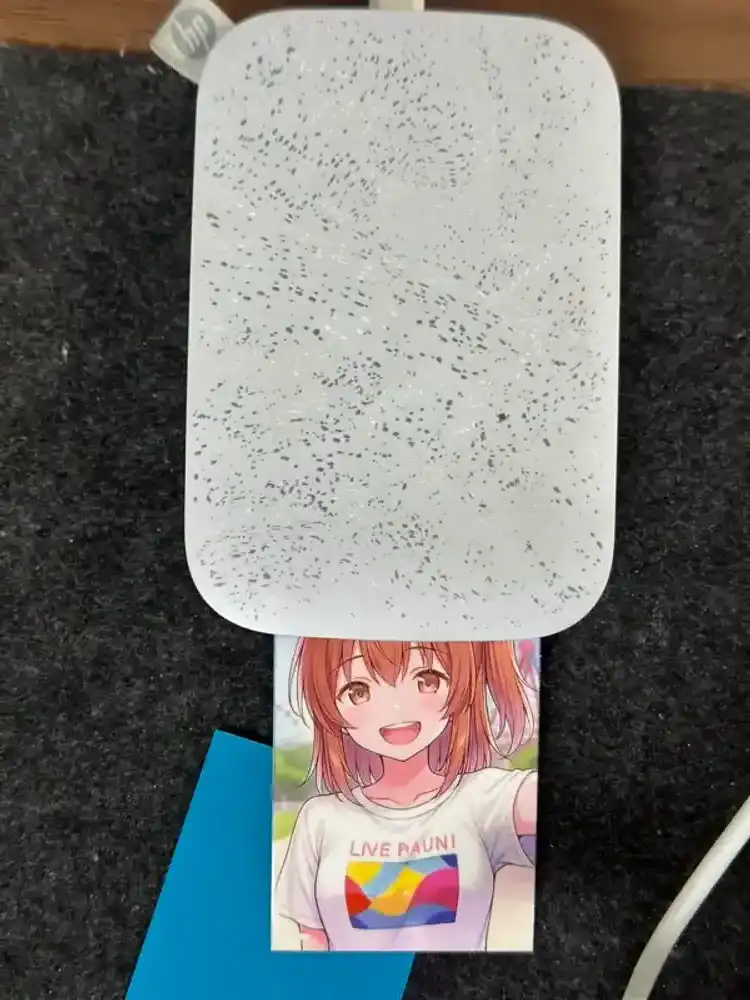
After the transfer completed, the printer automatically started printing. The paper slowly emerged from the output slot.
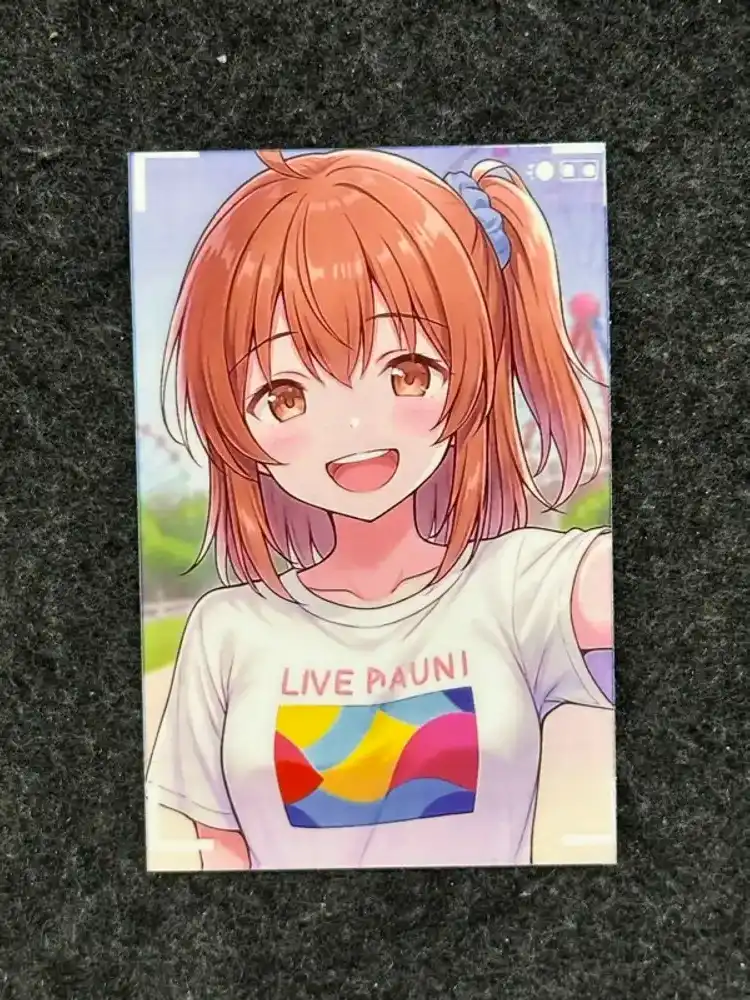
Successfully printed directly to the HP Sprocket 200 from a PC via BLE. It printed fine on Canon iNSPiC paper, though the colors were slightly muted. Apparently this is a common issue when using third-party ZINK paper — since the Smart Sheet calibration is optimized for genuine paper, colors shift a bit with compatible paper. It’s perfectly usable in practice, but if color accuracy matters, stick with HP genuine paper.
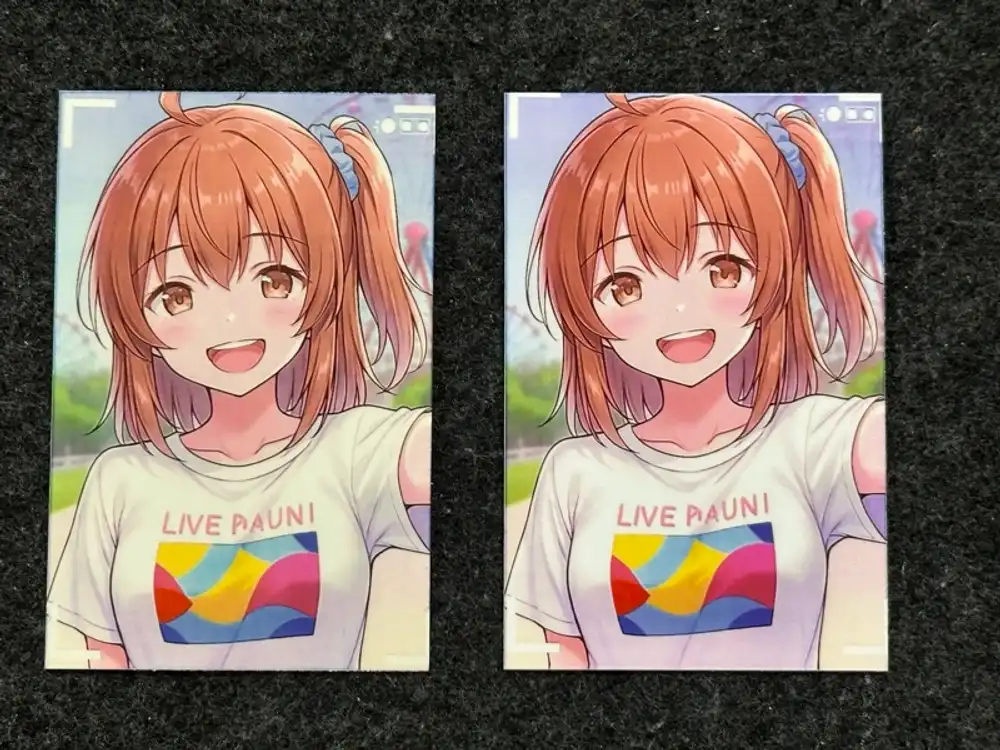
Same image printed on the same printer, side by side. Left is HP genuine paper, right is Canon iNSPiC paper. You can see a subtle difference in color tone. The genuine paper looks slightly more subdued. It’s not a dramatic difference, but given that the Smart Sheet calibration is tuned for genuine paper, some color shift with compatible paper is inevitable.
Transfer Speed
Sending a 143KB JPEG in 293 chunks of 500 bytes each is pretty slow. There’s a wait for FILE_WRITE_RSP after each chunk, so it takes roughly a minute in practice. Increasing the chunk size should help, but that requires tuning around the BLE MTU limit and ACK interval. That said, for printing on 2x3 inch ZINK paper, speed is rarely an issue.
By the way, I had been running this whole experiment assuming the battery was dead and USB power was required. But after printing a few sheets, it started running on battery alone. Apparently the battery revived after being charged continuously during use. Lucky find for a junk item.
Update: A deeper protocol analysis is now available (2026-05-10)
German Android developer olie.xdev reached out to let me know he used this post as a starting point while building openZinkBooth, an open-source photo booth app for HP Sprocket printers, and documented the protocol in much more depth along the way:
Sprocket 200 Bluetooth Protocol — openZinkBooth wiki
My article identified about 10 HPLPP commands; OliE’s wiki covers 27+ command codes, multi-model identification by SuperModel (Sprocket 200/200D/400/Select/Studio), the full RFCOMM framing, and config tags (SleepTimer, AutoOff, RGB, etc.).
If you want to go deeper on the Sprocket, that’s the place.
Update: 11× faster with the RFCOMM version (2026-05-12)
Following olie.xdev’s wiki, I switched from BLE GATT to RFCOMM (SPP Ch.2) and cut the transfer time from ~60 seconds to 5.38 seconds (about 1/11).
Measured on M1 Max with a Python implementation, same image (640x1002 JPEG q=90, ~140KB).
HP Sprocket 200 over RFCOMM on M1 Mac: 11× faster than BLE in 5.38s for 140KB
Covers the macOS implementation via PyObjC IOBluetooth, the RFCOMM channel-number trap, the macOS Bluetooth-entitlement pitfall, the hardware reset button, and an isolation experiment confirming that olie’s “Possibly not required” steps really are optional. Companion to his wiki.