Beambox Niji Badge over BLE without the app: fixing the black-screen JPEG bug
 Contents
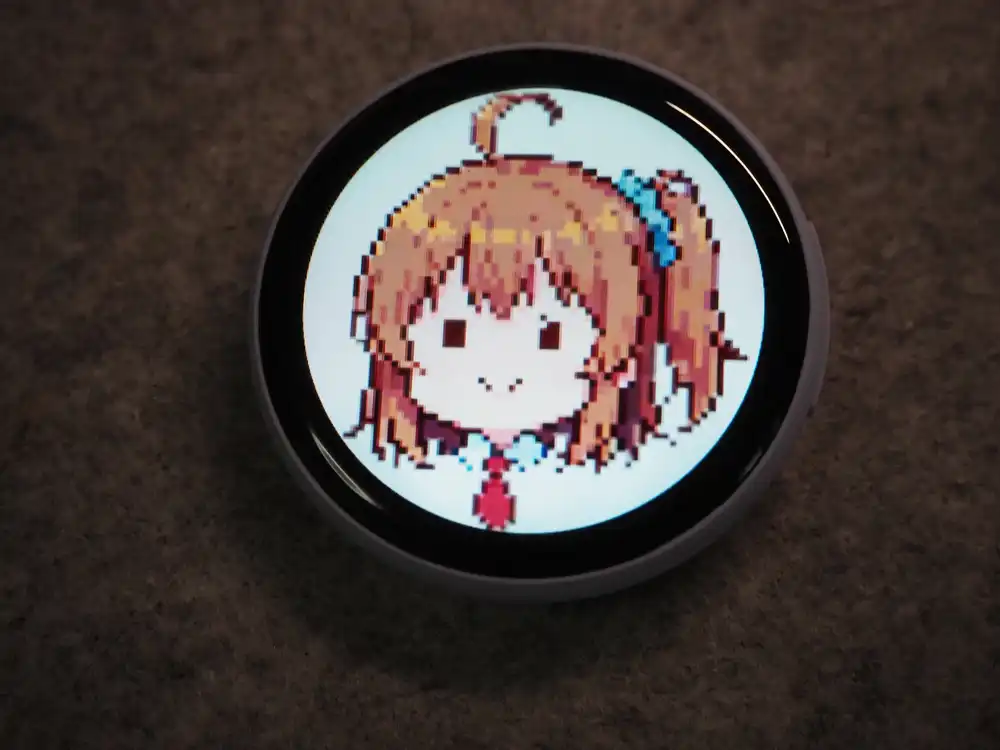
I found a digital pin badge with a round screen at a secondhand shop in Akihabara and picked it up.
It’s from Beambox’s “Niji Badge” line — a gadget that lets you transfer photos or GIFs from a phone and display them on your chest.
Test setup: Windows 11 + Python 3.14.
BLE library is bleak.
Unboxing
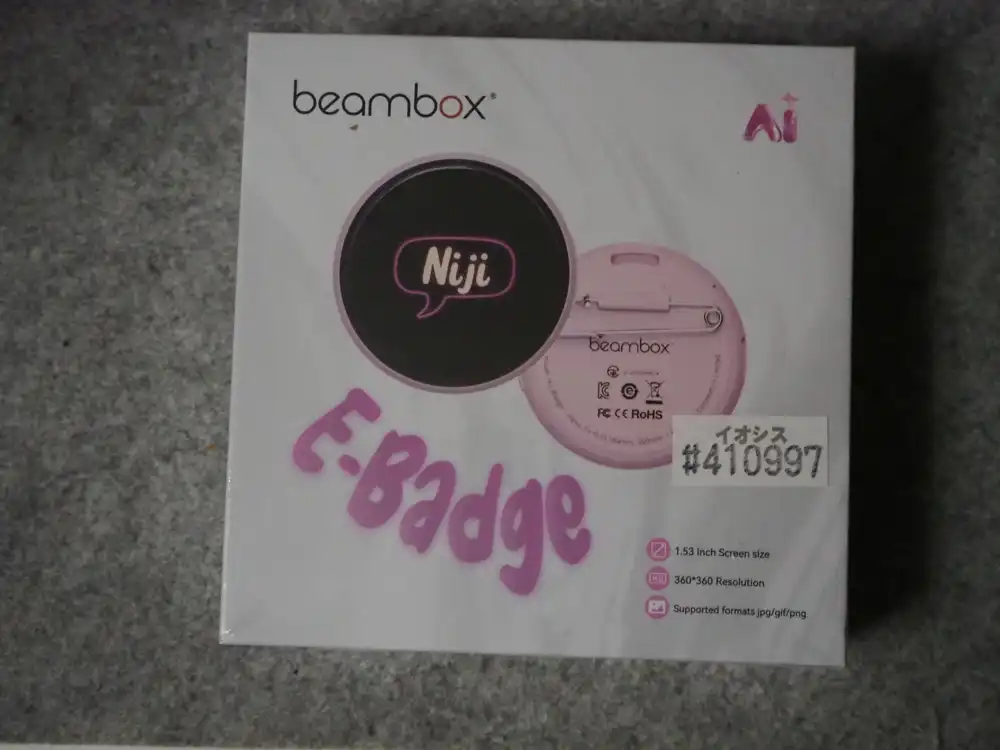
The package has the “beambox” logo and “E-Badge” printed on it, along with a sample image showing “Niji” as a speech bubble on the round display.
The back of the box lists the specs.
| Item | Value |
|---|---|
| Product name | E-Badge (model: Niji-Badge) |
| Screen size | 1.53 inch |
| Resolution (as advertised) | 360×360 |
| Supported formats | jpg / gif / png |
| Battery | 500mAh |
| Input | DC5V 0.5A |
| Manufacturer | Avatronics Corporation Limited (Shenzhen) |
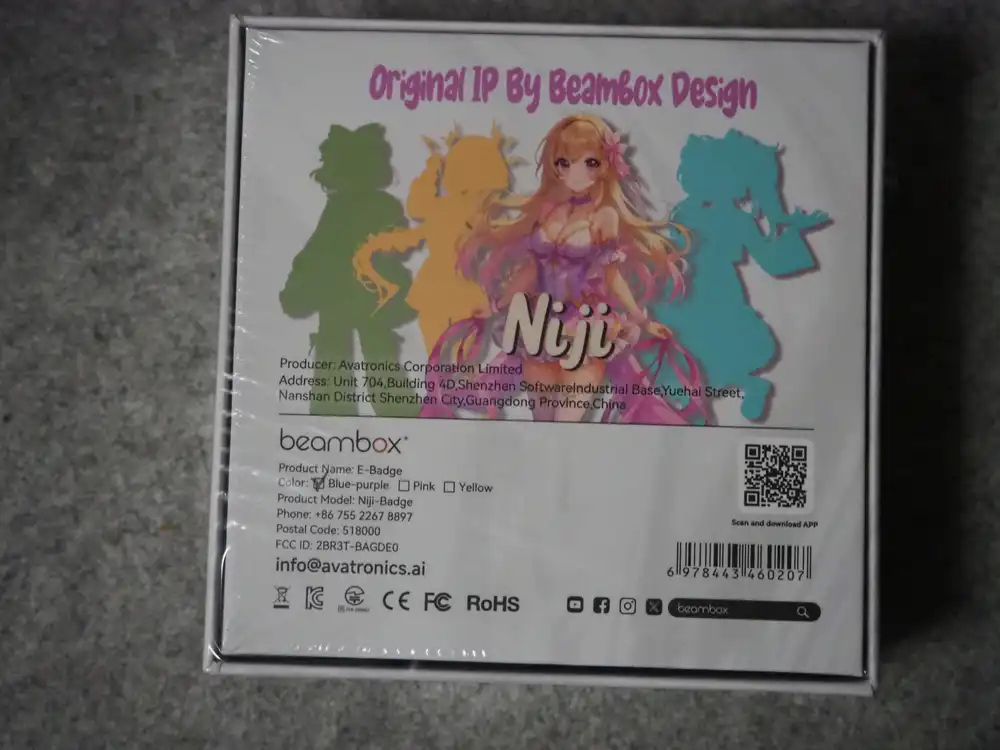
“Original IP By Beambox Design” — four differently-colored characters lined up. Each badge color (Pink / Blue-purple / Yellow) apparently comes with its own character. The unit I bought had “Blue-purple” checked.
Here’s everything laid out.
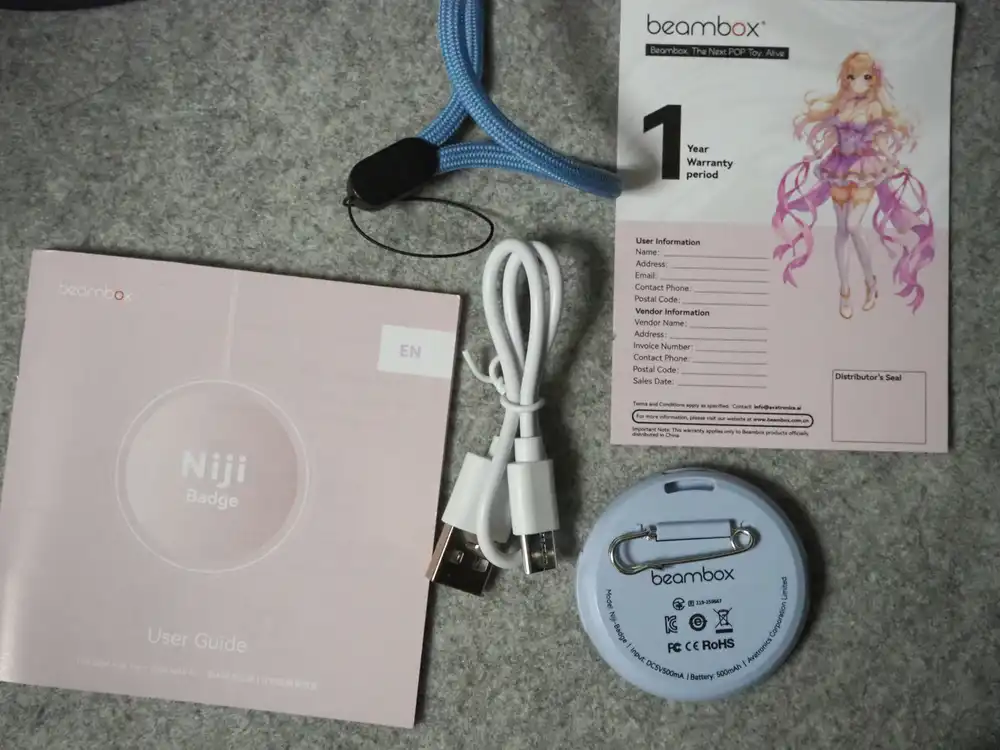
The badge itself, a lanyard, a USB charging cable, a warranty card, and a multi-language user guide (with an English section) were all inside.
The back of the badge has a safety pin and a buckle clasp, so it clips onto clothes or a bag like a regular pin badge.
USB transfer looks like a dead end
Plugging the charging cable into the PC lit up a blinking USB cable icon on the screen.
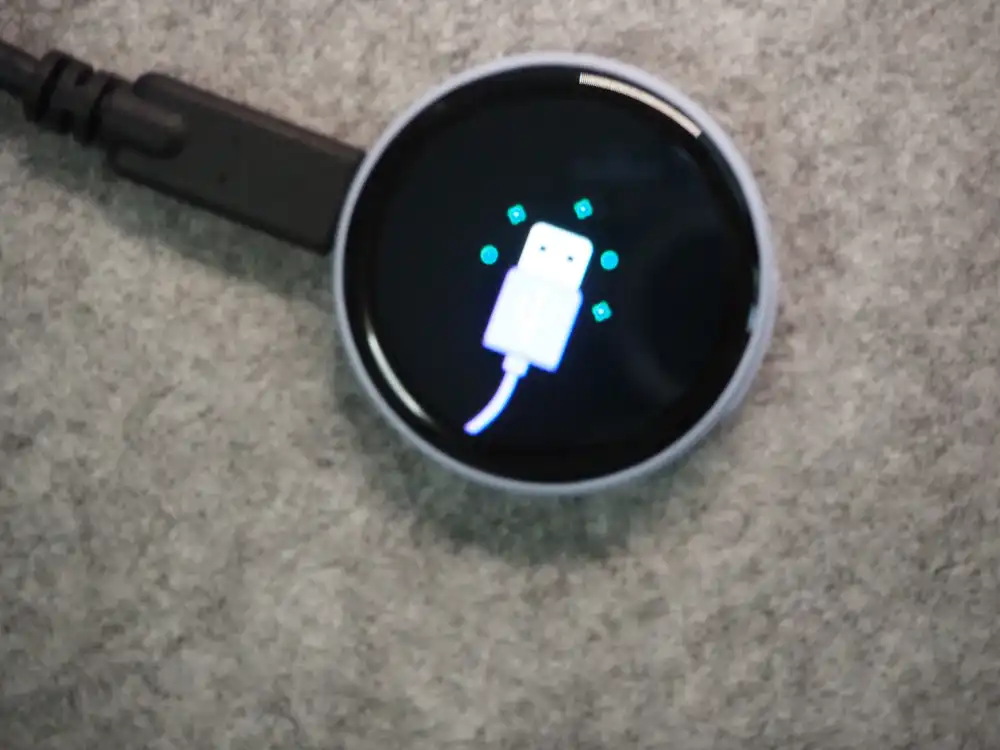
At the same time, Device Manager showed a USB mass storage device called “BR28 UDISK.”
The vendor ID is VID_4C4A (Jieli Technology), so the inside is apparently some Jieli-based Bluetooth SoC.
But Get-Disk reports this disk as OperationalStatus: No Media — there’s no way to access its contents.
This looks like the dummy firmware disk that’s common on Jieli-based chips. So USB is basically charging-only; it doesn’t look like a route for dragging and dropping images.
Poking at the button
There’s a second button next to the power button. I pressed it a few times to see what it does.
The first screen that came up was this.
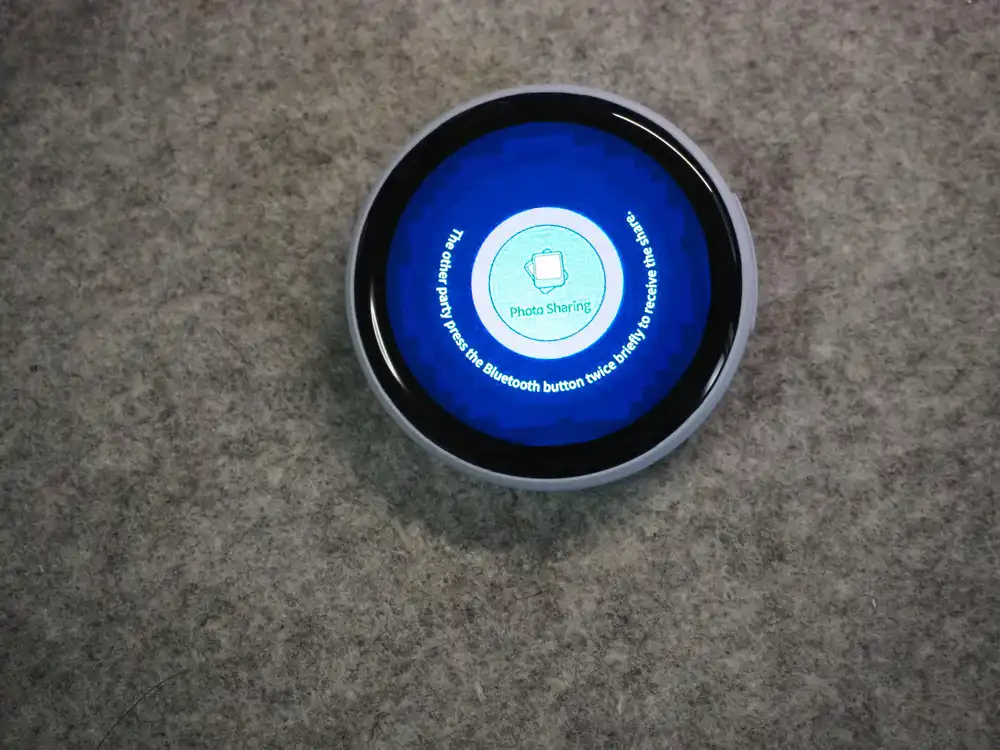
“The other party press the Bluetooth button twice briefly to receive the share.” Bringing two badges close together and double-pressing the button apparently lets you beam the currently displayed image directly to another badge — a P2P sharing mode.
Pressing it again switched to a different screen.
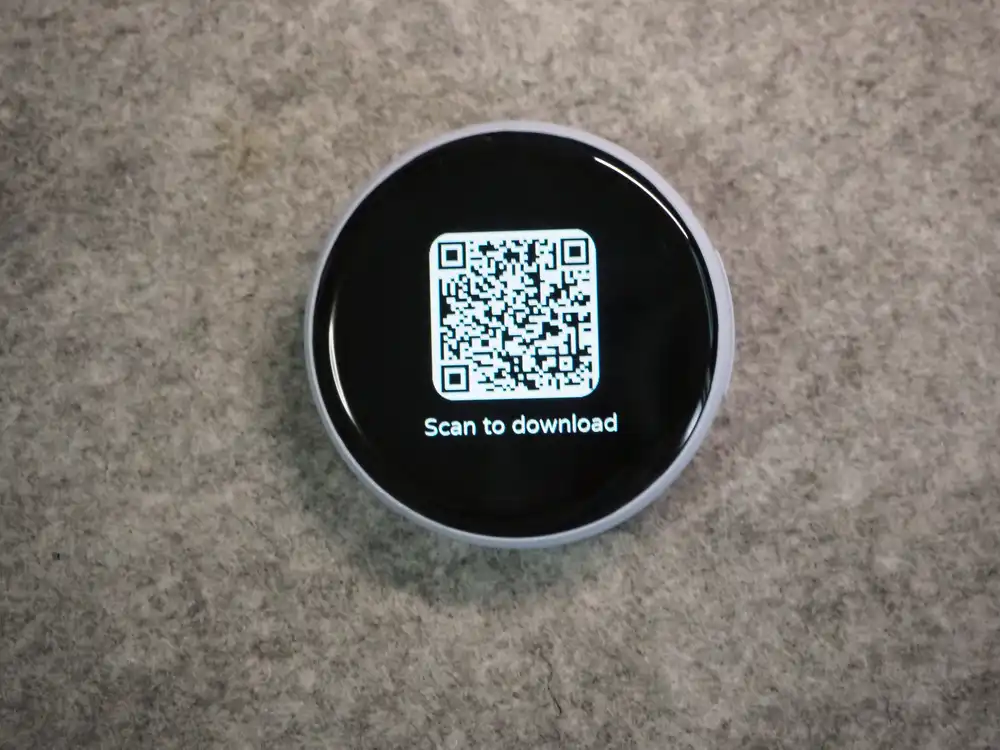
This one is the app download QR code plus a pairing-wait screen. According to the manual, a short press is what puts it into this pairing mode.
Grabbing it directly over BLE
I want to send images without touching the official app.
First, I ran a BLE scan while this pairing screen was up.
With the badge just powered on, it was indistinguishable from the pile of nameless devices around it — no name, no service UUID in the advertising data.
Scanning again with the pairing screen (Scan to download) showing, a device with the advertised name E-badge turned up.
This badge apparently doesn’t advertise constantly — it only announces itself while the pairing screen is up.
Connecting and enumerating GATT services showed exactly one custom service.
| UUID (last 4 hex digits) | Property | Purpose |
|---|---|---|
01F0 | - | Service itself |
01F1 | write-without-response | App → device writes |
01F2 | notify | Device → app notifications |
Simple setup — one write characteristic and one notify characteristic handle everything.
Reading the device’s heartbeat
Subscribing to notify and just sitting there, data started arriving periodically without me sending anything.
a00d0000637b2274797065223a31332c22616c6c7370616365223a31363338342c...The first 5 bytes are a header, followed by a text JSON body. Decoded, it looks like this.
{"type":13,"allspace":16384,"freespace":5592,"devname":"","size":"368,368","time_mode":1,"brand":0}size reports 368,368. The box said 360×360, so the actual framebuffer is apparently a bit bigger than the advertised spec.
allspace/freespace are storage capacity in KB, and I later confirmed these values drop each time an image gets sent.
Here’s the layout including the header.
| Byte offset | Content |
|---|---|
| 0 | Header 0xA0 (device → app) |
| 1 | Message type |
| 2-3 | Reserved |
| 4 | Data length (1 byte, max 255) |
| 5+ | JSON body |
| Last 1B | Checksum |
The checksum is the two’s-complement of the sum of all bytes.
def checksum(data: bytes) -> int:
    return (-sum(data)) & 0xFF
Add this checksum byte to the running sum of everything from the header up to just before it, and the total becomes a multiple of 256. I verified this against real captured data and it held up.
Building the outgoing frame
The app-to-device frame is a bit different from the receive side.
| Byte offset | Content |
|---|---|
| 0 | Header 0xF1 (app → device) |
| 1 | Command type |
| 2-3 | Total packet count (big-endian) |
| 4-5 | Remaining packet count (countdown) |
| 6-7 | This packet’s data length |
| 8+ | Data body (max 496 bytes) |
| Last 1B | Checksum |
There seem to be several command types.
| Code | Purpose |
|---|---|
0x01 | Activate query |
0x02 | OTA package |
0x03 | Boot animation |
0x04 | Watch face |
0x05 | GIF animation |
0x06 | Album (photo) |
0x07 | Get version |
0x0D | Set brightness |
The most likely-looking one by name is 0x06 (album), so I bet on that one for sending a photo.
The data body is split into 496-byte chunks. Only the first packet gets a 17-byte text header {"type":6,"data":, and only the last packet gets a trailing closing brace }.
def build_packets(payload: bytes, type_byte: int):
    head = b'{"type":' + bytes([0x30 + type_byte]) + b',"data":'
    tail = b'}'
    n = len(payload)
    total = ((n + 15) // 496 + 1) if (n - 479) > 0 else 1
    packets = []
    pos = 0
    for i in range(total):
        countdown = (total - 1) - i
        if i == 0:
            take = min(479, n)
            chunk = head + payload[pos:pos + take]
        elif i == total - 1:
            chunk = payload[pos:] + tail
        else:
            take = min(496, n - pos)
            chunk = payload[pos:pos + take]
        pos += len(payload[pos:pos + take]) if i != total - 1 else len(payload) - pos
        frame = (bytes([0xF1, type_byte])
                 + total.to_bytes(2, "big")
                 + countdown.to_bytes(2, "big")
                 + len(chunk).to_bytes(2, "big")
                 + chunk)
        packets.append(frame + bytes([checksum(frame)]))
    return packets
I packed a 368×368 JPEG into this frame and sent it as type=6.
The badge replied with {GetPacketSuccess}, and the free storage dropped by exactly the JPEG’s size. The transfer succeeded.
Solid black
The screen was just solid black.
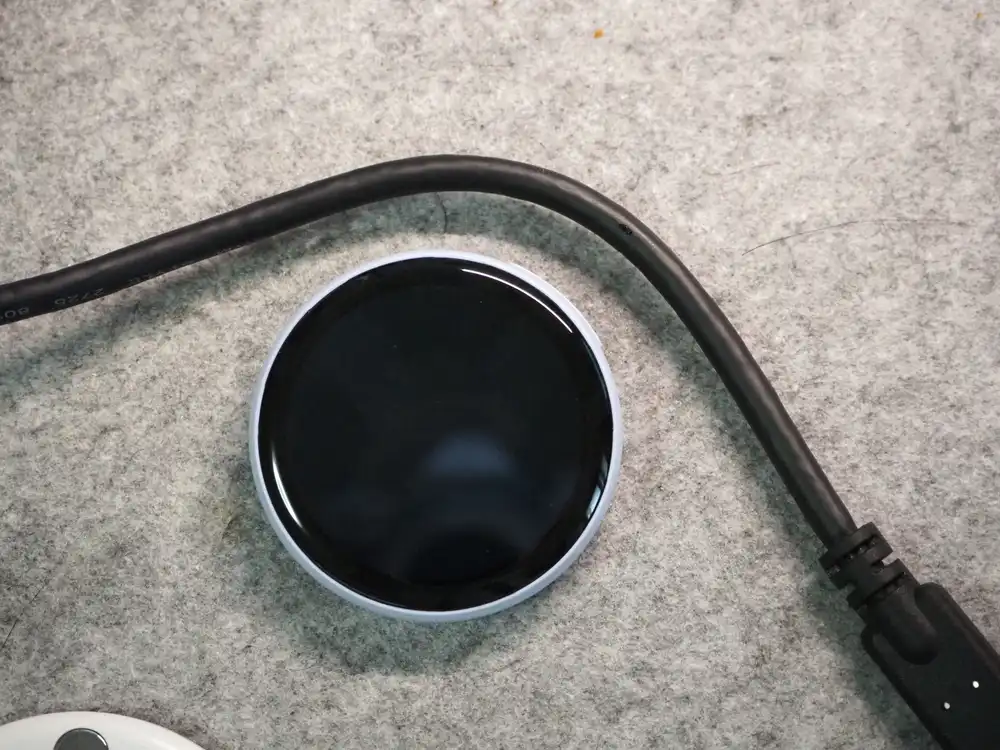
Swiping to switch images showed a new slot had actually been added. So the transfer and storage allocation worked fine — only the display came out black.
It looked like the JPEG decode was failing.
The JPEG opened fine on my own PC, so the file itself wasn’t broken.
I suspected the classic embedded-decoder issue of “won’t read without a JFIF header,” re-encoded with a standard JFIF header — still solid black.
Changing chroma subsampling (4:2:0 vs 4:4:4) made no difference. Swapping in a much simpler image (a plain red background with a green square and a blue circle) still came out solid black.
No amount of tweaking the JPEG itself fixed it. Time to change direction.
It was a custom binary container
After a bunch of trial and error, it turned out that feeding a raw JPEG straight into type=6 (album) was simply the wrong approach — it actually needs to be wrapped in a custom binary container format first, and the command type that should be used is 0x05 (GIF animation), not 6. Even a single still image apparently goes through this path.
The container starts with a magic number 0x12345678 (little-endian) at the front of the file.
The minimal layout for wrapping a single JPEG looks like this.
| Offset | Size | Content |
|---|---|---|
| 0 | 4B | Magic number 0x12345678 (LE) |
| 4 | 4B | Meta value (frame count × 16 + 24) |
| 8 | 4B | Frame count |
| 12 | 4B | Frame interval (ms) |
| 16 | 12B | Name string (e.g. output/3000m) |
| 28 | 4B | Total file length − 1 |
| 32 | 16B | Address table (12B frame name + 4B offset) |
| 48 | 32B | Frame sub-header |
| 80+ | variable | Raw JPEG data |
The frame sub-header (32 bytes starting at offset 48 above) looks like this.
| Offset | Size | Content |
|---|---|---|
| +0 | 4B | This frame’s own offset |
| +4 | 4B | Next frame’s offset |
| +8 | 1B | Format (fixed 0x0B) |
| +9 | 1B | Compression flag (0x00) |
| +10 | 2B | Reserved |
| +12 | 2B | Width |
| +14 | 2B | Height |
| +16 | 4B | JPEG data offset |
| +20 | 4B | JPEG data length |
| +24 | 8B | Reserved |
With only one frame, the “next frame’s offset” points back to itself — it’s apparently treated as a one-frame looping GIF.
Here’s how to build it in Python.
import struct

def build_bin_container(jpeg_frames: list[bytes], interval_ms: int, width: int, height: int):
    n = len(jpeg_frames)
    addr_table_len = n * 16
    frame_data_start = addr_table_len + 32
    meta = addr_table_len + 24

    total_size = frame_data_start + sum(len(f) + 32 for f in jpeg_frames)
    buf = bytearray(total_size)

    struct.pack_into("<I", buf, 0, 0x12345678)
    struct.pack_into("<I", buf, 4, meta)
    struct.pack_into("<I", buf, 8, n)
    struct.pack_into("<I", buf, 12, interval_ms)
    name = f"output/{interval_ms}ms".encode()[:12]
    buf[16:16 + len(name)] = name

    frame_offsets = []
    pos = frame_data_start
    for jpeg in jpeg_frames:
        frame_offsets.append(pos)
        struct.pack_into("<I", buf, pos, pos)          # 自分のオフセット
        struct.pack_into("<B", buf, pos + 8, 11)          # フォーマット
        struct.pack_into("<H", buf, pos + 12, width)
        struct.pack_into("<H", buf, pos + 14, height)
        struct.pack_into("<I", buf, pos + 16, pos + 32)     # JPEGオフセット
        struct.pack_into("<I", buf, pos + 20, len(jpeg))     # JPEG長
        buf[pos + 32:pos + 32 + len(jpeg)] = jpeg
        pos += 32 + len(jpeg)

    for i in range(n):
        nxt = frame_offsets[i + 1] if i < n - 1 else frame_offsets[0]
        struct.pack_into("<I", buf, frame_offsets[i] + 4, nxt)
        entry = 32 + i * 16
        struct.pack_into("<I", buf, entry + 12, frame_offsets[i])

    struct.pack_into("<I", buf, 28, pos - 1)
    return bytes(buf[:pos])
Feed the bytes this function produces into the earlier build_packets(payload, type_byte=5) and stream it over BLE.
The JPEG itself got rebuilt at 368×368 width/height with Pillow.
Here’s the send flow as a diagram.
graph TD
    A[BLEスキャン] --> B{広告名にbadgeを含む}
    B -->|No| A
    B -->|Yes| C[GATT接続]
    C --> D[サービス 0x01F0 確認]
    D --> E[notify 0x01F2 を購読]
    E --> F[JPEGをBINコンテナに変換]
    F --> G[496Bごとに分割してフレーム化]
    G --> H["write-without-response で 0x01F1 へ送信"]
    H --> I{全パケット送信済み}
    I -->|No| H
    I -->|Yes| J[GetPacketSuccessを受信]
Confirming with a test image
First I tried a simple image — just a red background with a green square and a blue circle.
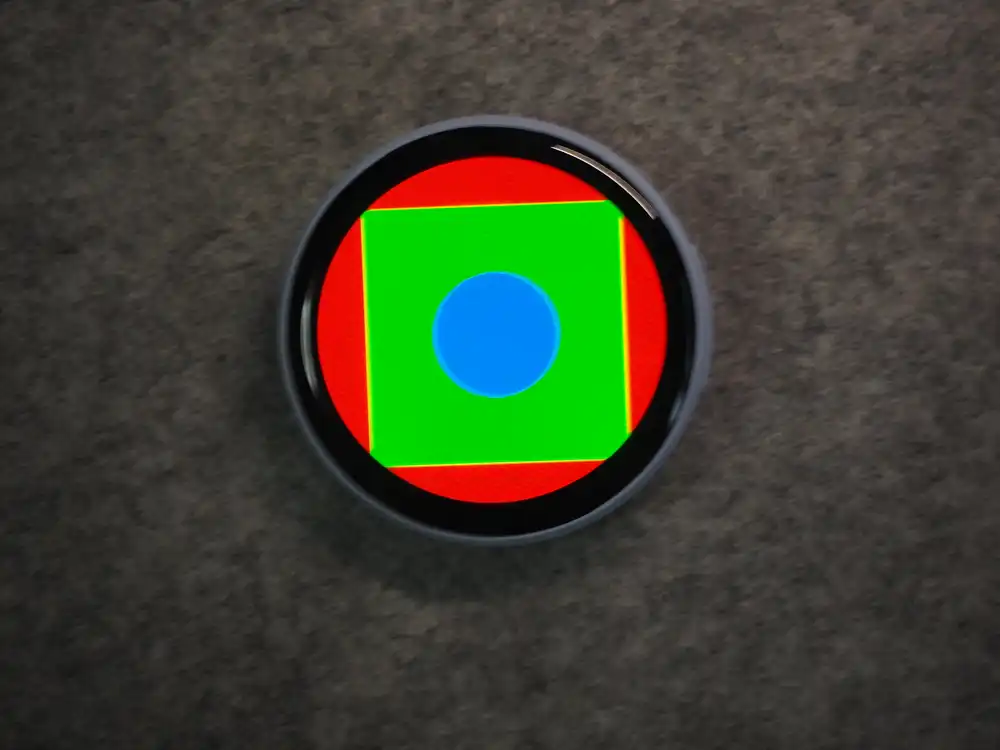
Both the colors and positions came out exactly right. The faint yellow fringe around the green edges is just a common JPEG compression artifact around hard color boundaries — nothing to do with the protocol.
type=6 produced solid black no matter what I tried, and switching to the container format plus type=5 fixed it on the first try.
Displaying kana-chan
With the test working, I sent the real pixel-art image I actually wanted to show.
Got all the way to writing an image over BLE directly from a Windows PC with Python, without ever launching the official app once.
USB turns out to be a charging-only port on a Jieli-based chip — no drag-and-drop file transfer there.
The display advertises 360×360, but the actual framebuffer is 368×368.
And type=6 (album), meant for sending photos, accepts and stores the data but only shows a black screen — actually getting something on the display needs type=5 (treated as a GIF animation) plus conversion into that custom binary container.
I figured this would just be a “send one image over BLE” job — it turned out to be more work than expected.