Testing Anima-RGBA on M1 Max: Direct Transparent PNG Output and Alpha Limits
 Contents
On November 2, a new model called Anima-RGBA was uploaded to Hugging Face.
It combines a custom VAE and a LoRA to output transparent PNGs (RGBA images) directly from the Anima image generation model.
Normally, creating transparent assets requires generating an image on a white background and cutting it out with a background removal tool.
If the model produces an alpha channel directly during generation, that background removal step is no longer needed.
However, the examples in the model card only showed cutout portraits and food items.
Transparency here actually has two distinct meanings: cutout transparency where the background is completely removed, and intermediate alpha transparency where an object itself appears semi-transparent (like glass, steam, or veils).
While the cutout approach works well as a replacement for background removal tools, could elements that look see-through in an illustration actually produce intermediate alpha?
I tested 11 different visual elements on an M1 Max 64GB Mac, modifying the prompts and measuring the resulting alpha values.
Basic Information: Anima-RGBA
| Item | Details |
|---|---|
| Repository | localai0301/Anima-RGBA |
| Release Date | November 2, 2026 |
| License | Apache-2.0 |
| Base Model | circlestone-labs/Anima |
| VAE | vae/anima_rgba_vae.safetensors (508 MB) |
| LoRA | loras/anima_rgba_lora.safetensors (184 MB) |
| Tested Revision | 493fbdecc6f926de89542d444d8a07cdcc31809c |
Roles of the VAE and LoRA
The VAE converts latent representations produced by the diffusion model into pixel images.
Anima originally uses the Qwen-Image VAE, which only outputs standard 3-channel RGB.
The Anima-RGBA VAE expands this to 4 channels, outputting an alpha channel alongside RGB.
Because the latent representation maintains the original 16 channels and 1/8 spatial scale, the core Anima model works without modification.
According to the model card, the VAE encoder was trained on RGB images composited over white alongside their corresponding alpha masks.
Since Anima tends to generate images on a white background when given transparent background, the latent space was aligned to match that behavior.
However, the raw latent space generated by Anima still deviates slightly from what this VAE expects.
The LoRA compensates for this discrepancy by training only the DiT backbone using latents encoded with the RGBA VAE.
It was trained at rank 32 for 25,000 steps.
Usage and Known Limitations
Using Anima-RGBA in an existing ComfyUI workflow requires only three changes, with no custom nodes necessary:
| Change | Details |
|---|---|
| VAE | Select anima_rgba_vae.safetensors in Load VAE |
| LoRA | Add anima_rgba_lora.safetensors at strength 1.0 using a standard LoRA loader |
| Trigger | Add transparent background (or isolated on a transparent background) to the prompt |
If the background does not clear properly, the author recommends increasing the trigger weight (e.g., (transparent background:1.3)) rather than raising the LoRA strength.
Increasing the LoRA strength to 1.5 reportedly causes semi-transparent artifacts around the subject.
The model card also notes the following limitations:
| Limitation | Details |
|---|---|
| Fine semi-transparency | The VAE was trained on 512px crops; delicate semi-transparent areas like fine hair strands, glass, and smoke are the weakest |
| Binary alpha values | The output alpha is mostly binarized to 0 or 1. See-through fabrics usually remain opaque |
| Close-up shots | Extreme close-ups can fail to remove white backgrounds, especially when stacking additional LoRAs |
In the author’s test across 8 prompts × 2 seeds (16 images), the background was removed even without the LoRA.
However, the ratio of semi-transparent pixels was 12.8% without the LoRA, dropping to 0.9% with LoRA 1.0.
For cutout purposes, fewer semi-transparent pixels mean cleaner, sharper edges.
Even on a fine-tuned Anima checkpoint with Turbo LoRA 0.8 and a style LoRA at 12 steps, all 16 images cleared their backgrounds, with semi-transparent pixels at 3.5%.
Test Environment
| Item | Details |
|---|---|
| Machine | M1 Max 64GB (MPS) |
| UI | ComfyUI v0.30.1 (--bf16-vae --bf16-unet), no custom nodes |
| Base Model | anima-base-v1.0.safetensors |
| Text Encoder | qwen_3_06b_base.safetensors |
| VAE | anima_rgba_vae.safetensors (compared with original qwen_image_vae.safetensors) |
| LoRA | anima_rgba_lora.safetensors 1.0 |
| Character LoRA | keikana-animabase-v2_epoch140.safetensors 1.0 (Kanachan & Keichan) |
| Turbo LoRA | anima-turbo-lora-v0.1.safetensors 1.0 |
Generation parameters matched the model card examples:
| Parameter | Value |
|---|---|
| Resolution | 1024×1024 (832×1216 and 1216×832 in the character LoRA section) |
| Steps & CFG | 30 steps, CFG 4.5 (8 steps, CFG 1.0 for Turbo tests) |
| Sampler & Scheduler | er_sde / simple |
| Prompt Prefix | masterpiece, best quality, newest, safe, |
| Negative Prompt | worst quality, low quality, score_1, score_2, score_3, blurry, jpeg artifacts |
In ComfyUI v0.30.1, the Qwen-Image VAE is handled under the “Wan 2.1 VAE” branch in comfy/sd.py.
This branch reads the input channels from encoder.conv1 and output channels from decoder.head.2.
While the original Qwen-Image VAE has 3 channels for both, the Anima-RGBA VAE has 4.
Connecting the 4-channel VAE directly from VAE Decode into Save Image saves an RGBA PNG without extra steps.
How to Read the Images and Metrics
Images in this article are presented in three views side by side:
| Position | Content |
|---|---|
| Left | Image composited over a checkerboard pattern (visible squares indicate transparency) |
| Middle (selected sections) | Image composited over black (useful for spotting haloing or semi-transparent clothing) |
| Right | Alpha channel displayed in grayscale (white = opaque, black = transparent, gray = semi-transparent) |
Metrics are calculated from the normalized 0–1 alpha values of the output PNGs:
| Metric | Calculation |
|---|---|
| α < 0.5 | Proportion of pixels more than 50% transparent (approximates the cleared background area) |
| Opaque | Proportion of pixels with α ≥ 0.98 |
| Semi-transparent | Proportion of pixels where 0.06 < α < 0.94 (matches the model card’s “semi-transparent pixels”) |
Running the Model Card Examples
First, I tested two examples from the model card: a knight (seed 202) and a strawberry shortcake (seed 101).
The knight prompt was also used to compare different VAE and LoRA combinations.
The two runs comparing the original VAE and the RGBA VAE alone used the exact same latent from the same seed, swapping only the VAE at decode time.
| Condition | Output | α < 0.5 | Semi-transparent | Visual Observations |
|---|---|---|---|---|
| Knight, Original VAE (No LoRA) | RGB | 0% | 0% | Fully opaque image on white background. No alpha channel |
| Knight, RGBA VAE Only (No LoRA) | RGBA | 76.1% | 7.3% | Background became transparent, but a white halo remained around the subject, glowing white against black. Gaps in armor and cloak were also semi-transparent |
| Knight, RGBA VAE + LoRA | RGBA | 67.7% | 0.6% | Halos disappeared; alpha was cleanly binarized. Gaps between legs, sword, and arm were fully transparent |
| Knight, RGBA VAE + LoRA, No Trigger | RGBA | 62.4% | 1.0% | Background cleared even without transparent background. Ground shadow remained as an opaque white band with scattered petal-like fragments |
| Shortcake, RGBA VAE + LoRA | RGBA | 47.0% | 0.4% | Cleanly cut out along the outer contour of the cake |

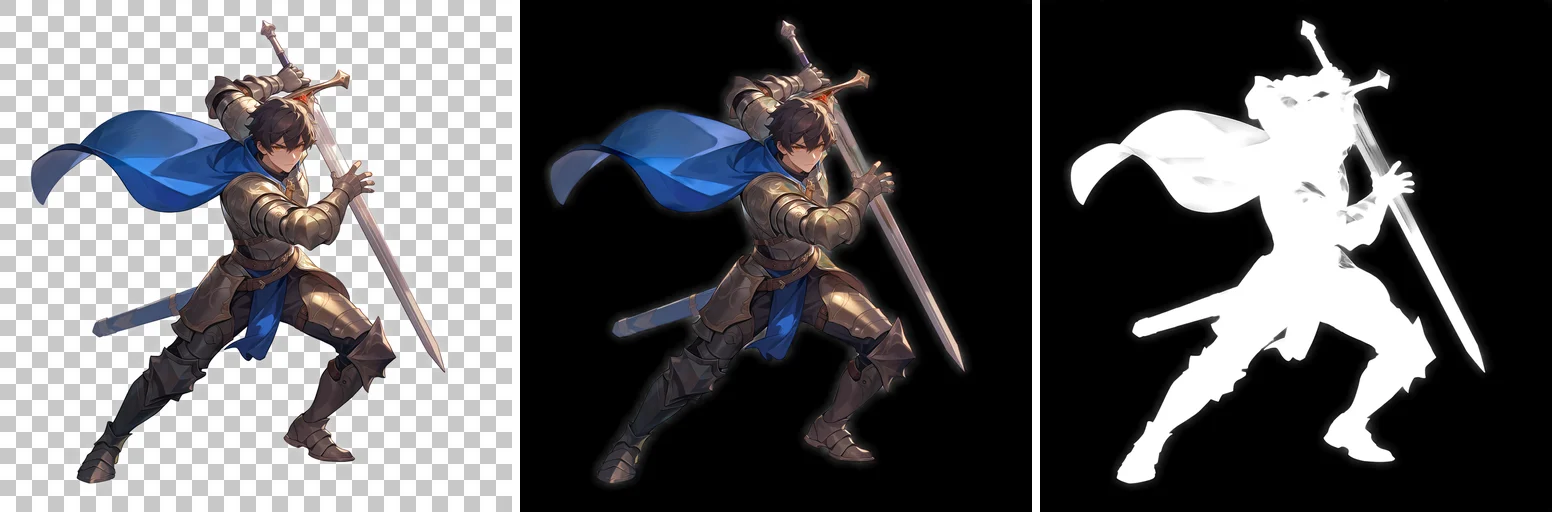
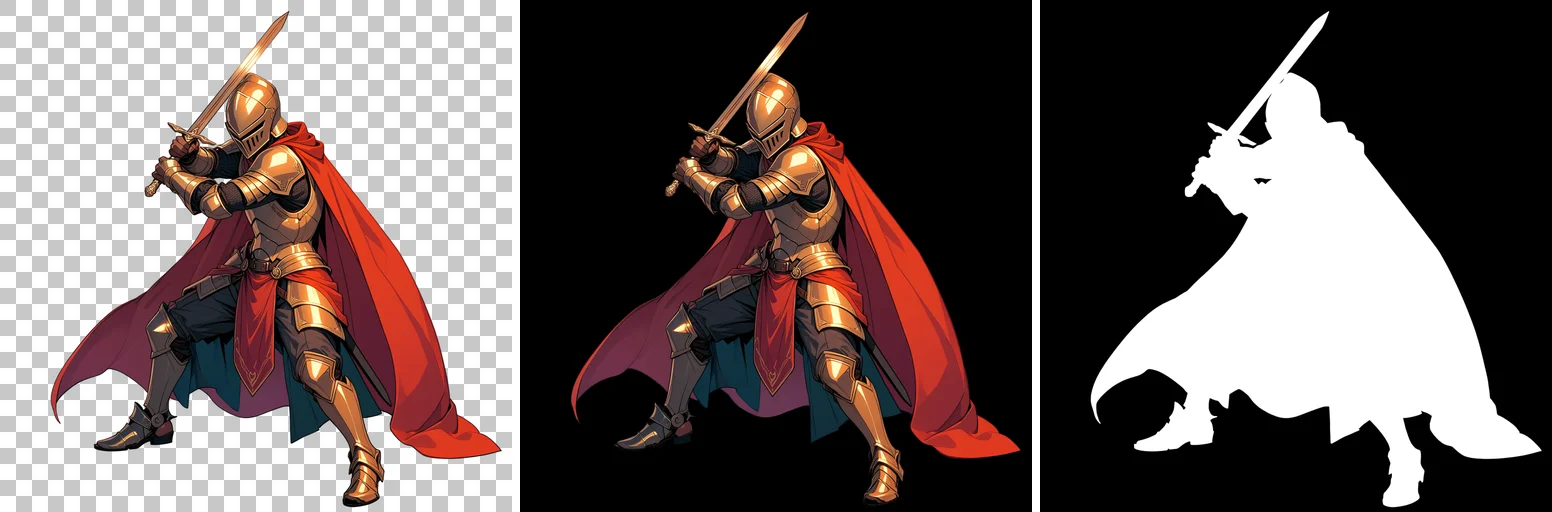
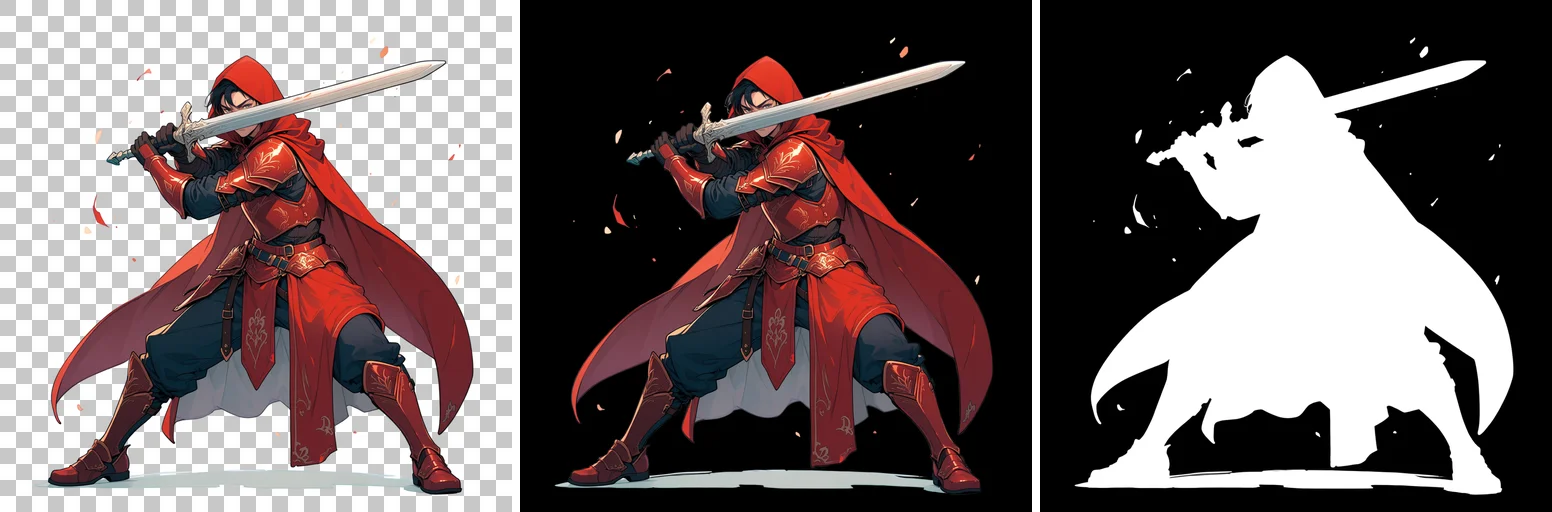
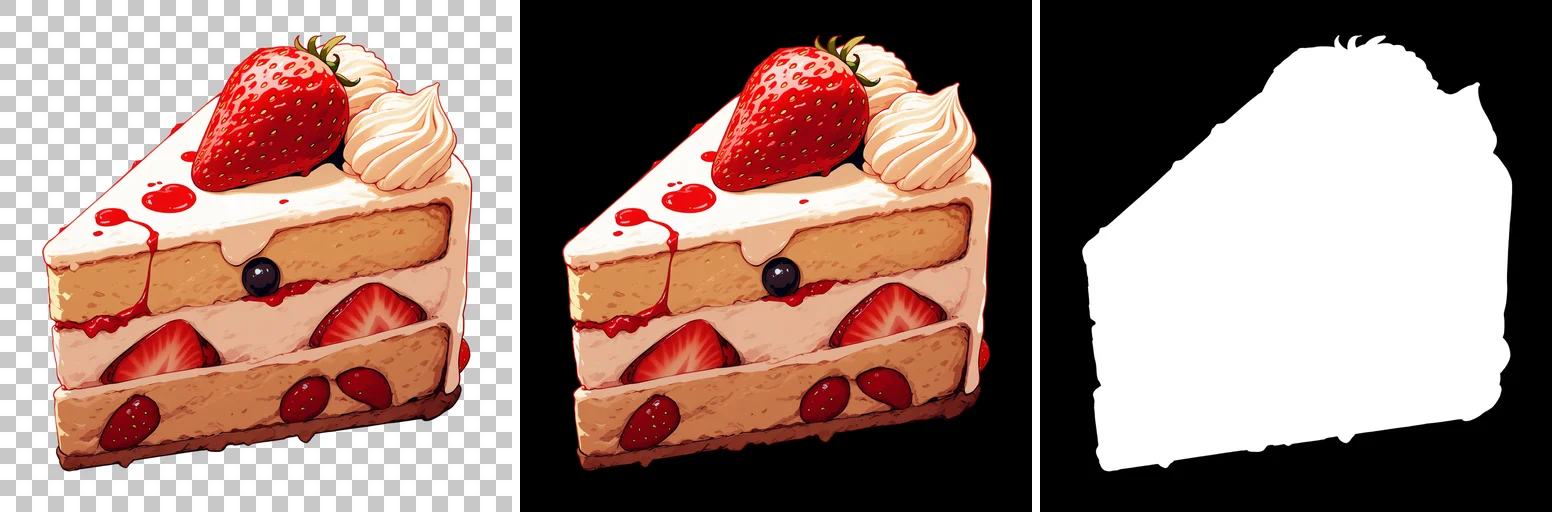
The soft halos without the LoRA matched the model card’s note that alpha values become hazy without it.
Even without the trigger word, the single test run cleared the background successfully.
Although generated with the exact same seeds and settings, both the knight and cake outputs differed visually from the sample PNGs in the model card.
The knight in the model card wears a blue cloak, but on my M1 Max Mac it generated gold armor with a red cloak, showing differences in composition and color palette.
Prompts
Knight (Seed 202)
masterpiece, best quality, newest, safe, 1boy, solo, transparent background, armor, holding sword, cape, full body, fighting stanceKnight, No Trigger (Seed 202)
masterpiece, best quality, newest, safe, 1boy, solo, armor, holding sword, cape, full body, fighting stanceShortcake (Seed 101)
masterpiece, best quality, newest, safe, no humans, transparent background, food, strawberry shortcake, fruit, still lifeWhat Gets Transparent Across Different Elements
Next, I selected 11 visual elements commonly desired in transparent assets and included them in individual prompts.
All runs used the RGBA VAE + LoRA 1.0 with a trigger weight of 1.0, generating two images per element (seeds 101 and 202).
Values in the table are listed in order: “Seed 101 → Seed 202”.
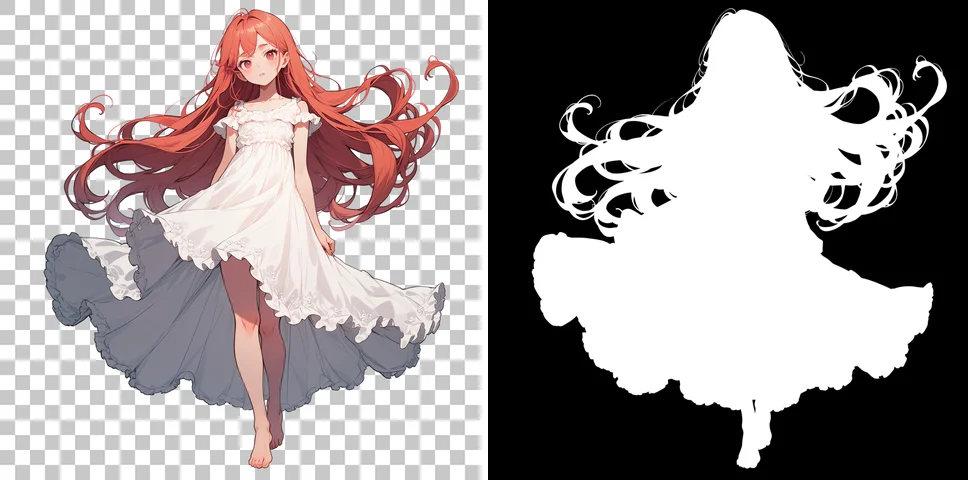
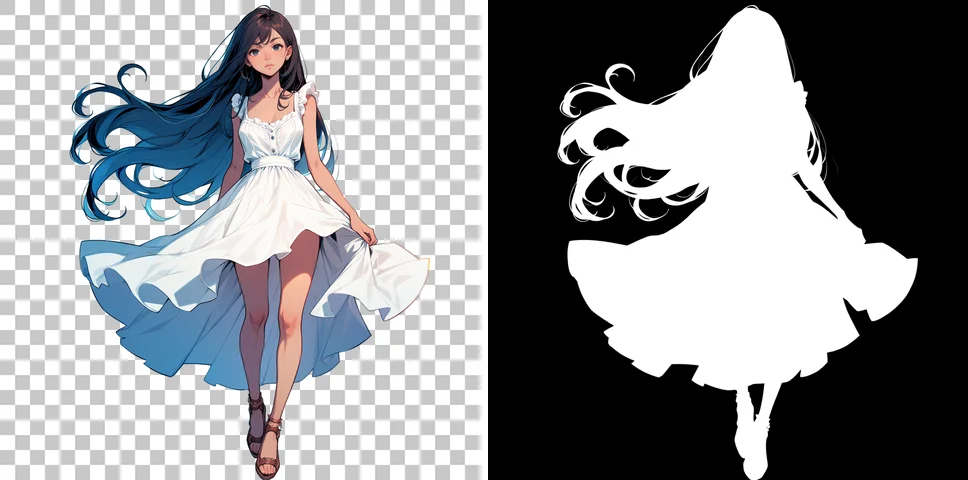
| Element | α < 0.5 | Opaque | Semi-transparent | Visual Observations |
|---|---|---|---|---|
| Hair tips | 57.3% → 66.2% | 41.9% → 33.2% | 1.4% → 1.1% | Gaps between spreading hair strands cleared cleanly. Even fine strands remained opaque; hair tips did not turn semi-transparent. White dress stayed solid |
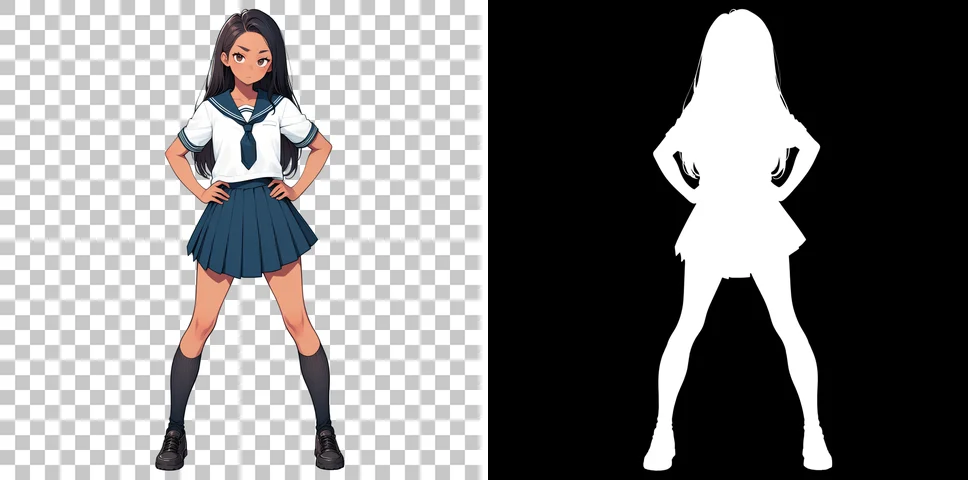
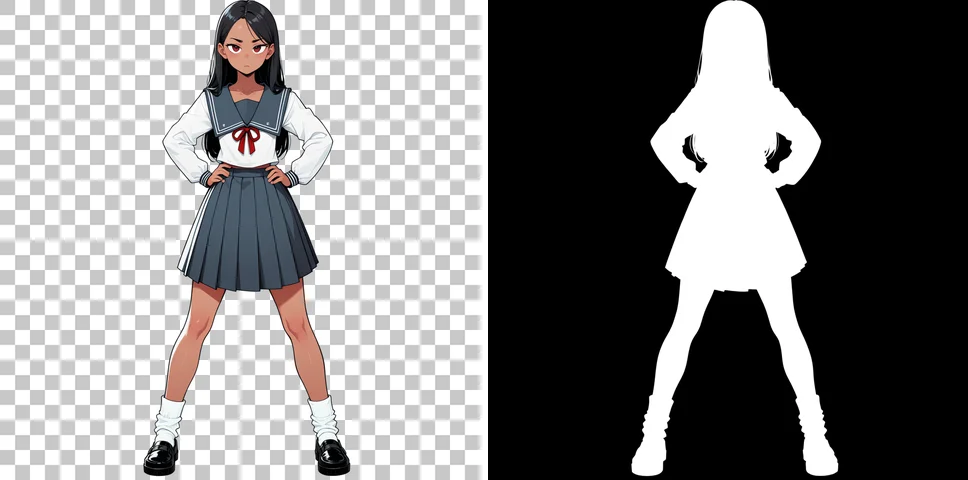
| Enclosed gaps | 84.1% → 82.7% | 15.6% → 17.0% | 0.5% → 0.5% | Gaps between spread legs cleared cleanly in both. Gaps between arms and torso cleared in Seed 101; in Seed 202 arms hugged the torso with virtually no gap |
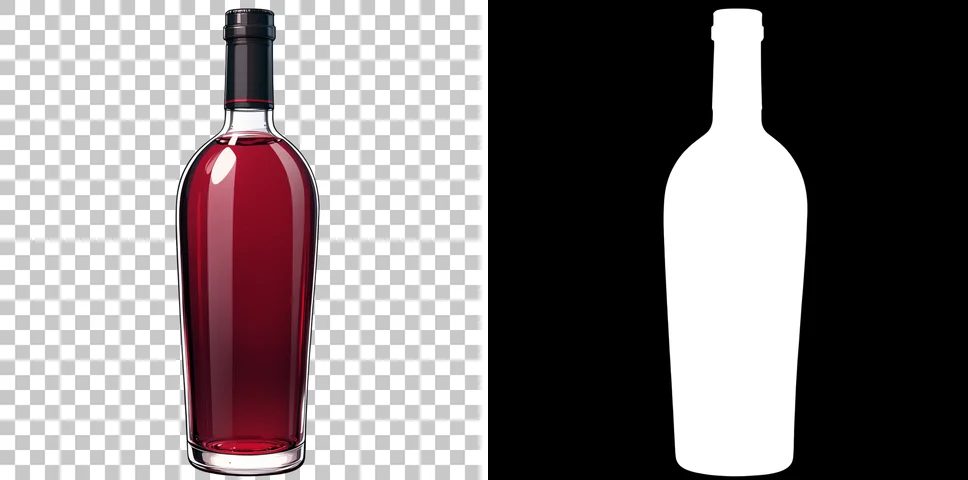
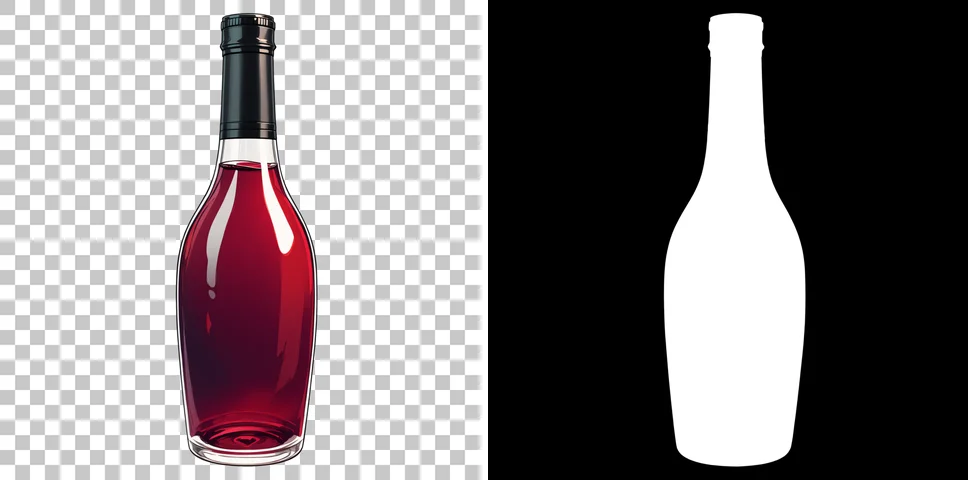
| Glass | 78.5% → 80.6% | 21.3% → 19.2% | 0.3% → 0.3% | Wine glasses did not appear in either run; only a bottle was generated. The entire bottle remained opaque, including the clear glass above the liquid |
| Steam | 66.5% → 69.9% | 33.3% → 29.8% | 0.4% → 0.4% | Steam was drawn as a solid white mass and remained opaque. In Seed 101, gray shadow under the saucer also remained opaque |
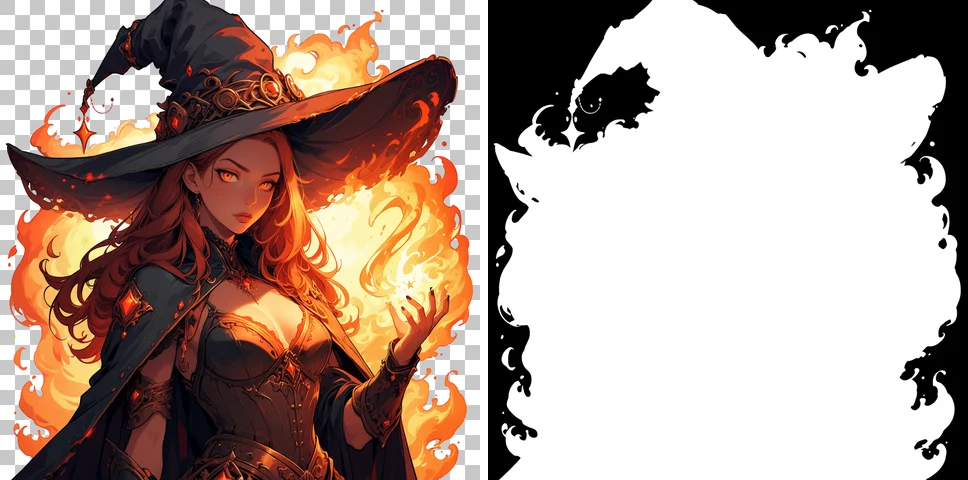
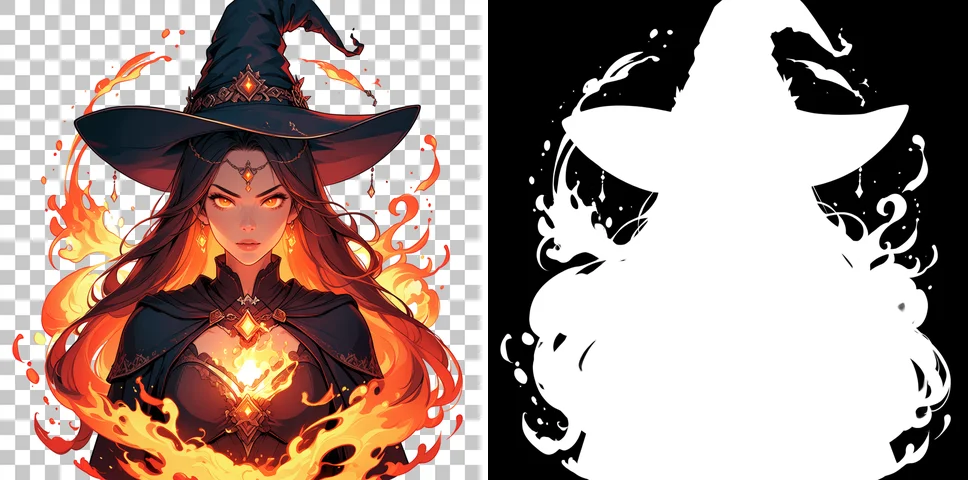
| Fire / Magic | 22.1% → 39.9% | 77.4% → 59.2% | 0.9% → 1.5% | Flames were cut out along their outer contour; the fire itself stayed opaque while gaps cleared. Subject and fire filled the frame, clipping at the bottom border |
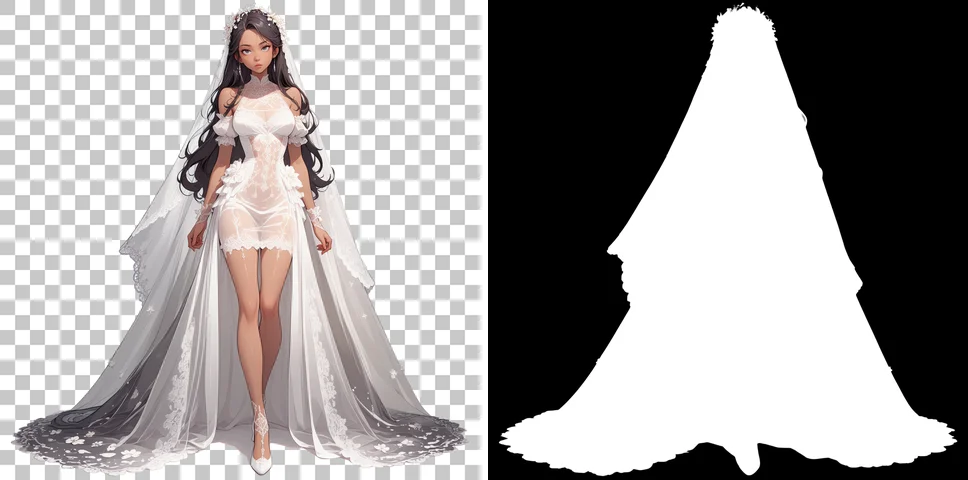
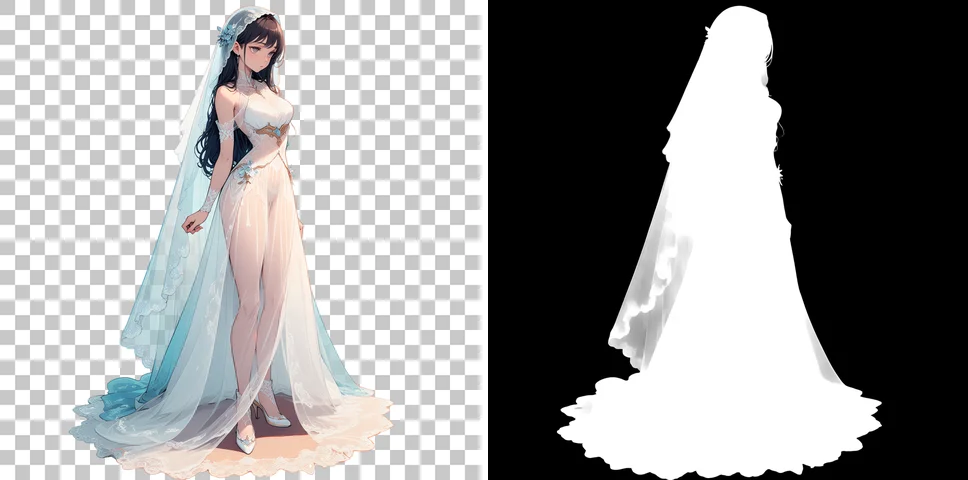
| Sheer fabric | 58.2% → 67.8% | 41.5% → 29.0% | 0.5% → 3.1% | Hair and legs were visible through the veil, but Seed 101 kept the veil fully opaque in alpha. Seed 202 produced some semi-transparency along the veil’s outer edge |
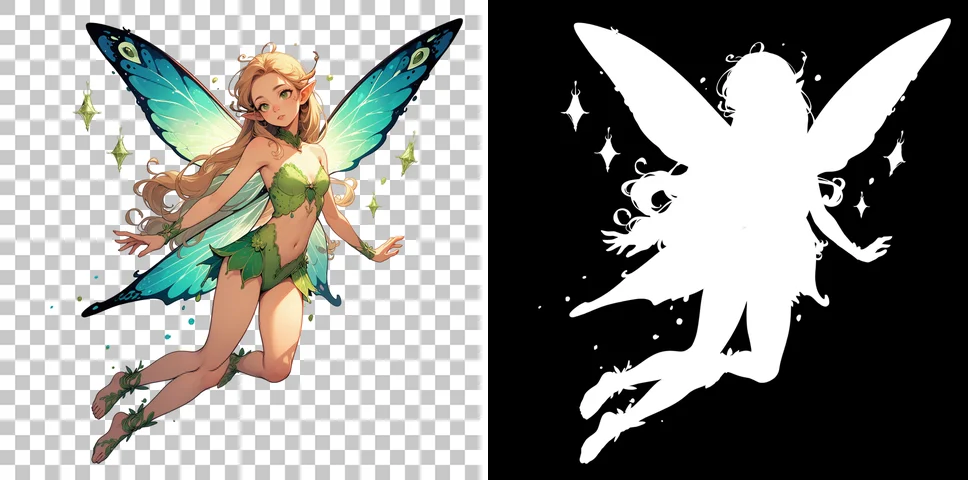
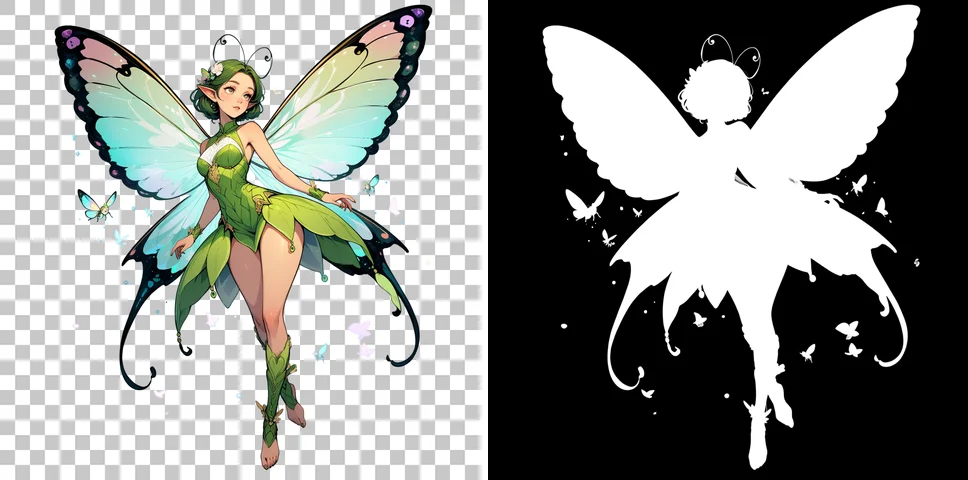
| Wings | 70.9% → 69.2% | 28.3% → 30.0% | 1.3% → 1.3% | Both produced butterfly-like wings with the body visible behind them, but the alpha channel stayed fully opaque across the entire wing. Surrounding sparkles and small butterflies cleared individually |
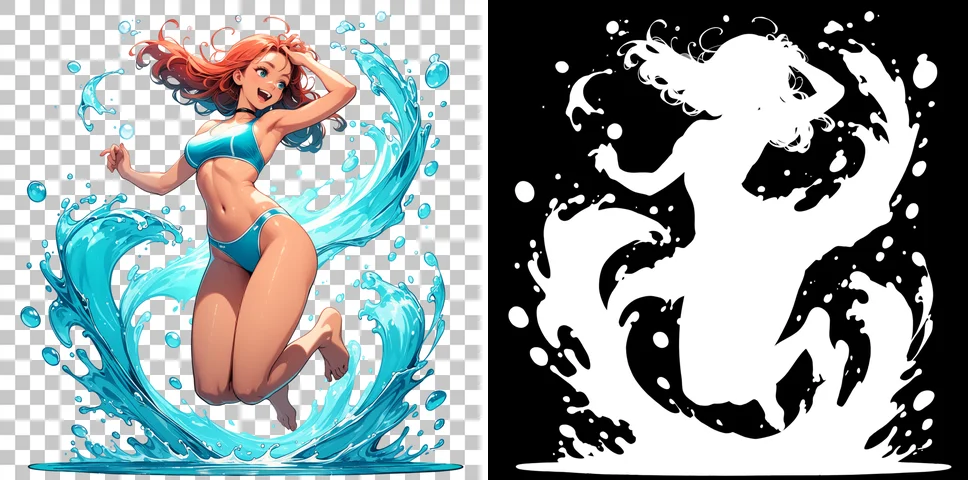
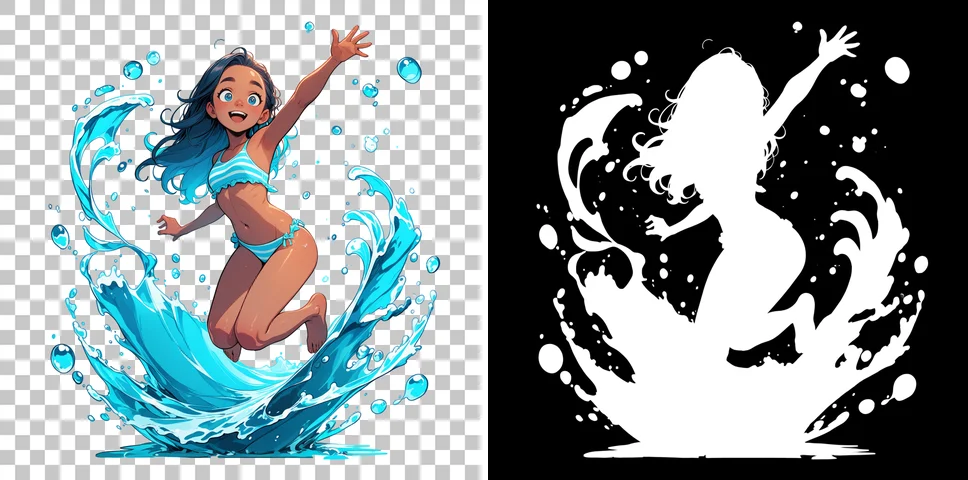
| Water splash / Bubbles | 53.9% → 65.5% | 44.6% → 33.3% | 2.5% → 2.0% | Splashes and bubbles were cut out as individual opaque beads; gaps between them cleared. The water volume itself did not become transparent |
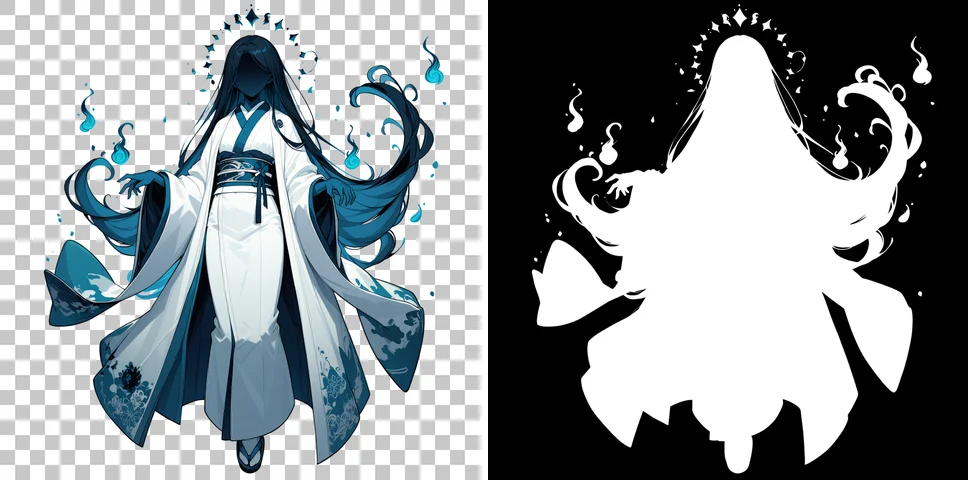
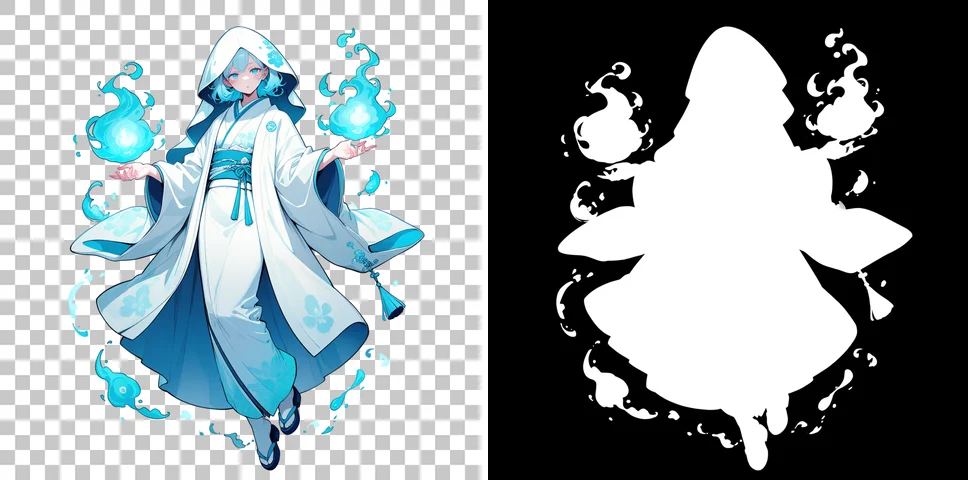
| Ghost | 59.1% → 63.7% | 40.0% → 35.6% | 1.5% → 1.2% | Body did not become semi-transparent, rendering as an opaque figure. Blue will-o’-the-wisps were cut out individually |
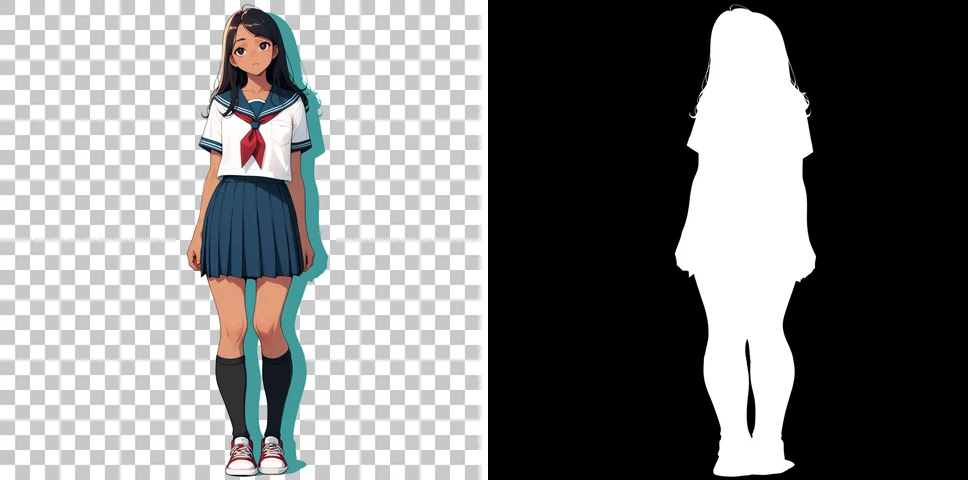
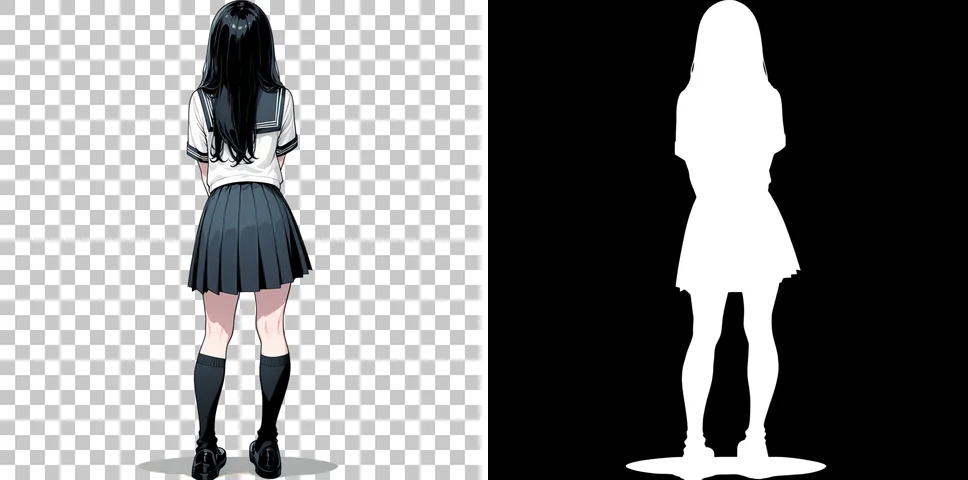
| Shadow | 81.3% → 83.6% | 18.5% → 16.1% | 0.4% → 0.4% | Seed 101 had a teal drop shadow; Seed 202 had a gray oval shadow underfoot. Both rendered as solid, flat-color shapes |
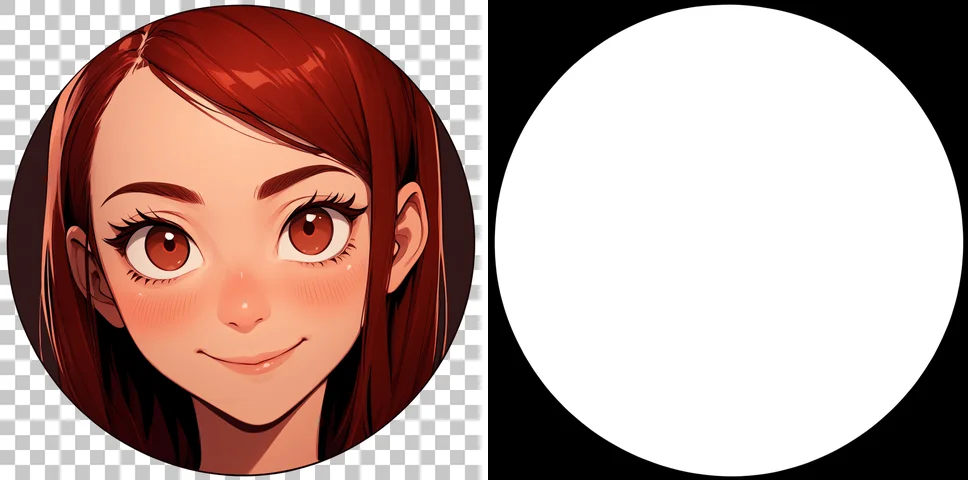
| Close-up | 24.9% → 38.1% | 74.9% → 61.2% | 0.4% → 1.1% | In Seed 101, the face was framed inside a circular border, with only the outside of the circle turning transparent. Seed 202 cut out along the hair, with head top and shoulders clipped at the frame edge |
Seed 101
Seed 202
Seed 101
Seed 202
Seed 101
Seed 202
Seed 101

Seed 202

Seed 101
Seed 202
Seed 101
Seed 202
Seed 101
Seed 202
Seed 101
Seed 202
Seed 101
Seed 202
Seed 101
Seed 202
Seed 101
Seed 202
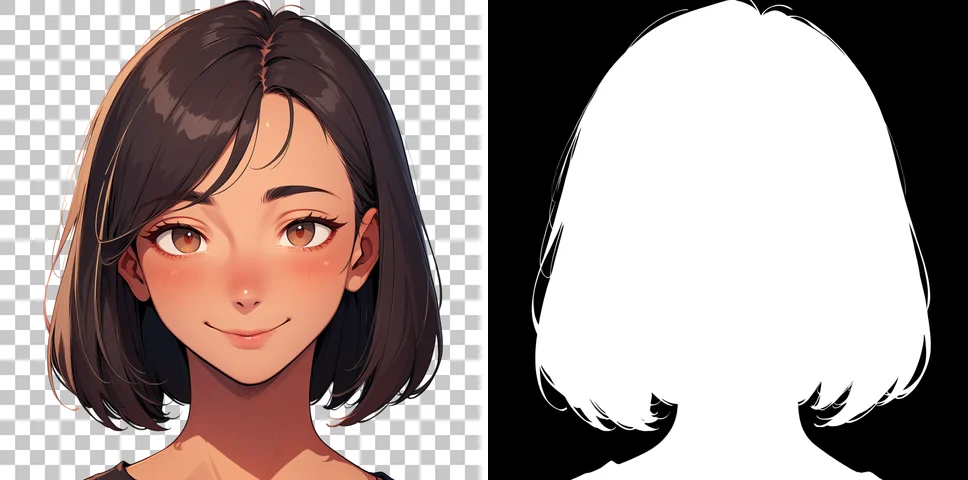
In all 22 outputs, the background turned transparent without leaving a white backdrop.
Areas treated as background—such as gaps between hair locks, between legs, between water droplets, gaps in flames, and spaces around accessories—cleared cleanly with alpha 0.
Conversely, elements drawn to appear translucent—glass, steam, wings, and ghosts (8 images across 4 elements)—all remained completely opaque.
On the glass bottles, the area above the wine that should be clear glass was painted in a whitish, opaque tone.
This aligns with the model card’s note that alpha is mostly binary and see-through fabrics usually remain opaque.
Shadows—both the drop shadow and the ground oval—rendered as solid flat-color shapes.
When composited over another background, the shadow looks like a colored cardboard cutout rather than a translucent darkening.
While the model card warned that white backgrounds might linger in close-ups, neither of my two close-up tests retained a white background.
Instead, Seed 101 enclosed the face inside a circular badge, clearing only the area outside that badge.
When the composition fills the frame, as with the flames and the close-ups, any edge clipping carries over directly into the alpha channel.
If you intend to use the result as a cutout asset, requesting full body to maintain margins around the subject is much easier to work with.
Prompts
All prompts were prefixed with masterpiece, best quality, newest, safe, .
Hair Tips
1girl, solo, transparent background, very long hair, floating hair, wind, white dress, looking at viewer, full bodyEnclosed Gaps
1girl, solo, transparent background, school uniform, hands on own hips, legs apart, standing, full bodyGlass
no humans, transparent background, wine glass, red wine, glass bottle, still lifeSteam
no humans, transparent background, coffee cup, steam, saucer, still lifeFire / Magic
1girl, solo, transparent background, witch, casting spell, fire, magic, glowing, upper bodySheer Fabric
1girl, solo, transparent background, see-through dress, sheer fabric, veil, white dress, standing, full bodyWings
1girl, solo, transparent background, fairy, fairy wings, insect wings, translucent wings, flying, full bodyWater Splash / Bubbles
1girl, solo, transparent background, water splash, bubbles, swimsuit, jumping, full bodyGhost
1girl, solo, transparent background, ghost, transparent body, floating, white kimono, full bodyShadow
1girl, solo, transparent background, standing, shadow, drop shadow, school uniform, full bodyClose-up
1girl, solo, transparent background, portrait, face focus, close-up, smile, looking at viewerSemi-Transparency in the Seed 202 Veil
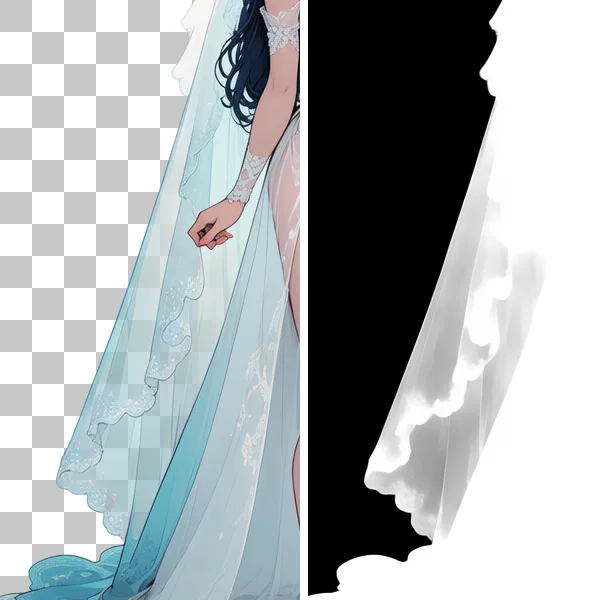
Out of the 22 runs, only Seed 202’s sheer fabric produced a noticeable cluster of semi-transparent pixels.
The image below shows a 1:1 crop of the left side of that output (X: 200–500, Y: 250–850), showing the checkerboard composite on the left and the alpha channel on the right:
| Item | Value |
|---|---|
| Semi-transparent pixels (0.06 < α < 0.94) | 3.1% of the entire image (~32,000 pixels at 1024×1024), mostly localized to the left veil |
| Alpha of those pixels | Median: 204/255; 10th–90th percentiles: 160–232 |
| Approximate opacity | 60% to 90% |
Composited over the checkerboard, the pattern is faintly visible through the veil.
Even so, the opacity remains over 60%, meaning it is not dramatically see-through.
The same prompt on Seed 101 did not produce this effect.
Testing Trigger Weight at 1.3
The model card suggests raising the trigger weight if backgrounds fail to clear.
Because none of my initial outputs retained a white background, I tested raising the weight to 1.3 on sheer fabric and flames—two elements that failed to produce translucency.
The prompt simply swapped transparent background for (transparent background:1.3), keeping everything else identical to Seed 101.
| Condition | α < 0.5 | Opaque | Semi-transparent | Visual Observations |
|---|---|---|---|---|
| Sheer fabric, Trigger 1.3 | 57.9% | 41.8% | 0.5% | Nearly identical to weight 1.0 (Seed 101). Veil remained opaque all the way to its outer edge |
| Fire / Magic, Trigger 1.3 | 23.6% | 75.8% | 1.0% | Flame shape changed, but fire remained solid. Bottom clipped at the image border |
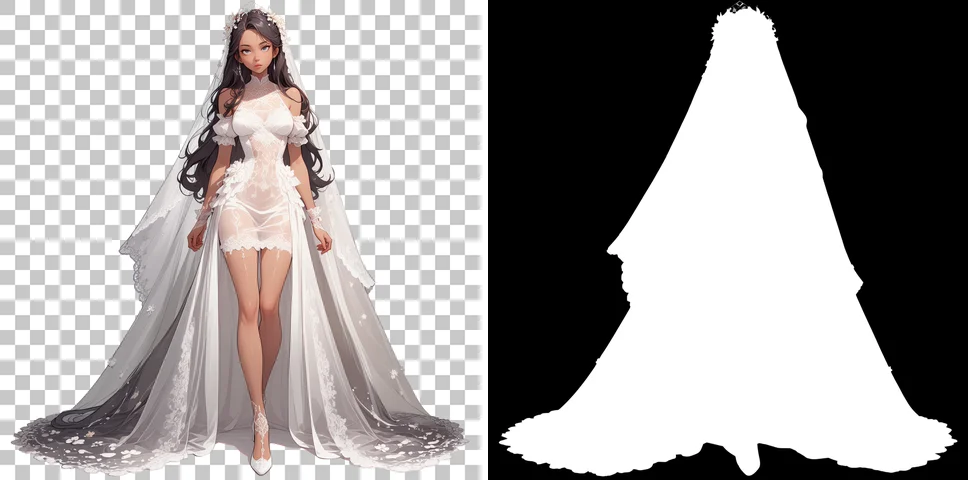
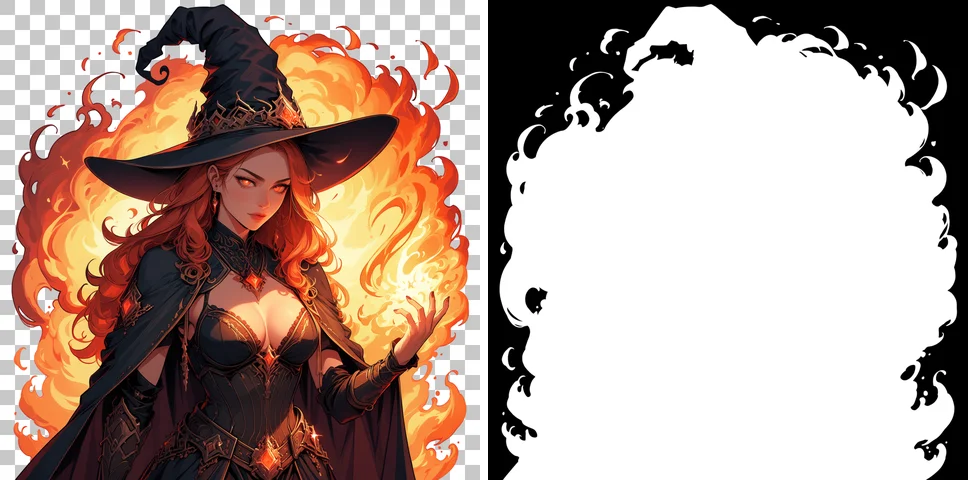
Raising the trigger weight did not lower the alpha values of the translucent elements.
Empty Wine Glass Test
For the glass element, I also modified the prompt to coax out an actual wine glass.
The original wine glass, red wine, glass bottle yielded only a bottle, so I specified empty wine glass.
However, the resulting image still contained red wine, and the entire glass remained opaque.
| Condition | α < 0.5 | Opaque | Semi-transparent | Visual Observations |
|---|---|---|---|---|
| Empty wine glass (Seed 101) | 79.1% | 20.7% | 0.3% | Glass still contained red wine despite empty. Entire glass was opaque to the outer contour, with the clear portion above the wine rendered in a milky white tone |
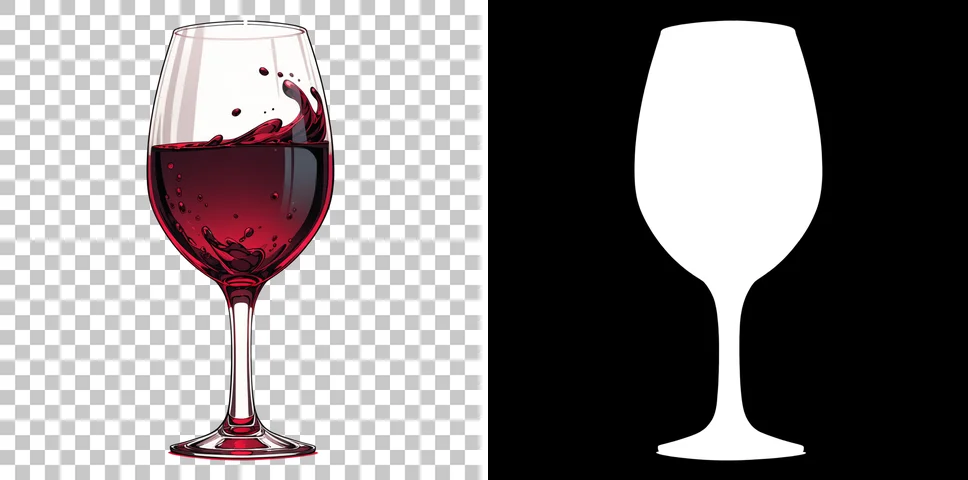
The milky appearance of supposedly clear glass likely stems from the VAE training data compositing transparent areas against white.
Neither prompt adjustments nor trigger weighting managed to produce true intermediate alpha for see-through objects.
Prompts
All prompts were prefixed with masterpiece, best quality, newest, safe, .
Sheer Fabric, Trigger 1.3
1girl, solo, (transparent background:1.3), see-through dress, sheer fabric, veil, white dress, standing, full bodyFire / Magic, Trigger 1.3
1girl, solo, (transparent background:1.3), witch, casting spell, fire, magic, glowing, upper bodyEmpty Wine Glass
no humans, transparent background, empty wine glass, glass, still lifeStacking Character LoRA and Turbo LoRA
The model card notes that stacking other LoRAs can cause white backgrounds to linger.
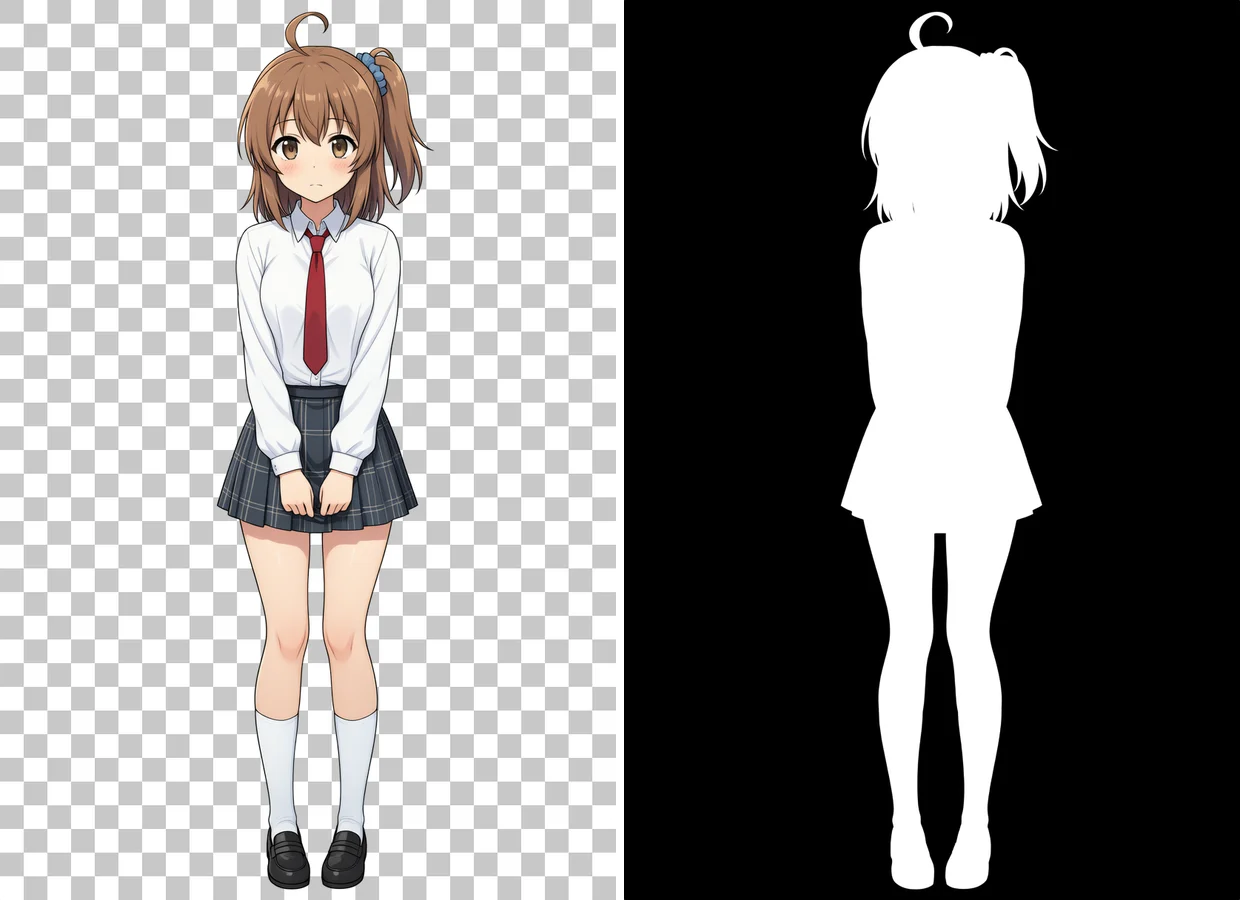
To test this, I combined Anima-RGBA with the Kanachan & Keichan character LoRA used in my previous comparison (AMIXA vs JANIMA on M1 Max).
Prompts were adapted from that article, replacing white background, simple background with transparent background, using seed 42 and locking two characters to standing side by side, full body.
| Condition | α < 0.5 | Opaque | Semi-transparent | Visual Observations |
|---|---|---|---|---|
| Kanachan, With RGBA LoRA (832×1216, 30 steps) | 81.0% | 18.7% | 0.5% | Side ponytail, blue scrunchie, and ahoge appeared. Clean binary cutout; gaps between arm and torso were transparent |
| Kanachan, Without RGBA LoRA (VAE only, 30 steps) | 78.7% | 11.9% | 12.7% | White shirt and skin turned semi-transparent, sinking into dull gray over black. White haloing appeared around outlines |
| Kanachan, RGBA LoRA + Turbo LoRA (8 steps) | 78.7% | 20.9% | 0.7% | Clean binary cutout even at 8 steps. Character traits remained intact, though the tie changed to a ribbon |
| Two Characters, With RGBA LoRA (1216×832, 30 steps) | 81.8% | 17.8% | 0.6% | Both characters were cut out with transparent space between them. Right figure was Keichan; left figure had dark brown hair |
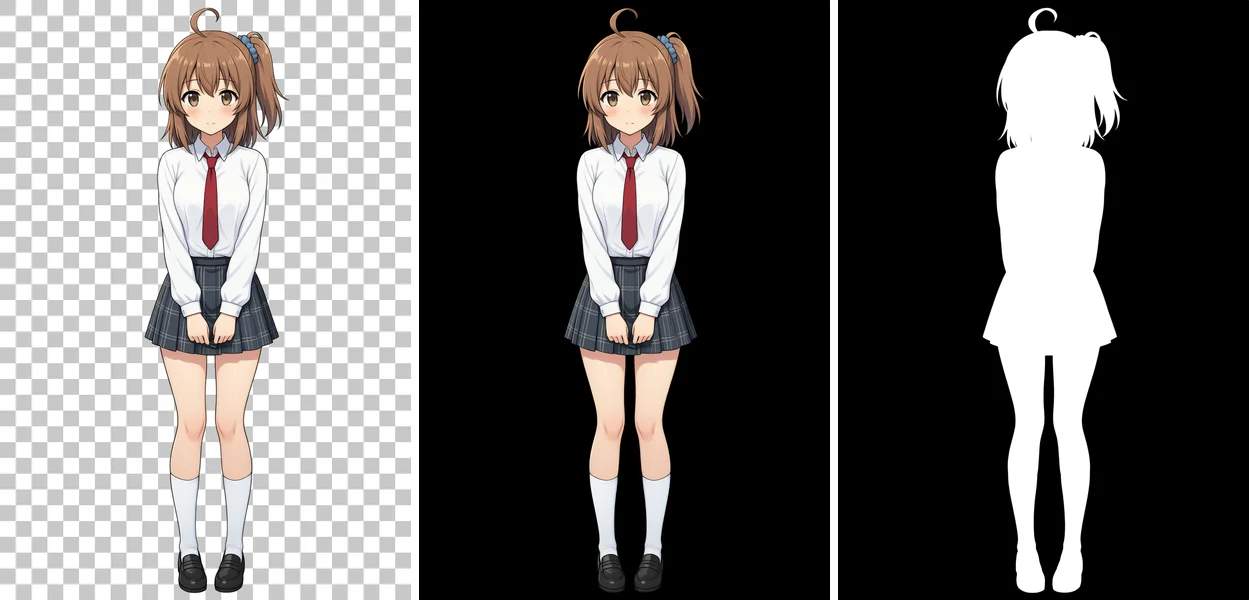
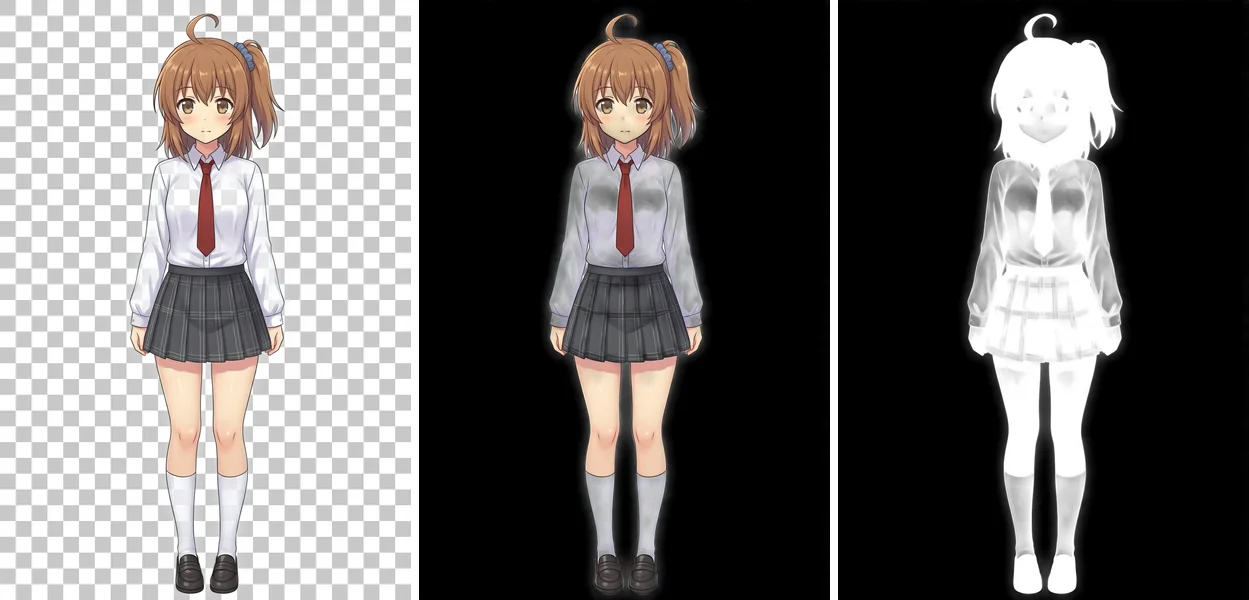
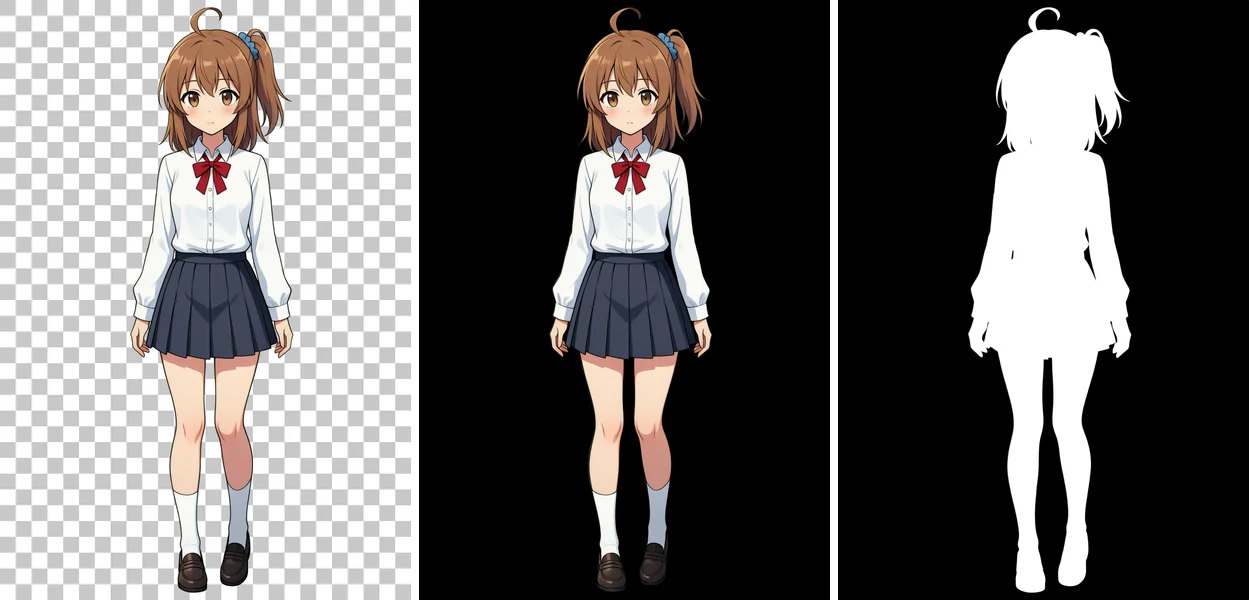
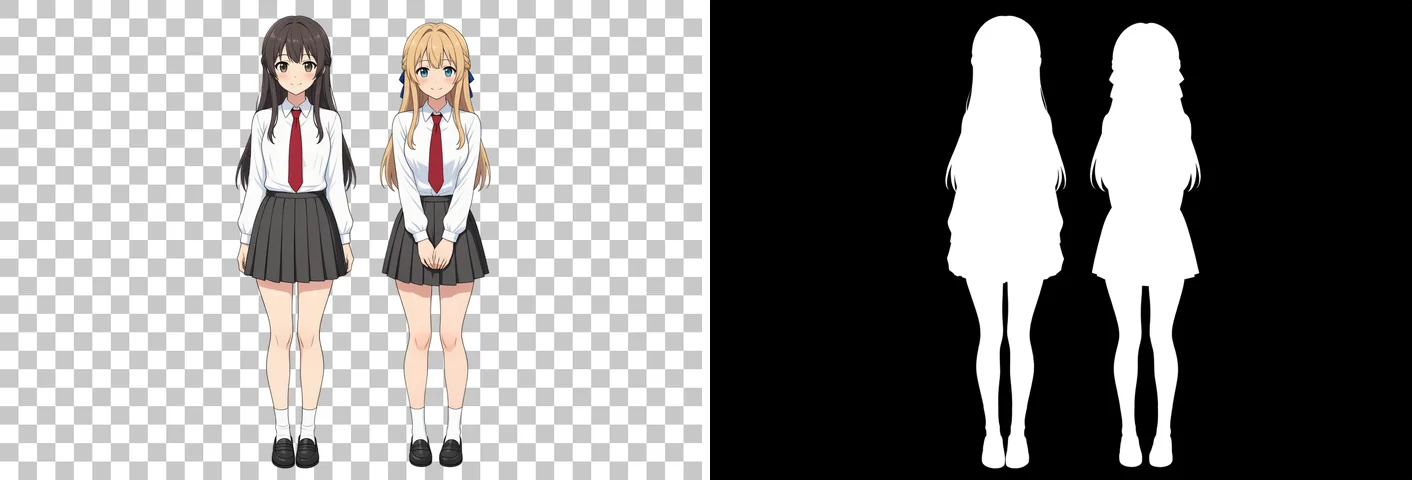
Even when stacking character LoRA and Turbo LoRA, all four outputs cleared their backgrounds cleanly.
Removing the RGBA LoRA caused white clothes and skin to become semi-transparent even with the character LoRA present, proving that swapping only the VAE is insufficient for clean cutouts.
Prompts
Kanachan (Identical across all 3 conditions)
masterpiece, best quality, safe, 1girl, solo, kanachan, brown hair, side ponytail, ahoge, brown eyes, school uniform, full body, standing, looking at viewer, transparent backgroundTwo Characters
masterpiece, best quality, safe, 2girls, multiple girls, kanachan, keichan, standing side by side, full body, looking at viewer, smile, school uniform, transparent backgroundNegative Prompt (Shared across this section)
worst quality, low quality, blurry, lowres, jpeg artifacts, bad hands, bad anatomy, fused fingers, fused legs, fused limbs, extra arms, extra legs, conjoined twins, deformed faceEdge Quality When Composited Over Dark Backgrounds
When images generated on white backgrounds are cut out using background removal tools, white fringing often appears around borders when placed over dark backgrounds.
To examine how Anima-RGBA handles edges, I composited the output over navy blue (RGB 20, 30, 80) and magnified the hair contours by 3×.
Tested samples were the hair tips from the element breakdown (Seed 101) and Kanachan with RGBA LoRA from the previous section.
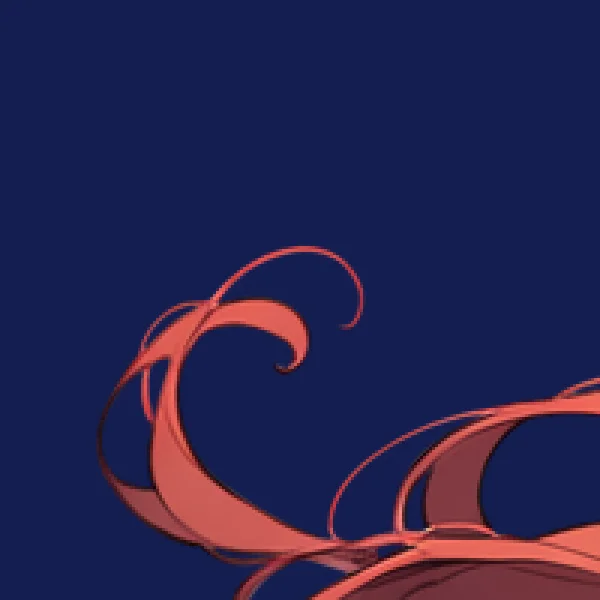

Neither image displayed white fringing along the borders.
Fine hair strands 1–2 pixels wide and the tips of the ahoge remained intact without dropouts, with the navy background showing cleanly between strands.
Generation Times
On an M1 Max 64GB Mac, I timed the duration from queuing in ComfyUI to receiving the finished image:
| Setup | Resolution | Steps | Duration (s) |
|---|---|---|---|
| Anima-Base + RGBA LoRA (Element breakdown, 22 runs) | 1024×1024 | 30 | 264–265 |
| Anima-Base + Character LoRA + RGBA LoRA | 832×1216 | 30 | 262 |
| Anima-Base + Character LoRA + RGBA LoRA + Turbo LoRA | 832×1216 | 8 | 41 |
On this M1 Max machine, 30 steps take roughly 4.5 minutes per image, making trial-and-error somewhat sluggish. Stacking Turbo LoRA to drop the step count to 8 reduces generation time to 41 seconds while preserving clean cutout accuracy, making the Turbo LoRA pairing the most practical choice for day-to-day workflow.