Running the National Diet Library's OCR Engine NDLOCR-Lite on Windows
 Contents
A while back I tried building the National Diet Library’s NDLOCR in Docker and it was a nightmare. GPU required, CUDA dependencies, hours just to get the build to pass — a real pain to get running.
That same NDL just released a lightweight version called “NDLOCR-Lite.” No GPU, no Docker — just pip install and it runs. Windows, Mac, and Linux supported.
Had to try it, so I ran both the GUI and CLI on Windows 11.
Repository: ndl-lab/ndlocr-lite
Test Environment
| Item | Spec |
|---|---|
| OS | Windows 11 Home |
| CPU | AMD Ryzen 7 5800HS |
| RAM | 16GB (8GB x2) |
| SSD | Intel 512GB NVMe |
| GPU | NVIDIA GeForce RTX 3050 Ti Laptop (not used this time — CPU inference only) |
What Is NDLOCR-Lite?
A lightweight version of the original NDLOCR that strips out Docker and GPU dependencies. Switching to ONNX Runtime means it runs on CPU alone. Internally it’s a three-module pipeline: layout recognition (DEIMv2), character recognition (PARSeq), and reading order sorting — all running ONNX inference.
GUI Version (Desktop App)
For anyone who doesn’t want to touch Python, this is the easier option. Pre-built binaries for each OS are available from the GitHub Releases page.
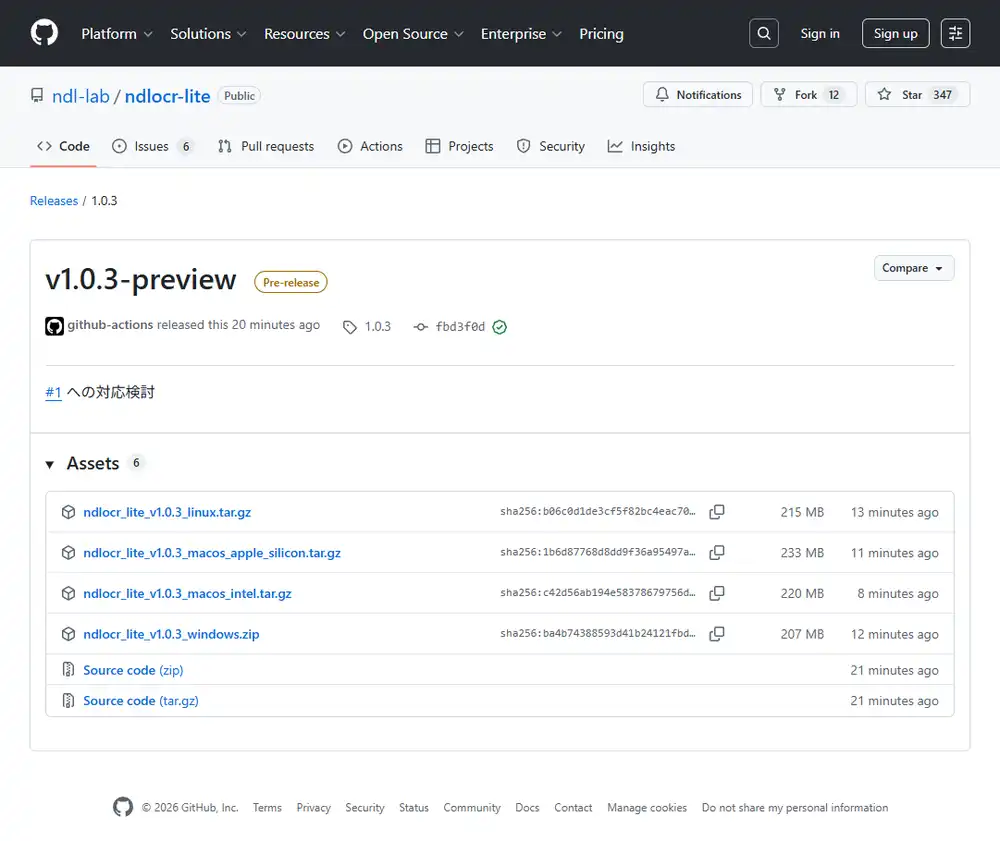
The Windows version is ndlocr_lite_v1.0.3_windows.zip, about 207MB. One gotcha: it may fail to launch if placed in a path containing Japanese characters (full-width). The README mentions this — safe to extract to something like C:\ndlocr-lite (ASCII only). Putting it in C:\Users\username\Desktop could be a problem.
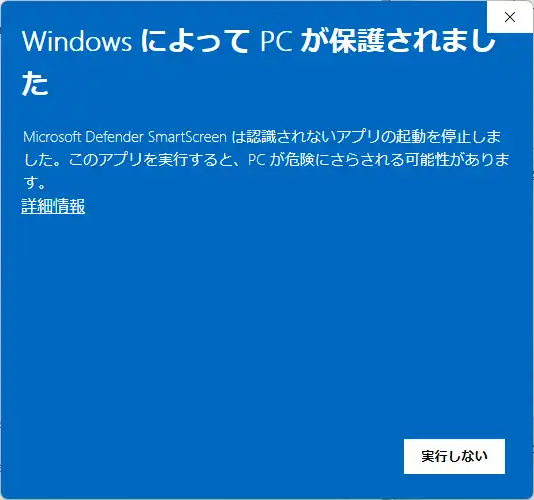
Running it triggers a SmartScreen warning — click “More info” → “Run anyway” to proceed.
The GUI is built with Flet (a Flutter-based Python UI framework). Supports switching between Japanese and English.
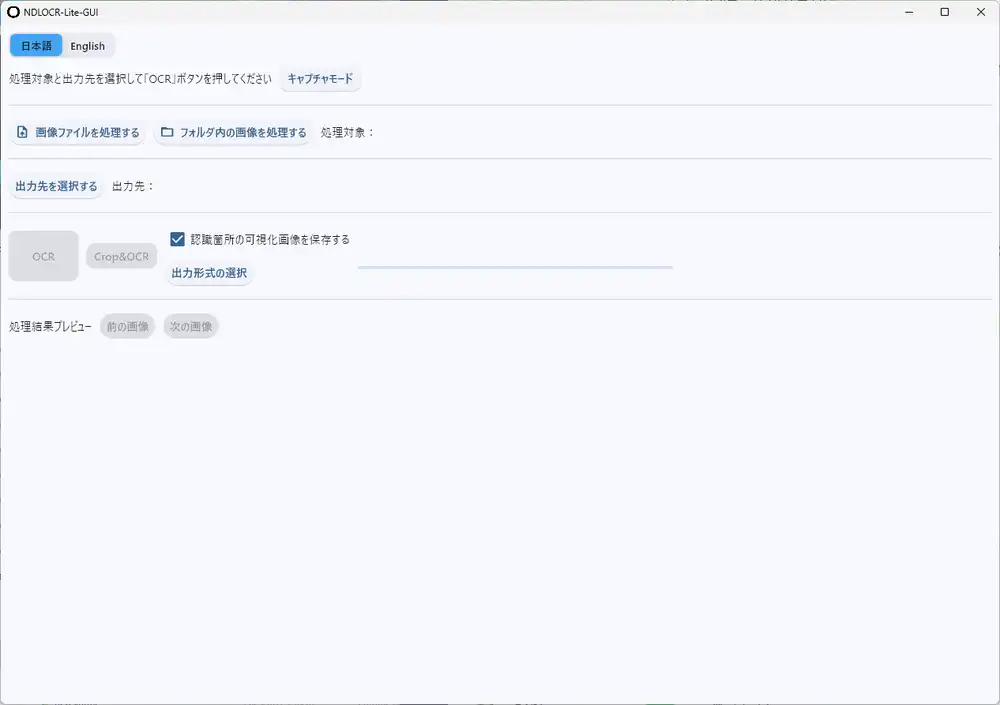
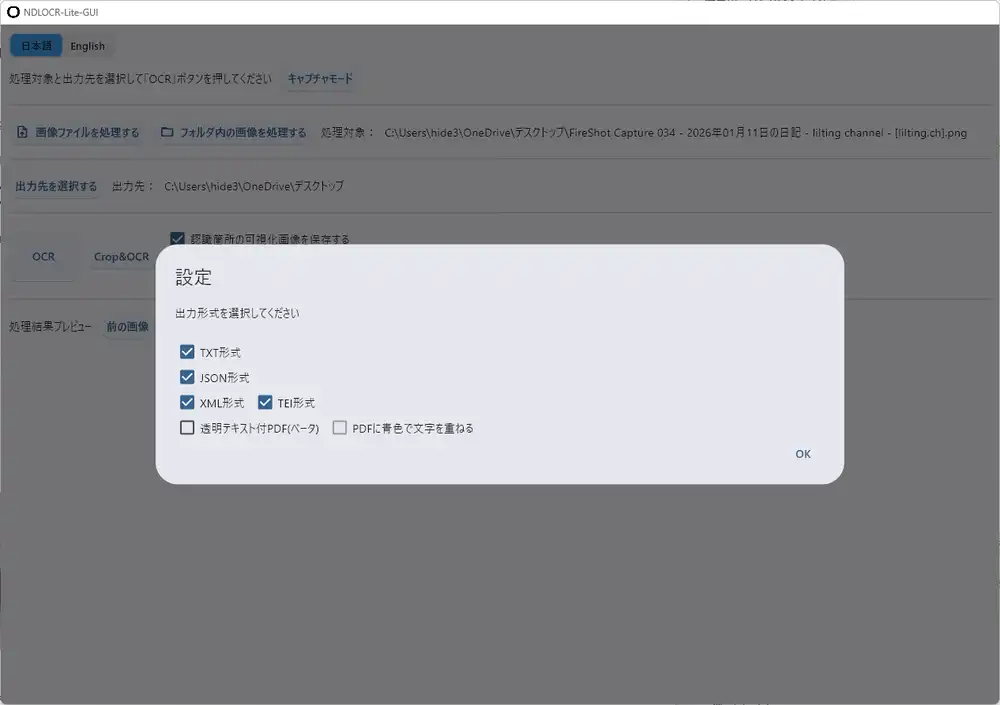
Choose “Process image file” or “Process images in folder,” specify the output directory, and click “OCR.” Output formats include TXT / JSON / XML / TEI, with a beta option for transparent text PDF.
The Capture Mode Is Handy
Clicking “Capture mode” lets you select any rectangular region of the screen and run OCR on it directly. I tried capturing a LINE chat list:
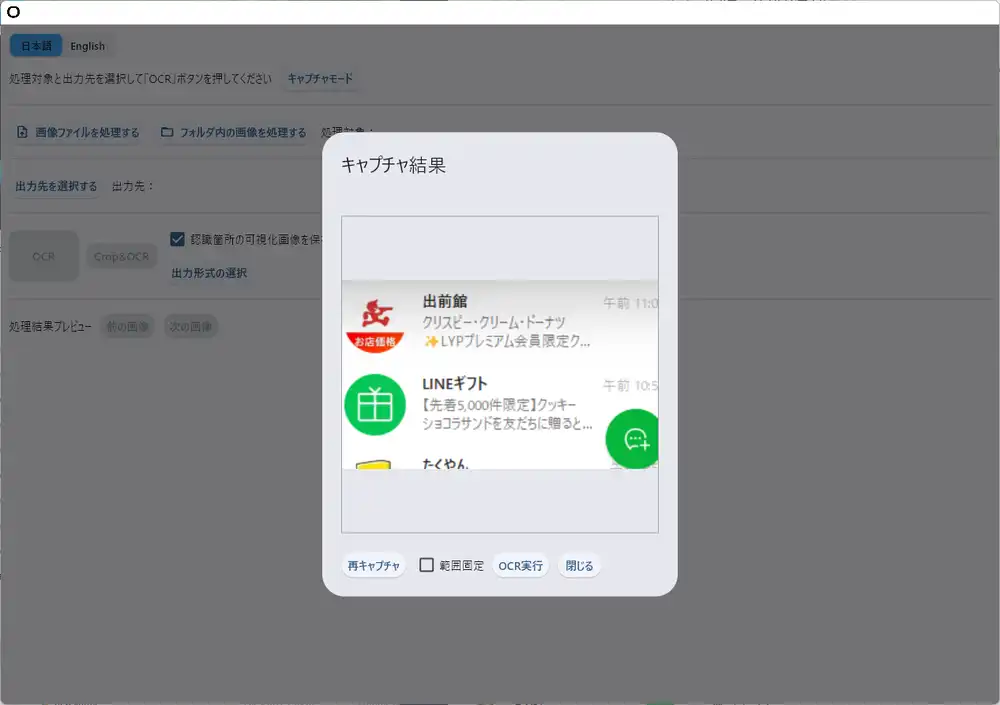
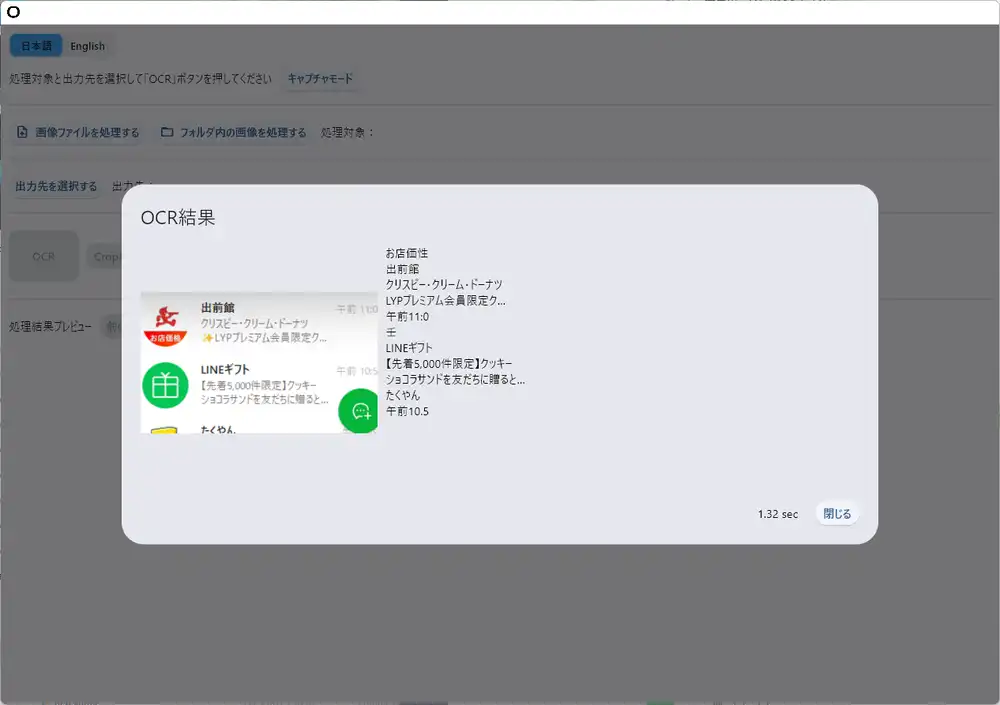
Processed in 1.32 seconds. Text like “出前館”, “クリスピー・クリーム・ドーナツ”, “LINEギフト”, “先着5,000件限定” was read accurately.
I also tried a screenshot of my blog’s diary page — processed in 1.69 seconds. Navigation, body text, and related articles all came through almost perfectly.
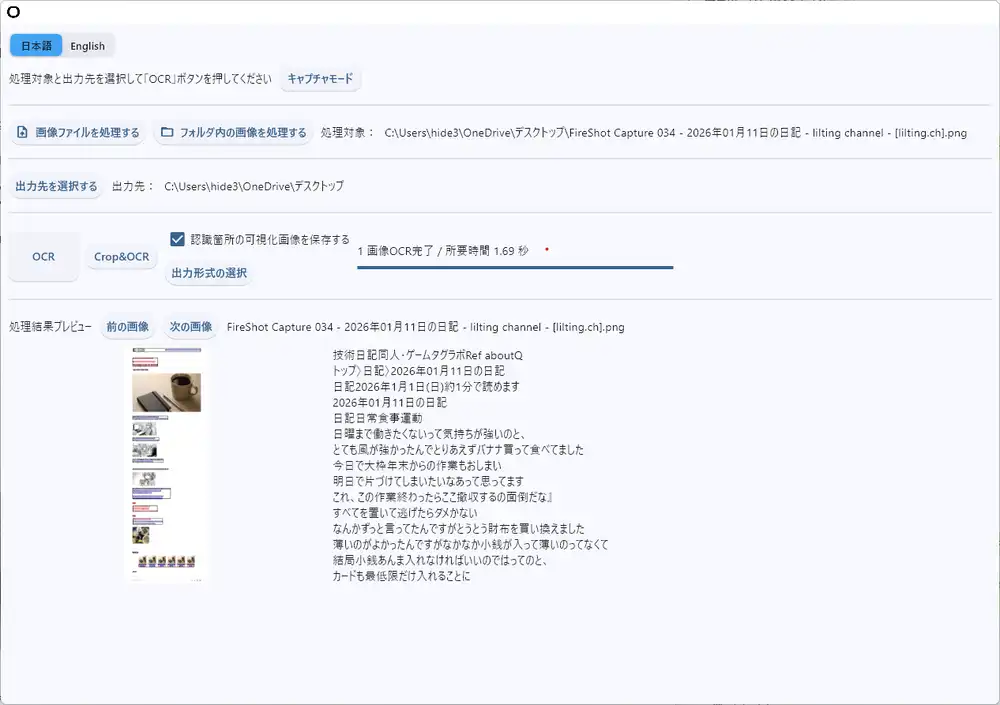
I expected it to be for ancient documents only, but it works fine on modern web pages and app screenshots too.
CLI Version
Use the CLI for batch processing or scripting. Requires Python 3.10+; I tested with Python 3.12.
git clone https://github.com/ndl-lab/ndlocr-lite
cd ndlocr-lite
pip install -r requirements.txt
Dependencies include flet, onnxruntime, pillow, numpy, lxml — nothing Windows-specific, installs cleanly.
Move to the src folder, then run ocr.py:
cd src

# Single image
python ocr.py --sourceimg [image path] --output [output dir]

# Whole folder
python ocr.py --sourcedir [folder path] --output [output dir]

# Also output visualization image
python ocr.py --sourceimg [image path] --output [output dir] --viz True
The output directory must exist beforehand — if it doesn’t, you get Output Directory is not found. and it crashes.
Results on Sample Images
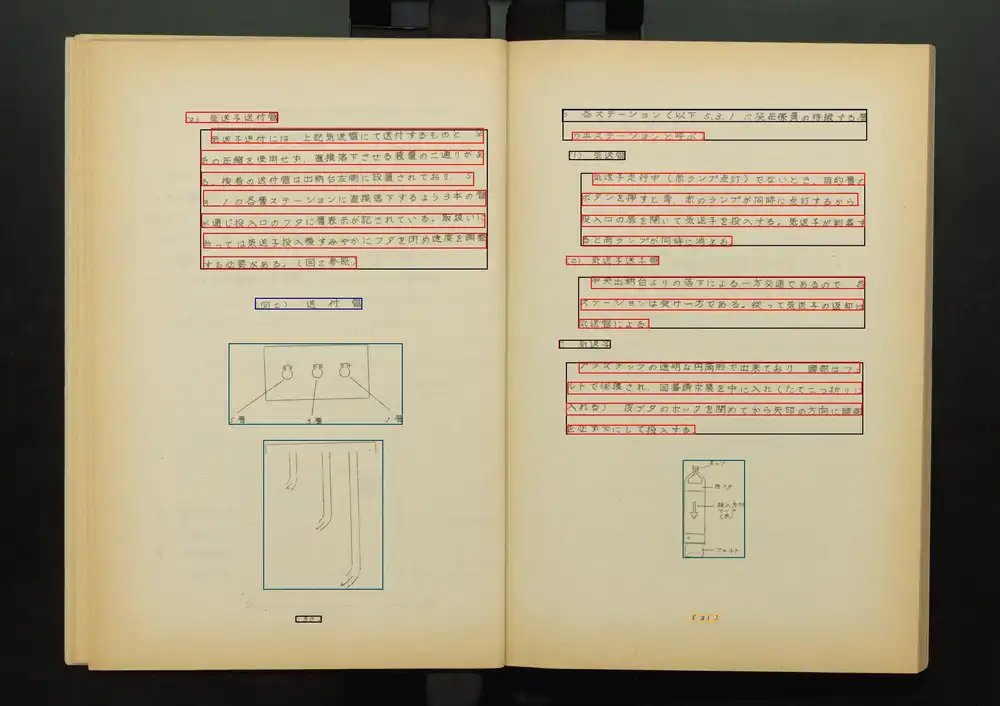
The repository’s resource/ folder contains 3 sample images: National Diet Library Digital Collection materials — internal library manuals and monthly reports from the 1950s–60s.
| Image | Regions detected | Processing time |
|---|---|---|
| digidepo_2531162_0024.jpg (staff manual, double-page) | 44 | 3.30 sec |
| digidepo_11048278_po_geppo1803_00021.jpg (monthly report) | 77 | 4.28 sec |
| digidepo_3048008_0025.jpg (annual report, double-page, multi-column) | 168 | 9.03 sec |
CPU-only and these speeds are quite fast.
Output Files
Each image produces TXT, JSON, and XML. With --viz True, a visualization image is generated showing text regions in red and figure/table regions in blue/green.
Original image:
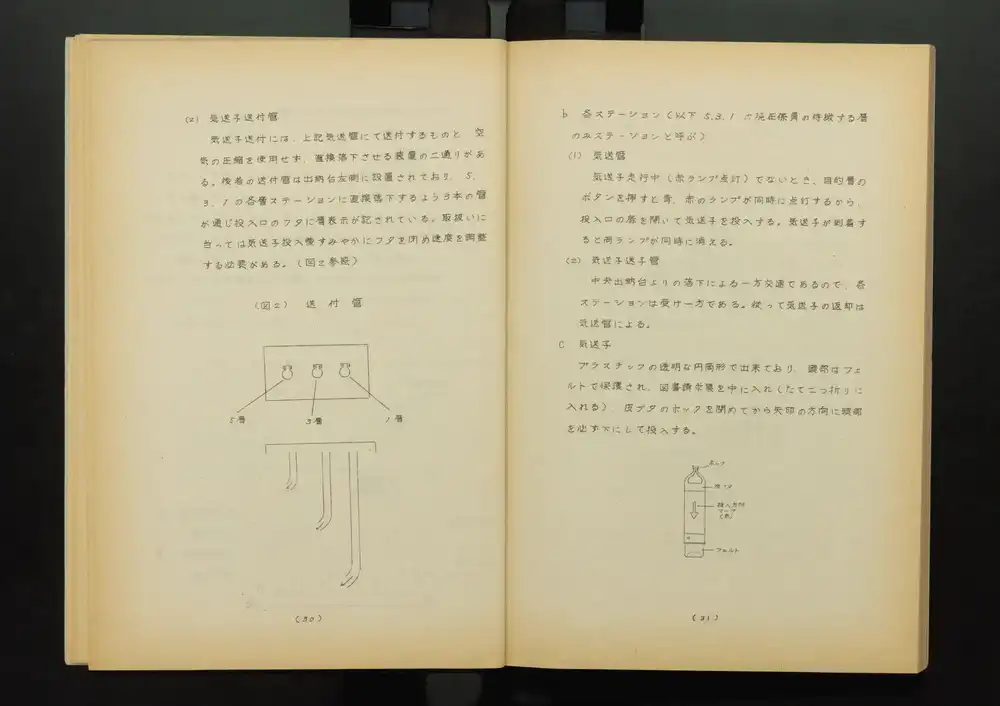
Visualization:
JSON includes bounding box coordinates, vertical/horizontal writing orientation, and confidence values — useful for post-processing.
Recognition Accuracy
OCR results from the 1963 staff manual (hand-set type letterpress):
(z)気送子送付管
気送子送付には、上記気送管にて送付するものと、空
気の圧縮を使用せず,直接落下させる装置の二通りがあ
る。後者の送付雪は出納台左側に設置されており.5
3.1の各層ステーションに直接落下するよう3本の管
が通じ投入ロのフタに層表示が記されている。
Pretty impressive accuracy for a Showa-era document with mixed old kanji. “管” misread as “雪”, “(ヱ)” as “(z)” — some errors, but overall structure and reading order are correct.
Multi-column and Table Recognition
I’ve previously written about struggling with NDLOCR’s multi-column recognition — how does the Lite version handle it? Tested with the 1952 National Diet Library annual report (2-column + table layout). 168 regions detected in 9.03 seconds.
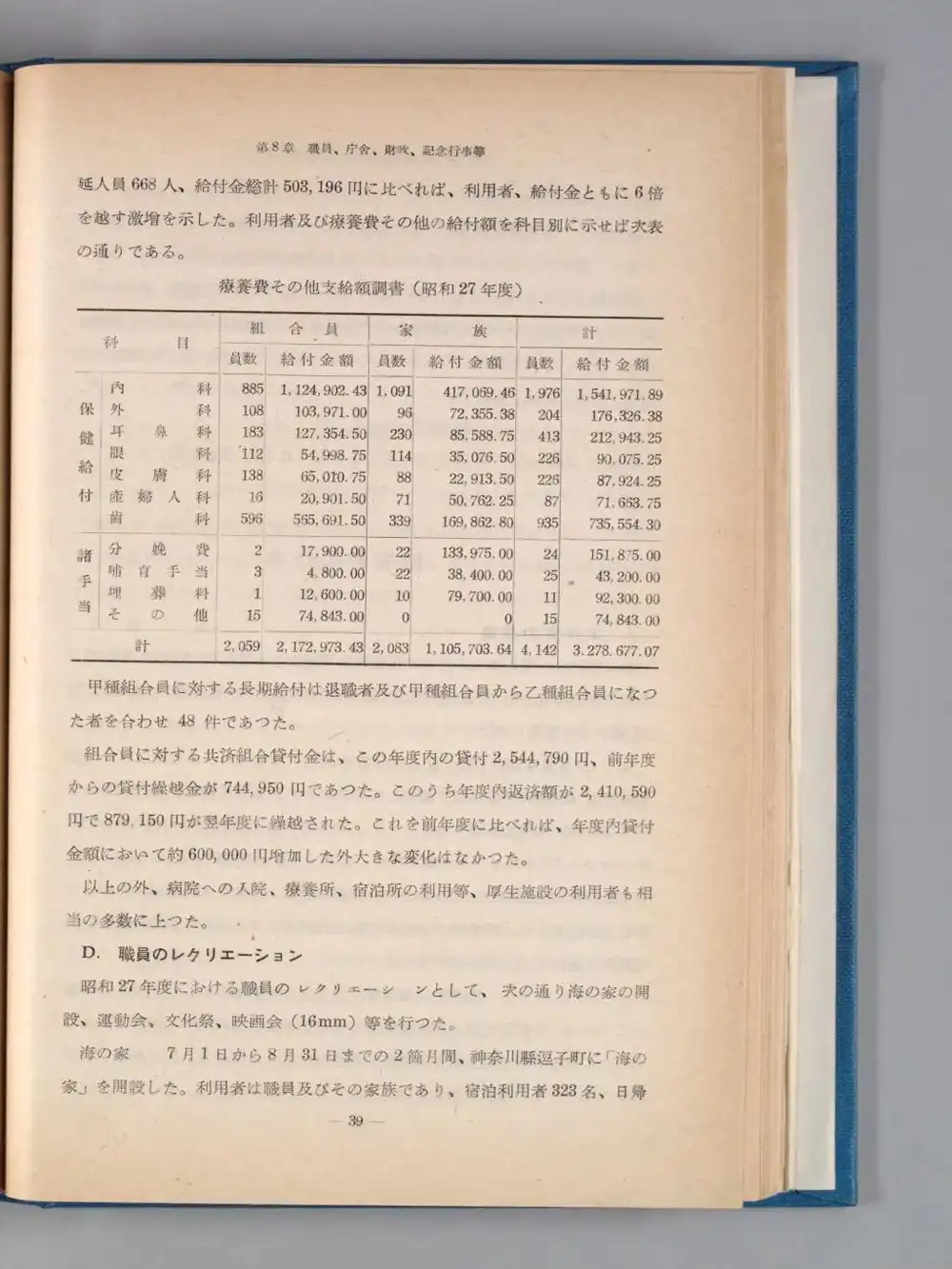
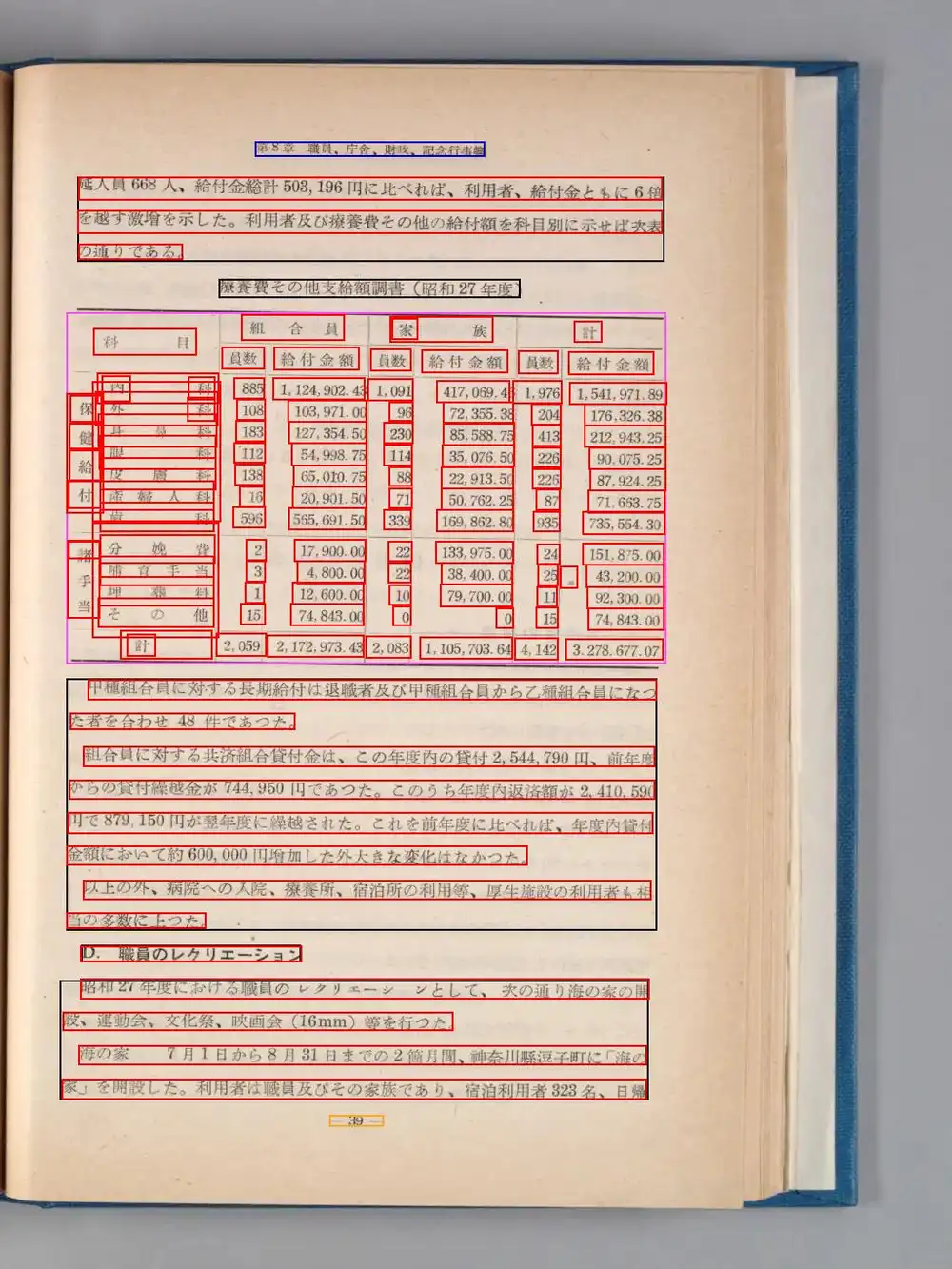
Table text output:
科 目
組合員
員数
給付金額
...
内科
外 科
皮膚科
産婦人科
歯科
眼科
...
885
108
183
112
138
16
596
...
1,124,902.43
65,010.75
127,354.50
54,998.75
565,691.50
TXT captures cell-level text, but it doesn’t reconstruct “内科 885 1,124,902.43” as a single row — cells output by column instead. All the medical categories come out together, then all the member counts, then all the amounts.
However, the JSON output includes per-cell bounding box coordinates and confidence values:
{"text": "内科", "confidence": 0.439, "boundingBox": [[1128,401],[1128,434],[1259,401],[1259,434]]}
{"text": "885", "confidence": 0.774, "boundingBox": [[1275,406],[1275,429],[1308,406],[1308,429]]}
{"text": "1,124,902.43", "confidence": 0.847, "boundingBox": [[1317,406],[1317,430],[1416,406],[1416,430]]}
Y coordinates are nearly identical (401–406), so grouping by Y position lets you determine that 内科 / 885 / 1,124,902.43 belong to the same row. Cell merging and header hierarchy aren’t reconstructed, but for tabular data you can reconstruct it yourself from these JSON coordinates.
Technical Notes
The developer, Aoike (@blue0620), posted details about the architecture when releasing it, so here’s a summary. The design goal was “comfortable operation even on low-spec office machines, like Snipping Tool” — and it works with as little as 1GB of free DRAM.
How They Made CPU Inference Fast
The bottleneck in CPU OCR is character recognition. Reducing the maximum characters a model can read at once makes the model smaller — but then it can’t handle lines with many characters, like English text.
NDLOCR-Lite solves this by having multiple models for short, medium, and long character counts, then pre-inferring which model each line should use before assigning them. This assignment inference is implemented by adding a classification head to the layout recognition DEIMv2 model, trained as an auxiliary loss alongside the primary loss. A single forward pass handles both layout detection and model assignment — no separate classifier to load, so neither memory nor inference cost increases.
Kana Chat’s intent classification uses the same approach — piggybacking on Haiku for classification rather than running a dedicated classifier. The principle of “don’t load what you don’t need” shows up in both OCR design and LLM apps.
Why OCR Gets Away With 1GB DRAM
This “multiple specialized models pre-loaded in memory with a router for dispatch” structure is the same concept as LLM MoE (Mixture of Experts) — the architecture used by GLM, Mixtral, DeepSeek and others. But doing this with LLMs requires dozens of gigabytes of VRAM.
For LLMs, a 72B parameter model weighs around 40GB in quantized form alone. Then inference needs KV cache (proportional to context length) and working memory for intermediate calculations — easily 90GB+ total. The “space to work” is larger than the model itself.
OCR models are tens of megabytes each. All three sizes together are still only hundreds of megabytes, with small inference workspaces. And only one model — the routed one — actually runs inference at any time. The developer’s claim of “works with 1GB DRAM” is possible precisely because of this structure.
Multithreaded Character Recognition
Character recognition for each assigned model runs in parallel across multiple threads. Computing roughly equal-length strings in parallel is efficient (a common technique in NLP competitions, per the developer).
As a misclassification countermeasure, multithreaded processing runs in small→medium→large order, and any output near a model’s character limit gets re-read by the next larger model. Just running everything through the largest model would be more stable but heavy on low-spec PCs — the design minimizes unnecessary computation.
Other Notes
- The developer’s competitive ML background shows in the implementation
- The organizational version apparently has a feature to connect to an ollama endpoint and extract information from OCR results
- GPU ONNX Runtime enables
--device cudafor GPU use (beta) - License: CC BY 4.0
After all the pain last time, it just worked — almost anticlimactic. The accuracy is high and memory usage is low, so if you have a lot of OCR work, building a batch pipeline around this makes sense.
Follow-up: OCR Correction on Showa-Era Documents with NDLOCR-Lite and Local LLMs (Mac setup + correction experiments with Qwen 3.5 / Swallow)