Building a Talkable AI Environment (3): We're Finally Talking
 Contents
After comparing voice APIs in the research post and implementing browser audio capture in the voice input post, the voice chat environment with an AI character is finally complete.
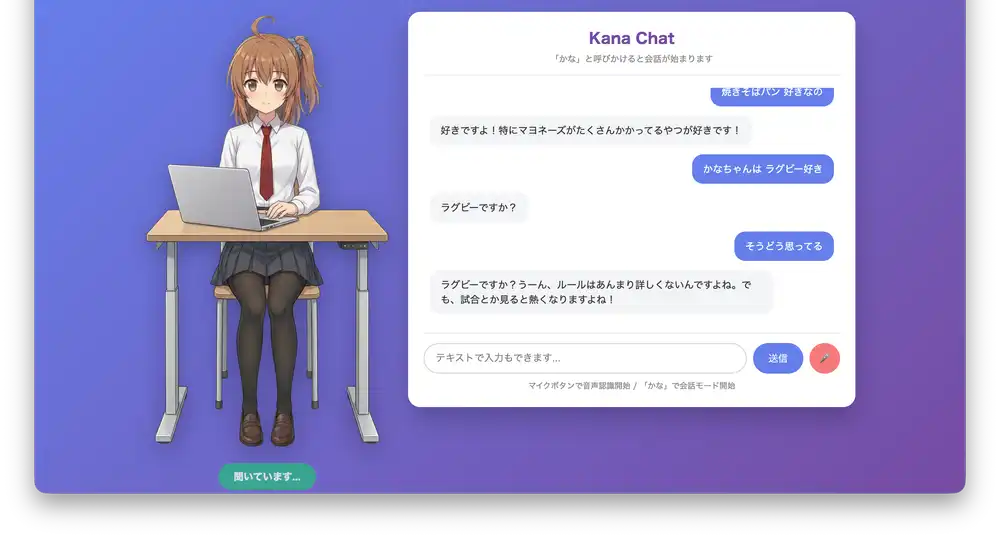
Final System Architecture
Here’s what the stack ended up looking like:
| Layer | Technology |
|---|---|
| Speech recognition (STT) | Web Speech API |
| LLM | Gemini 2.0 Flash |
| Text-to-speech (TTS) | VOICEVOX |
| Backend | Express.js |
| Conversation history | SQLite |
The system also integrates with these APIs:
- SwitchBot — temperature/humidity sensor, lighting on/off
- Google Calendar — schedule lookup
- GitHub CLI — issue and PR status
- Claude CLI / Codex CLI — answering technical questions
Processing Flow
- Wake word “kana” activates conversation mode
- Web Speech API converts speech to text
- Server-side routing logic decides how to handle it (see below)
- Gemini API generates a response
- VOICEVOX synthesizes speech
- Browser plays the audio
- 30 seconds of silence ends conversation mode
Routing has a priority order:
- Local instant responses (time, date)
- SwitchBot (temperature, lighting)
- Git / GitHub
- Google Calendar
- Claude CLI / Codex CLI (technical questions)
- Questions that need a Google Search
- General conversation (Gemini)
Simple questions like “What time is it?” get answered locally, “Turn on the lights” goes to SwitchBot, and “What’s in the news?” gets sent to Gemini with a Google Search attached.
Live Examples
Asking about the weather
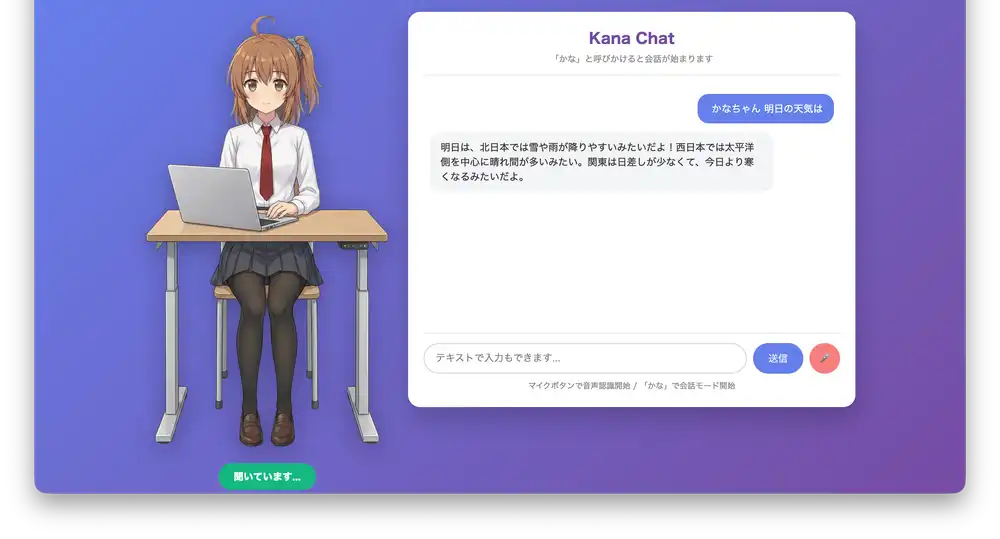
Asking “What’s the weather tomorrow?” triggers a Google Search for the latest forecast, which it reads back.
SwitchBot integration
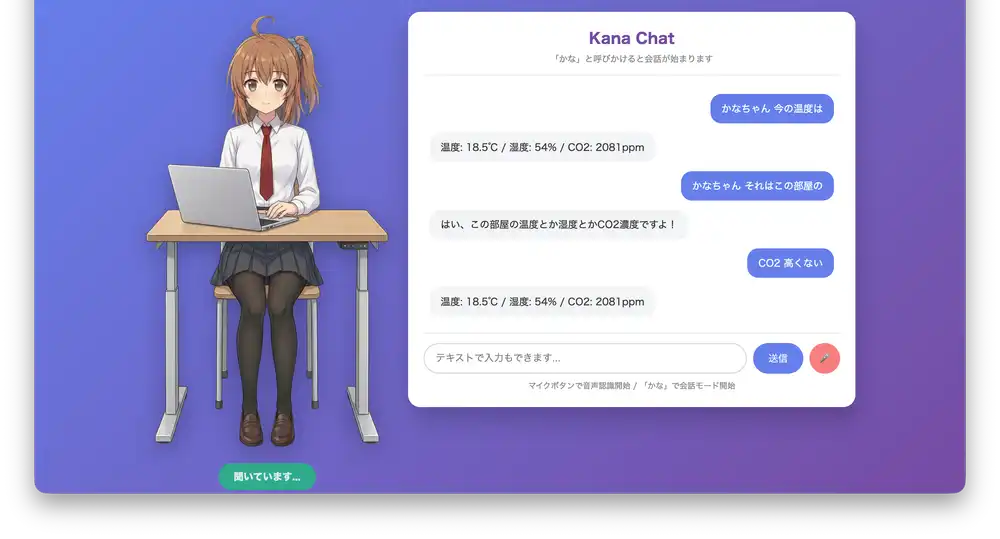
“What’s the temperature right now?” pulls data from the SwitchBot thermometer/hygrometer. When CO2 is high, it suggests opening a window.
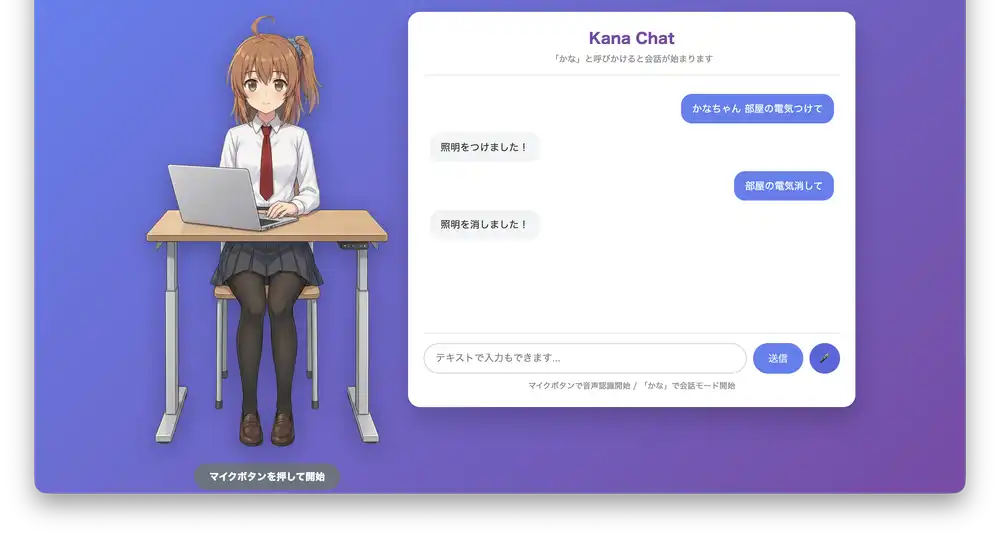
“Turn on the lights” and “Turn off the lights” control the room lighting.
Gotchas and Tips
Getting API tokens was a nightmare
The actual code went together as expected, but getting API tokens from each service was a pain.
Google AI Studio (Gemini API)
Wanted to use the free tier, but it inexplicably wouldn’t activate. Turns out you need billing enabled in Google Cloud Console just to get an API key — even for the free tier. The plan to separate billing from Cloud Console starting January 2026 apparently never happened.
SwitchBot API
The docs for getting an API key are baffling. The method is: App Settings → tap the app version number 10 times → a developer option appears. That’s a cheat code, not a settings menu.
Just getting through the setup burned an hour. Spending more time on auth configuration than writing code is a modern development rite of passage.
Preventing self-feedback
While audio is playing, the microphone picks up the speaker output and the AI responds to its own voice, creating a loop. The fix is to call recognition.stop() during playback:
function playAudio(base64Audio) {
  const audio = new Audio('data:audio/wav;base64,' + base64Audio);
  recognition.stop(); // pause recognition during playback
  audio.onended = () => recognition.start();
  audio.play();
}
Separating display from spoken text
Responses containing English words or code need different text for the screen versus the speech synthesizer:
{
  "display": "Just say 'Hello' and you're good!",
  "speak": "Just say hello and you're good!"
}
Specifying this format in the prompt gets Gemini to separate them appropriately.
VOICEVOX speech rate
The default is a bit slow. Setting speedScale: 1.2 felt natural:
const query = await fetch(`${VOICEVOX_URL}/audio_query?text=${text}&speaker=${speaker}`, { method: 'POST' }).then(r => r.json());
query.speedScale = 1.2;
const audio = await fetch(`${VOICEVOX_URL}/synthesis?speaker=${speaker}`, {
  method: 'POST',
  body: JSON.stringify(query)
});
Handling speech recognition errors
Web Speech API isn’t perfect. The prompt includes the instruction: “Input comes via speech recognition and may contain transcription errors — infer from context and respond accordingly.” Gemini fills in the blanks pretty well.
Impressions
What worked well:
-
Character settings hold up consistently — tone, interests, and reactions stay on-brand
-
Response latency is about 1–2 seconds, which feels acceptable for conversation
-
SwitchBot integration is genuinely convenient. Asking the temperature or telling it to turn off the lights by voice is surprisingly useful
-
The 30-second timeout prevents runaway false triggers
-
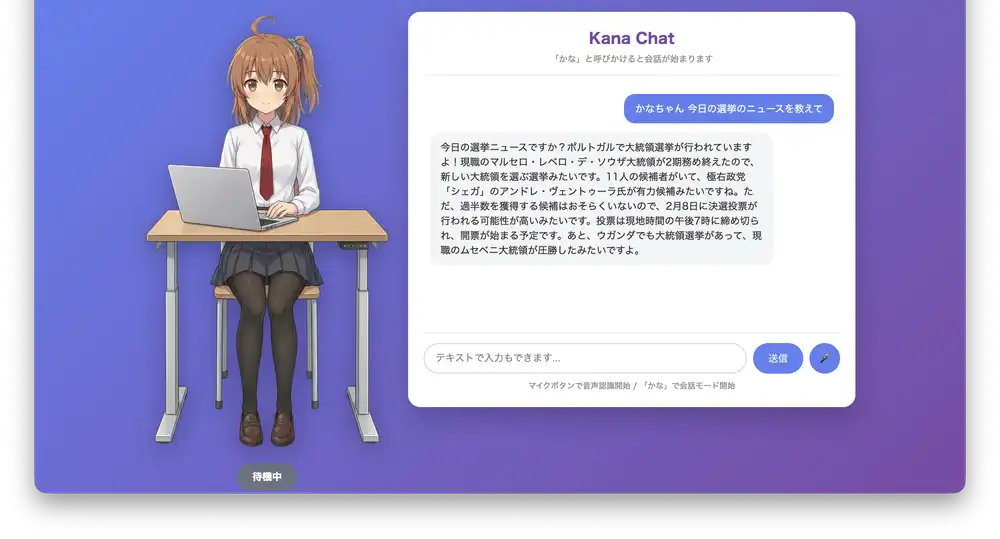
Even long responses get read out reliably (see the news example below). Haven’t hit a limit for anything this length.
Things to improve:
- The avatar is a static image; it needs more of a “living” feel
- Asking “What’s today’s temperature?” gets “I don’t know your location” — expected since I’m not sending geolocation. Need to decide whether to use the Geolocation API or hardcode a city name in the prompt
Next Steps
The standing illustration is currently static. Next up is making the avatar move:
- Live2D — animate a 2D avatar with lip sync
- VRM — load and animate a 3D avatar
- Facial expressions — change expressions based on the emotional tone of the response
The project is open on GitHub:
https://github.com/hide3tu/kana-chat
That’s it for the Web Speech API + Gemini + VOICEVOX voice chat setup. It runs on nothing but LLM API costs, which is fine for a hobby project. Next: moving the avatar.
- Trying to Talk to an AI (by voice) — the original concept
- Building a Talkable AI Environment (1): Voice API Research — comparing voice APIs
- Building a Talkable AI Environment (2): Voice Input Implementation — Web Speech API / MediaRecorder implementation