Preventing Safari 27.3 Beta Adaptive Dark Mode with color-scheme
 Contents
TL;DR
What Arrived Safari 27.3 beta introduces Adaptive Dark Mode. When the operating system appearance is set to dark, Safari automatically redraws light-themed websites that lack built-in dark mode support. This feature is enabled on the client side by the user.
Conditions to Prevent Conversion Websites that declare support via <meta name="color-scheme" content="light dark"> in HTML or color-scheme: light dark in CSS are excluded from automatic conversion.
Important Pitfall Declaring color-scheme: light dark tells the browser that dark styling is supported, which causes default system text colors to turn light under OS dark mode. If a site has hardcoded white backgrounds without explicit dark text colors, text becomes white-on-white and invisible. This issue stems from the color-scheme declaration altering system defaults, not from Adaptive Dark Mode itself. Always supply explicit dark backgrounds and text colors alongside the declaration. Selective exclusion via light only is not supported in beta 1.
In the initial developer betas of iOS 27.3, iPadOS 27.3, and macOS 27.3 released on November 3, 2026, Apple added “Adaptive Dark Mode” to Safari.
According to WebKit’s announcement, Safari automatically converts light-themed websites that lack native dark mode into a dark appearance.
From a site publisher’s perspective, pages without dark styling may be recolored by Safari under certain conditions.
Conversion occurs when the user has enabled the feature, the page has not declared dark mode support, and the page appearance is primarily light.
Site owners control this behavior through CSS color-scheme declarations. This article outlines the syntax, caveats, and code patterns based on WebKit documentation and local testing.
Actual visual behavior under Safari 27.3 beta has not been tested locally because beta builds are not available on this test environment.
Explanations of Adaptive Dark Mode behavior rely on WebKit announcements, W3C CSS specifications, and MDN documentation.
The accompanying code examples were tested in Safari 26.5.2 on macOS to verify how color-scheme declarations alter default rendering.
What Adaptive Dark Mode Does
To trigger the feature, the operating system appearance must be set to dark.
When visiting a site with a light background, Safari presents a preview of the converted page, and tapping “Try” switches to dark rendering.
As reported by 9to5Mac, users can choose between automatic application and per-site selection.
The conversion inverts perceived brightness (luminance) while attempting to preserve hue.
It aims for a contrast ratio of 4.5:1 between text and background, aligning with WCAG accessibility standards.
WebKit notes that elements are evaluated individually to prevent buttons, overlaid text, and hover menus from becoming unusable.
Element handling in Adaptive Dark Mode follows these guidelines:
| Target Element | Adaptive Dark Mode Handling |
|---|---|
| Naturally dark pages with light text | Left untouched |
| CSS light gradients | Darkened |
| SVG images | Colors adjusted as needed to keep icons and logos legible |
| Bitmap images | Mostly untouched; simple monochrome logos are inverted based on brightness histograms |
<canvas> content | Unaltered due to unpredictable content |
Masks and mix-blend-mode | Effects may be disabled on converted elements |
Declaring color-scheme to Prevent Conversion
The color-scheme CSS property informs the browser whether an element can be rendered with light or dark system defaults.
Setting it to light dark signals that the page natively supports both appearances.
WebKit states that Adaptive Dark Mode does not touch pages carrying this declaration.
Declarations should be placed inside HTML <head> or on CSS :root or body. Adding declarations later via JavaScript is discouraged.
<!-- HTML declaration: place inside <head> before CSS links -->
<meta name="color-scheme" content="light dark">
/* CSS declaration */
:root {
color-scheme: light dark;
}Avoid injecting meta tags after page load:
// Anti-pattern: appending declaration after DOM load
window.addEventListener('load', () => {
  const meta = document.createElement('meta');
  meta.name = 'color-scheme';
  meta.content = 'light dark';
  document.head.append(meta);
});
Conversion behavior by declaration state is summarized below:
| Page Declaration State | Converted by Adaptive Dark Mode | Source Reference |
|---|---|---|
light dark declared via meta or CSS | No | WebKit announcement |
light only declared via meta or CSS | Intended for exclusion, but ignored in beta 1 | WebKit notes only keyword is unsupported in beta 1 |
| Undeclared, light background | Yes | WebKit announcement |
| Undeclared, naturally dark | No | WebKit announcement |
light only or dark only declared | Unspecified | Not documented in WebKit announcement |
In beta 1, declaring light dark is the only documented method to reliably prevent automatic conversion.
Invisible Text Caused by Undeclared Font Colors
Declaring color-scheme: light dark is not a simple disable toggle; it asserts that the page natively supports dark rendering.
Once declared, operating system dark mode switches browser default styling to dark palettes.
Under the W3C CSS Color Adjustment specification, this declaration updates scrollbars, form controls, and root canvas background defaults.
Elements without explicit color rules inherit default system text colors.
These system defaults switch to light values under dark mode.
If a page pins background colors to #ffffff without specifying text colors, white text renders on a white background. This invisible text occurs because the browser adjusts system default text colors to light under OS dark mode while the background remains hardcoded to white, not because of Adaptive Dark Mode itself.
<!-- Broken pattern: color-scheme declared without dark color definitions -->
<meta name="color-scheme" content="light dark">
<style>
  body {
    background: #ffffff; /* Background hardcoded to white */
    /* Text color undeclared: defaults to light under dark appearance */
  }
</style>
Testing this snippet with sample text, inputs, and buttons in Safari 26.5.2 under light OS appearance shows normal black text on a white background:

Switching the OS appearance to dark mode causes headings and body copy to disappear entirely.
Inspecting pixels confirmed that text positions rendered at pure white (#ffffff), blending into the background.
Only the link and form controls adapted with dark styling remained visible, standing out against the white background:

When adding color-scheme: light dark, dark background and text colors must be defined together.
Minimal Working Example for Dark Mode
The following standalone HTML demonstrates proper dark mode setup.
Logo files (logo-light.svg and logo-dark.svg) should be placed in the same directory, or alt text will appear instead.
Toggling OS appearance switches colors accordingly.
<!doctype html>
<html lang="en">
<head>
  <meta charset="utf-8">
  <meta name="viewport" content="width=device-width, initial-scale=1">
  <!-- Declare dark mode support before external CSS loads -->
  <meta name="color-scheme" content="light dark">
  <title>color-scheme Example</title>
  <style>
    :root {
      color-scheme: light dark;
      /* light-dark(light-value, dark-value) */
      --bg: light-dark(#ffffff, #121212);
      --text: light-dark(#1a1a1a, #e6e6e6);
      --muted: light-dark(#5f6368, #a0a4a8);
      --link: light-dark(#0b57d0, #8ab4f8);
      --card: light-dark(#f4f5f7, #1e1f22);
      --border: light-dark(#d9dce1, #3a3c40);
    }

    body {
      margin: 0;
      background: var(--bg);
      color: var(--text);
      font-family: system-ui, sans-serif;
      line-height: 1.7;
    }

    main {
      max-width: 40rem;
      margin: 0 auto;
      padding: 24px 16px;
    }

    a {
      color: var(--link);
    }

    .card {
      background: var(--card);
      border: 1px solid var(--border);
      border-radius: 8px;
      padding: 16px;
    }

    .note {
      color: var(--muted);
      font-size: 0.875rem;
    }
  </style>
</head>
<body>
  <main>
    <!-- Switch logo image based on OS color scheme -->
    <picture>
      <source srcset="logo-dark.svg" media="(prefers-color-scheme: dark)">
      <img src="logo-light.svg" alt="Site Logo" width="160" height="40">
    </picture>

    <h1>color-scheme Example</h1>
    <div class="card">
      <p>Toggling OS appearance switches background and text colors.</p>
      <p><a href="#">Link colors</a> adapt to dark palettes.</p>
      <p><input type="text" placeholder="Form inputs adapt automatically"></p>
      <p class="note">Muted text uses intermediate contrast values.</p>
    </div>
  </main>
</body>
</html>
The light-dark() function returns the first argument in light mode and the second argument in dark mode.
As documented on MDN, color-scheme: light dark must be set on the element (typically :root) for light-dark() to resolve.
The <picture> approach with media="(prefers-color-scheme: dark)" is also recommended by WebKit for image switching.
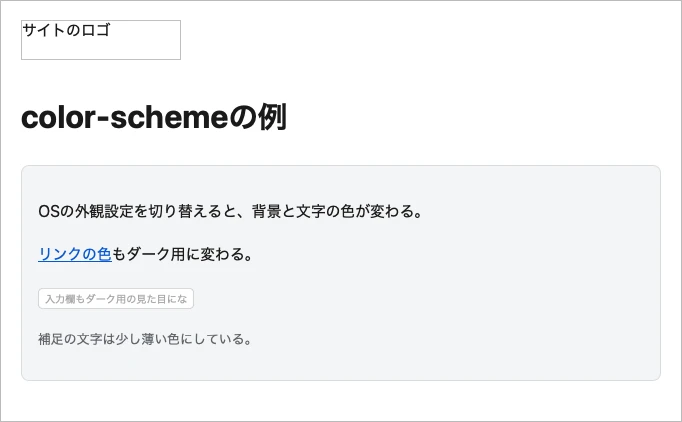
Testing this page in Safari 26.5.2 under light OS appearance shows a white background with gray cards:
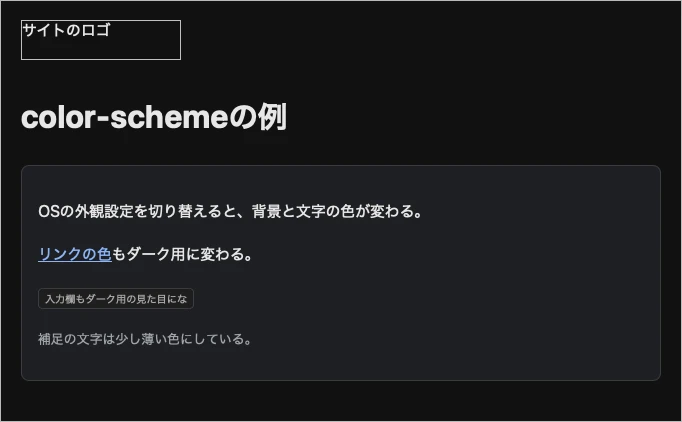
Switching OS appearance to dark mode updates background, cards, text, and form inputs to dark values:
For browsers lacking light-dark() support, @media (prefers-color-scheme: dark) provides a fallback:
:root {
  color-scheme: light dark;
  --bg: #ffffff;
  --text: #1a1a1a;
  --muted: #5f6368;
  --link: #0b57d0;
  --card: #f4f5f7;
  --border: #d9dce1;
}

@media (prefers-color-scheme: dark) {
  :root {
    --bg: #121212;
    --text: #e6e6e6;
    --muted: #a0a4a8;
    --link: #8ab4f8;
    --card: #1e1f22;
    --border: #3a3c40;
  }
}
Example: Manual Theme Toggle Button
Many websites provide a toggle button allowing users to override OS preferences.
In these designs, keep <meta name="color-scheme" content="light dark"> in the HTML, using JavaScript solely to apply the user selection to the root element.
<!doctype html>
<html lang="en">
<head>
  <meta charset="utf-8">
  <meta name="viewport" content="width=device-width, initial-scale=1">
  <meta name="color-scheme" content="light dark">
  <script>
    // Apply saved preference prior to render to avoid flash of unstyled content
    (() => {
      let saved = null;
      try {
        saved = localStorage.getItem('theme');
      } catch {}
      if (saved === 'light' || saved === 'dark') {
        document.documentElement.dataset.theme = saved;
      }
    })();
  </script>
  <title>Theme Toggle Example</title>
  <style>
    :root {
      color-scheme: light dark; /* Follows OS default when unset */
      --bg: light-dark(#ffffff, #121212);
      --text: light-dark(#1a1a1a, #e6e6e6);
    }

    :root[data-theme="light"] {
      color-scheme: light;
    }

    :root[data-theme="dark"] {
      color-scheme: dark;
    }

    body {
      margin: 0;
      padding: 24px 16px;
      background: var(--bg);
      color: var(--text);
      font-family: system-ui, sans-serif;
    }
  </style>
</head>
<body>
  <button type="button" id="theme-toggle">Toggle Light / Dark</button>
  <p>Saved preferences persist across subsequent page loads.</p>

  <script>
    const root = document.documentElement;
    document.getElementById('theme-toggle').addEventListener('click', () => {
      const current = root.dataset.theme
        ?? (matchMedia('(prefers-color-scheme: dark)').matches ? 'dark' : 'light');
      const next = current === 'dark' ? 'light' : 'dark';
      root.dataset.theme = next;
      try {
        localStorage.setItem('theme', next);
      } catch {}
    });
  </script>
</body>
</html>
Colors are defined with light-dark(), while the button changes color-scheme.
Setting color-scheme: light forces light-dark() to its first argument and keeps scrollbars and controls in light mode, even if the OS is in dark mode.
Testing in Safari 26.5.2 with dark OS appearance initially rendered the page in dark colors. Clicking the button switched the entire page to light appearance:

Because the <meta> tag declares light dark, WebKit’s documentation indicates Adaptive Dark Mode will not touch the page.
However, when a user selects light appearance, CSS sets <html> color-scheme to light, differing from the meta tag.
Whether Safari prioritizes meta or CSS in this scenario is not documented and requires verification on Safari 27.3 beta hardware.
Partial Exclusion with light only
Certain page components—such as sales charts, product photographs, or brand headers—often require light presentation regardless of mode.
WebKit notes that declaring light only excludes elements from Adaptive Dark Mode.
The rule can apply to the full page via <meta> or to individual elements in CSS.
However, this keyword is not yet supported in Safari 27.3 beta 1.
<!-- Full page exclusion -->
<meta name="color-scheme" content="light only">
/* Selective element exclusion */
.sales-chart,
.product-photo-frame {
color-scheme: light only;
}The only keyword originates in the W3C CSS Color Adjustment specification, which defines it as barring user agents from overriding colors.
MDN notes similar use cases for preventing Chrome’s Auto Dark Theme.
Under the specification grammar, only may precede or follow the color keyword (only light and light only are equivalent).
WebKit documentation explicitly notes that Safari 27.3 beta 1 does not support the only keyword.
Until future beta updates implement support, elements needing exclusion must declare color-scheme: light dark and supply custom colors.
/* Workaround for beta 1: declare light dark and manage custom palette */
.sales-chart {
  color-scheme: light dark;
  background: light-dark(#ffffff, #1e1f22);
  color: light-dark(#1a1a1a, #e6e6e6);
}
Adjusting Assets for Automatic Conversion
For sites that choose not to build custom dark themes and instead rely on Adaptive Dark Mode, WebKit outlines five asset recommendations:
| Asset or Style | Recommendation |
|---|---|
| Logos and icons | Replace bitmap images with SVG. SVG fills adapt cleanly, whereas bitmaps only invert simple monochrome assets. |
| Tiled backgrounds | Replace background images with CSS solid colors or gradients, which convert automatically. |
| Image sprites | Migrate from bitmap sprites to CSS icons. |
| Content images | Use transparent backgrounds rather than hardcoded white background fills. |
| Containers | Provide explicit padding to prevent tight visual spacing after inversion. |
Client-Side Detection of Adaptive Dark Mode
WebKit notes that Safari prevents client-side scripts from detecting whether Adaptive Dark Mode has modified the page.
Querying computed CSS styles returns author-specified values rather than inverted values.
Reading pixels from <canvas> elements similarly returns unmodified source colors.
Analytics scripts cannot differentiate between Adaptive Dark Mode views and standard renderings.
Verifying visual output requires testing directly within Safari 27.3 beta.
For reporting rendering issues, WebKit directs web publishers to Apple’s evangelism team at web-evangelist@apple.com, while general feedback can be filed through Feedback Assistant.